
Assigning Client Cases
Client cases must be assigned to a specific user before that user can begin working on the case.
Before you begin
About this task
Note that the number of days left to complete the current phase uses full days. For example, if it’s 4:00 P.M. and 1 is shown, you have the rest of today and tomorrow to complete the phase.
If a case is not currently assigned, you will see the words Not Assigned and a count of how long the case has been waiting to be assigned.
Procedure
-
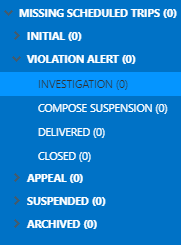
Select the for the phase in which you are working.
For example, the Violation Alert - Investigation phase.
-
Select the case card of the case to be assigned.
Assign options are only available in the Investigation phase.Case information, which may include Client Information, Case History, and Infractions, for the selected case is visible.
-
Do one of the following:
To Do this Assign the case to the current user Click Assign to 
Me:Assign the case to a specific user (including the current user) Click Assign: 
Select the user to which to assign the case and click OK.
Assign all cases in the current phase (for example, Violation Alert - Investigation) to the current user Click the Assign To Me arrow (  ), then click All In Phase.
This option is available for Investigation phases.
Assign all cases in the current phase (for example, Violation Alert - Investigation) to a single user Click the Assign arrow ( ), then click All In Phase.Select the user to which to assign the case and click OK.
This option is available for Investigation phases.
Assign all unassigned cases in the current phased (for example, Violation Alert - Investigation) to the current user Click the Assign To Me arrow, then click All in Phase Unassigned Cases. This option is available for Investigation phases.
Assign all unassigned cases in the current phased (for example, Violation Alert - Investigation) to a single user Click the Assign arrow, then click All in Phase Unassigned Cases. Select the user to which to assign the case and click OK.
This option is available for Investigation phases.