
Adding Letter Tables to Template Letters
Tables containing a list of previously sent case letters can be added to template letters for Flag Periods policies.
Before you begin
About this task
The steps outlined here are for Word 2013. For help locating table options in other versions of Microsoft Word, please refer to Microsoft documentation for your product.
Procedure
- Place the cursor where the table containing the dynamically generated content should appear.
-
Insert a two-row table:
-
Click Table, then select a table size.
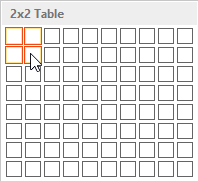
The table is a template and only needs to contain two rows: a heading row and a row that will be copied and populated with available information.A table is inserted into the document.
-
Click Table, then select a table size.
- Right-click on the table and click Table Properties.
- Click the Alt Text tab.
-
In the Title field, type
Letters.
If the Title is spelled incorrectly, Service Infractions will not be able to populate the table.
- Click OK.
-
Insert MergeFields into the table as desired.
For example, you may use a two-column table that includes the letter date in Column A and the stage in Column B.