
Adding MergeFields to Template Letters
MergeFields are updated with client information when case-specific letters are generated from Service Infractions.
Before you begin
About this task
The steps outlined here are for Word 2013. For help locating the MergeField option in other versions of Microsoft Word, please refer to Microsoft documentation for your product.
Procedure
-
Open a new Microsoft Word document.
Alternatively, you can open a previously created .docx letter that should be updated with dynamic fields.
- Place the cursor where the dynamic field should appear.
- Click the Insert tab.
- Click .
- In the Field names list, click MergeField.
-
In the Field properties frame, in the Field
name field, type the name of the template letter field to be
used.
For example, ViolationCount.Type the field name exactly as it is listed in the reference table. Service Infractions ignores capitalization but if there are any spelling errors the field will not be populated with case-specific content.
- Optional:
Select a Format for the text to appear in (in the
template letter).
For example, if you are inserting FirstName, you may want to use the First capital format. Note that the selected format may not be respected by some databases.
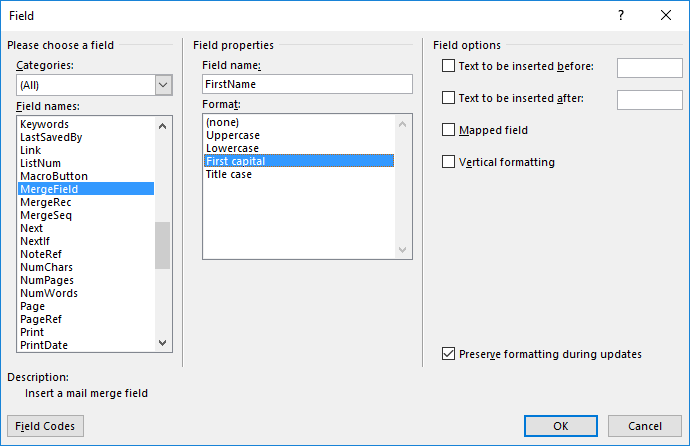
- Click OK.
Results
