
Using Design Mode
Design mode lets you customize the position and size of fields and the field labels.
-
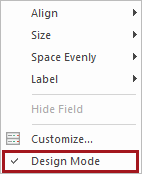
In detail view, right-click Design Mode.
A check mark beside the Design Mode menu item indicates you are in design mode.
-
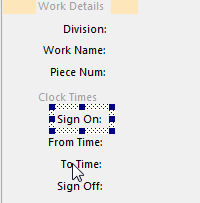
Select the field or label to update.
You can select multiple fields by pressing Ctrl and clicking the items to include.A dotted rectangle surrounds the selected item(s).
-
Move the selected field(s) and label(s) by dragging the field to the
appropriate position on the screen.
If you select multiple items, the items are moved as a group.
- Optional:
If you have added form frames, you can use the form frames to create named
sections on your sheet and add fields inside those sections.
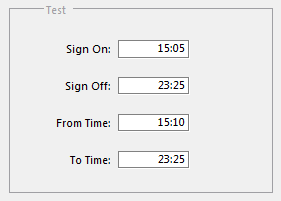
In this example, we added a form frame named Test. We then moved 4 fields inside the form frame.
-
Right-click on a field (or select a group of fields) and click the option to
apply:
Most options are only activated if you select more than one field.
Option Description Align Align the selected fields. Size If multiple fields are selected you can set them to the same width, height, or size. If only one field is selected you can set the size to the content or size the label to the size of the label's content. Space Evenly Create even spacing between the selected fields. Use Down to evenly space a column of fields. The ½ and ¼ down options let you decrease the space between the fields. Label This function operates on a field and the field's label together. Select both the field and the field's label to use this function. You can select multiple pairs of fields and labels. Left and Top change the placement of the label. Hide removes the label from the display but leaves the field. Select the field and then Unhide to show the label.
Hide Fields Select any combination of labels and fields. Select Hide Fields to remove both the field and label from display. -
To stop hiding fields:
- Click on the screen with hidden fields.
- Right-click Customize.
- Select the Fields to show.
- Select OK.