
Creating and Formatting Matrices

Matrices allow power users to show data in a more dynamic table format.

Matrices support a stepped layout. Stepped layouts use a hierarchy of data, which also allows you to use drill up and drill down options.
  1. Open the report to which you want to add a matrix.
  2. In the Visualizations pane, select Matrix:
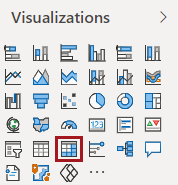
    The Visualizations pane showing the Matrix option circled in red.
  3. Drag fields to include in the matrix from the Fields pane to the Rows, Columns, and Values areas in the Visualizations pane.
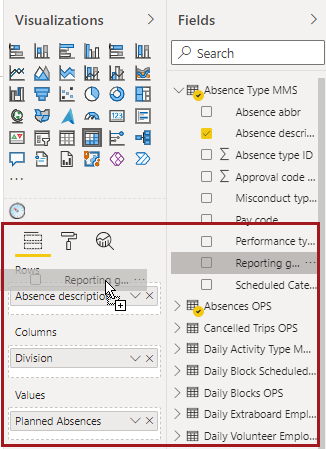
    Fields and Visualizations pane with a drag-and-drop action circled in red.
    The matrix is shown with rows organized in separate columns.
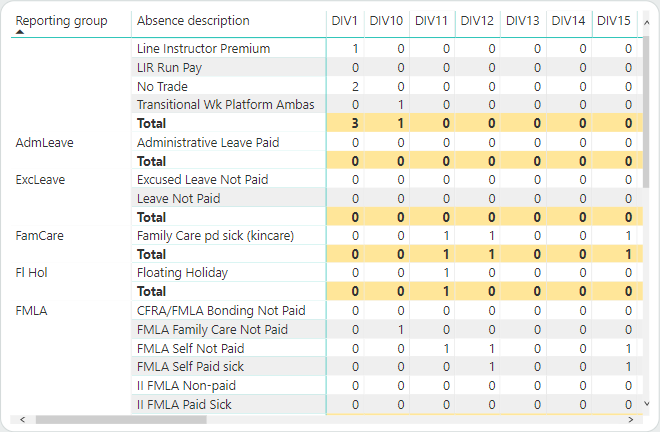
    A matrix visual showing a data hierarchy separated into columns.
  4. Add a stepped layout to the matrix.
    1. In the Visualizations pane, select Format.
    2. In the Row headers section, move the Stepped layout slider to On.
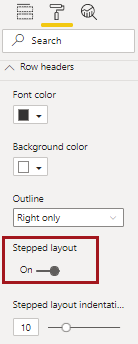
      The Stepped layout option circled in red.
    3. Define any other row header formatting.
    The visual appears showing a stepped layout.
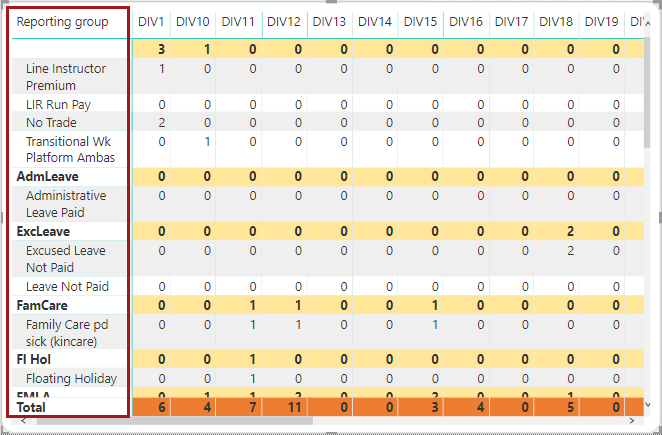
    A matrix visual showing a data hierarchy in a stepped layout.
  5. Add totals and subtotals to the matrix:
    1. In the Visualizations pane, select Format.
    2. In the Subtotals section, move the Row subtotals and/or Column subtotals slider to On.
    3. Make any other subtotal format changes.
    4. In the Grand total section, make any other grand total format changes.
      Grand totals are also considered subtotals and formatting selected here may overwrite subtotal formatting, depending on your data. Grand totals are most useful if you have a hierarchy of data (multiple categories or sub-categories) that also needs a total. In the following image, the background color for subtotals is yellow and the background color for grand totals is orange.
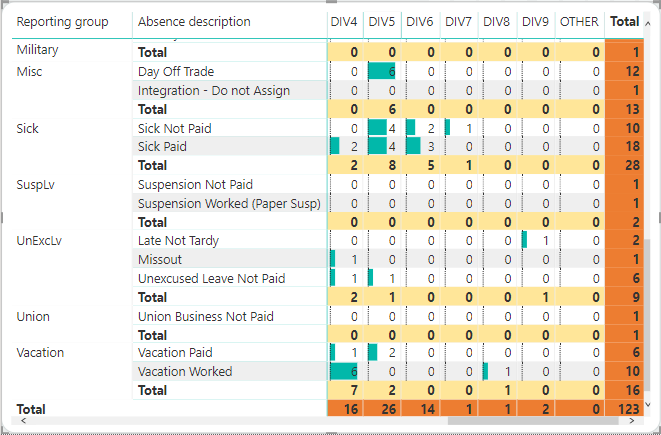
      A matrix visual showing subtotals highlighted in yellow and totals highlighted in orange.
    5. To undo your changes, select Revert to default in the Subtotals or Grand total section, as applicable.
  6. Add additional visual cues to the matrix:
    1. In the Visualizations pane, select Format.
    2. In the Conditional formatting section, select the field to format.
    3. Select whether to move the Data bars slider to On.
      Select Advanced controls to further customize the look of your data.
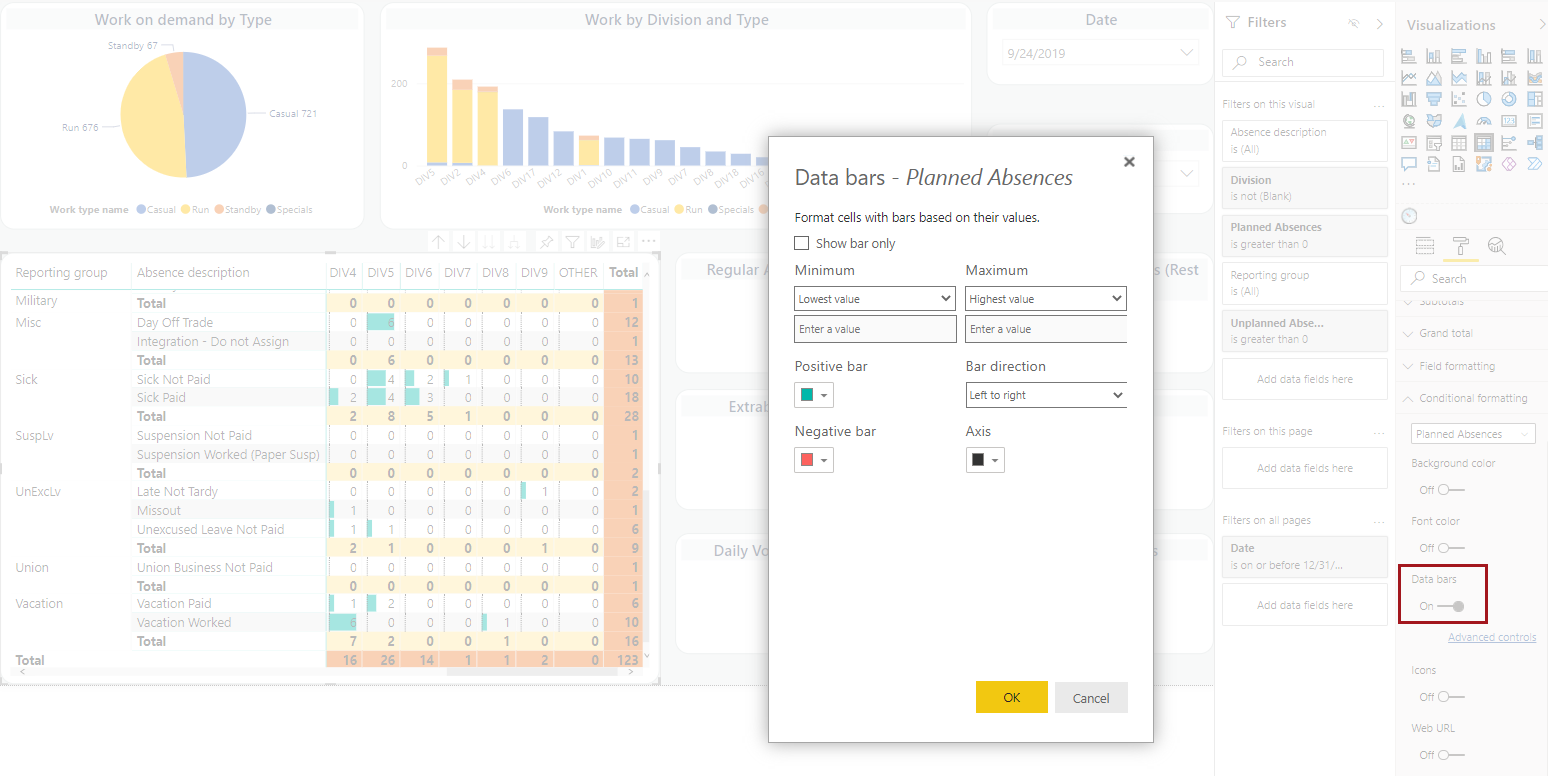
      The Data bars dialog and the Data bars option and applied data bars circled in red.
    4. Select whether to move the Icons slider to On.
      Select Advanced controls to further customize the look of your data.
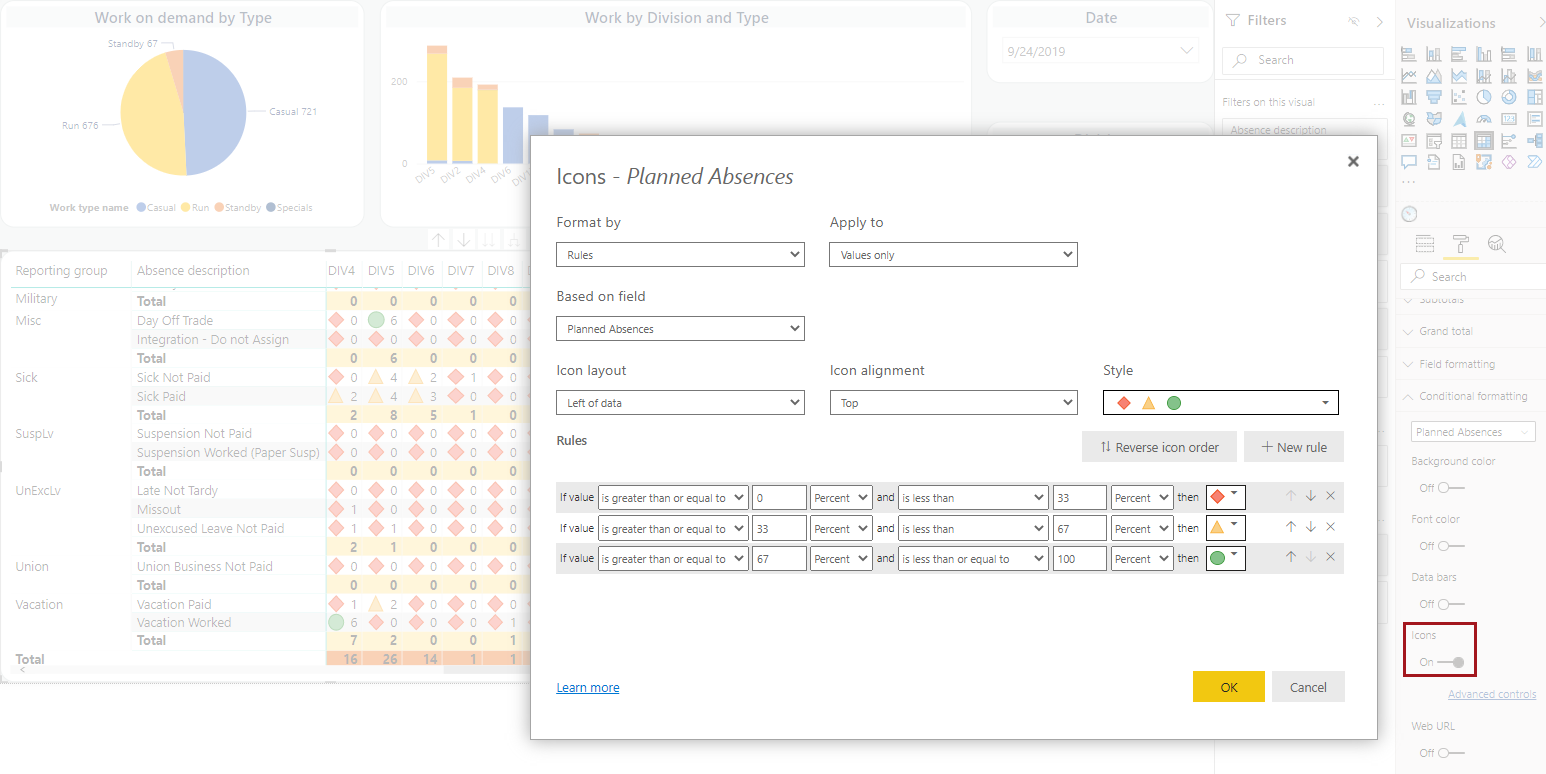
      The Icons dialog and the Icons option and applied icons circled in red.
  7. Format the matrix:
    1. In the Visualizations pane, select Format.
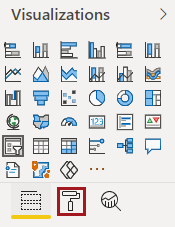
      The Visualizations pane with the Format option circled in red.
    2. Set the table size and position on the report canvas, or define it in the General section using the X Position, Y Position, Width, and Height options.
    3. Define Alt Text that describes the table for screen readers.
    4. In the Style section, choose a new table Style or Revert to default.
    5. In the Row headers section, turn the Stepped layout toggle On to show subcategory rows indented instead of in new columns.
    6. In the conditional formatting section,
    7. Define other formatting options as desired.
      Formatting options include things like changing the visual's column headers and the column header background color, changing the visual icon color, and defining whether certain Visual header options (action items) should be available (for example, the More options icon). Formatting can help power users make information even more accessible to consumers reading the report.
      Tip: Use Style to quickly apply a built-in Microsoft Style to the matrix.

      Use Search to quickly locate settings for similar elements (for example, text to update text size or alignment to update text alignment), and update them all at once.