
Creating Cross-report Drillthroughs
Cross-report drillthroughs can be created as needed.
-
To use cross-report drillthroughs, do the following:
- Select Workspaces and then the workspace name. For the report to contain the drill through option, select .
- Turn on the Cross-report drill through toggle.
- Create the drillthrough destination report page.
-
In the Visualizations pane, in the
Fields area, move the
Cross-report slider to
On.
Perform this step on both the destination report page and on the trigger report page.This allows the two pages to be used for cross-report drillthroughs.
-
Drag fields to be used to trigger drill throughs into the
Visualizations pane in the Drill
through area.
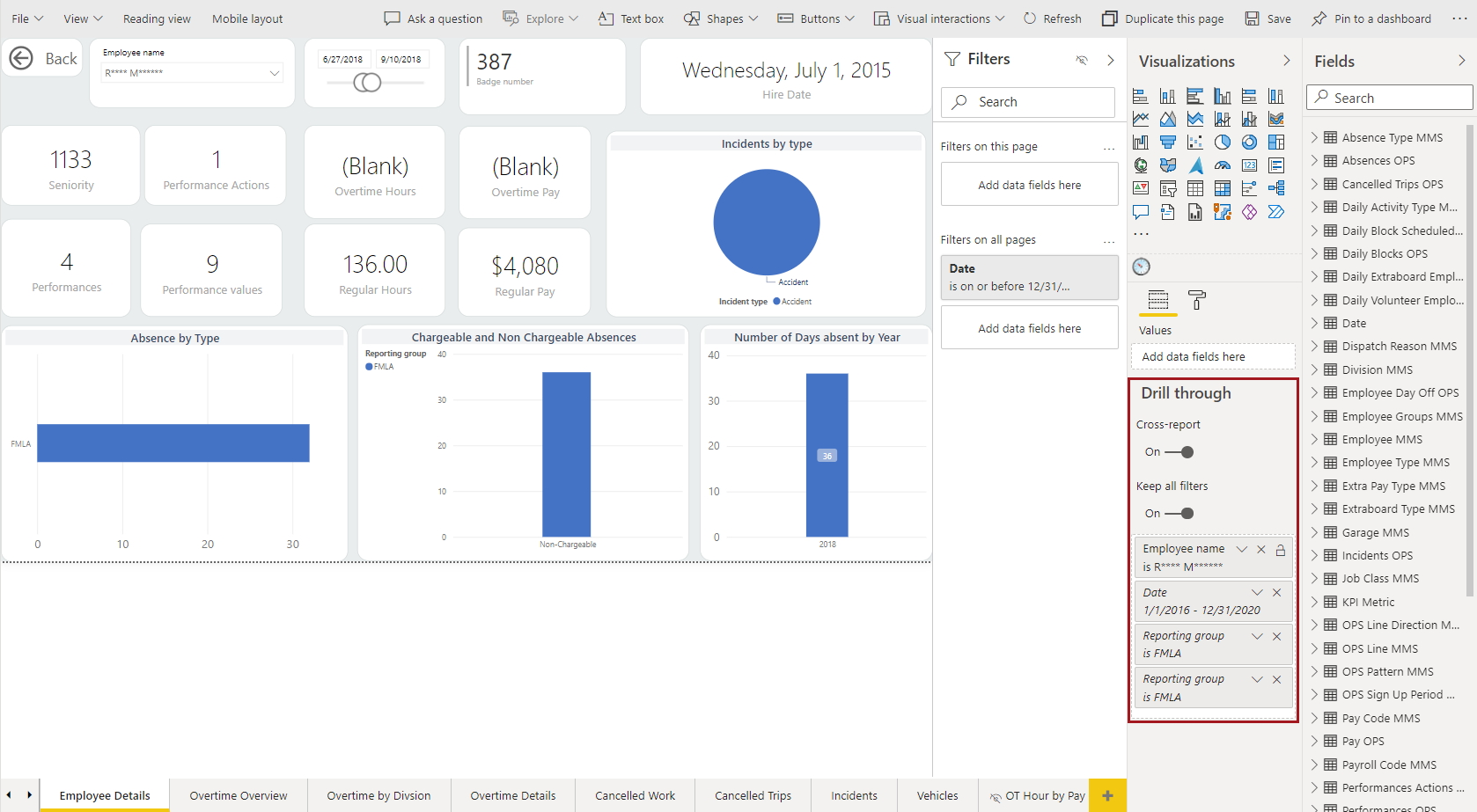
A Back button is added to the report page.
-
If this report page is only being used for cross-report drillthroughs (not
same-report drillthroughs), delete the Back button.
The Back button only works if it is used in the same report.
- Specify to show drill through for each field when it's used as a category and add any desired filters.
- To hide the destination page from the report pages navigation, right-click on the report page and select Hide Page.