
Data slicers allow power users to filter data in a way that highlights specific
information for consumers to see.
Data slicers are typically added at the end of the report creation process. This
lets you see how data is affected after creating the slicer. Slicers also allow you to
freeze data, so that not every visual is affected by the data slice.
-
Open the report to which you want to add a data slicer.
-
In the Visualizations pane, select
Slicer.
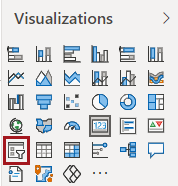
-
In the Fields pane, Search for and
select the field to use.
Field data entries are shown in the new slicer visual. Select each entry
to see how other visuals in the report are affected.
-
Edit the canvas to include the slicer as desired.
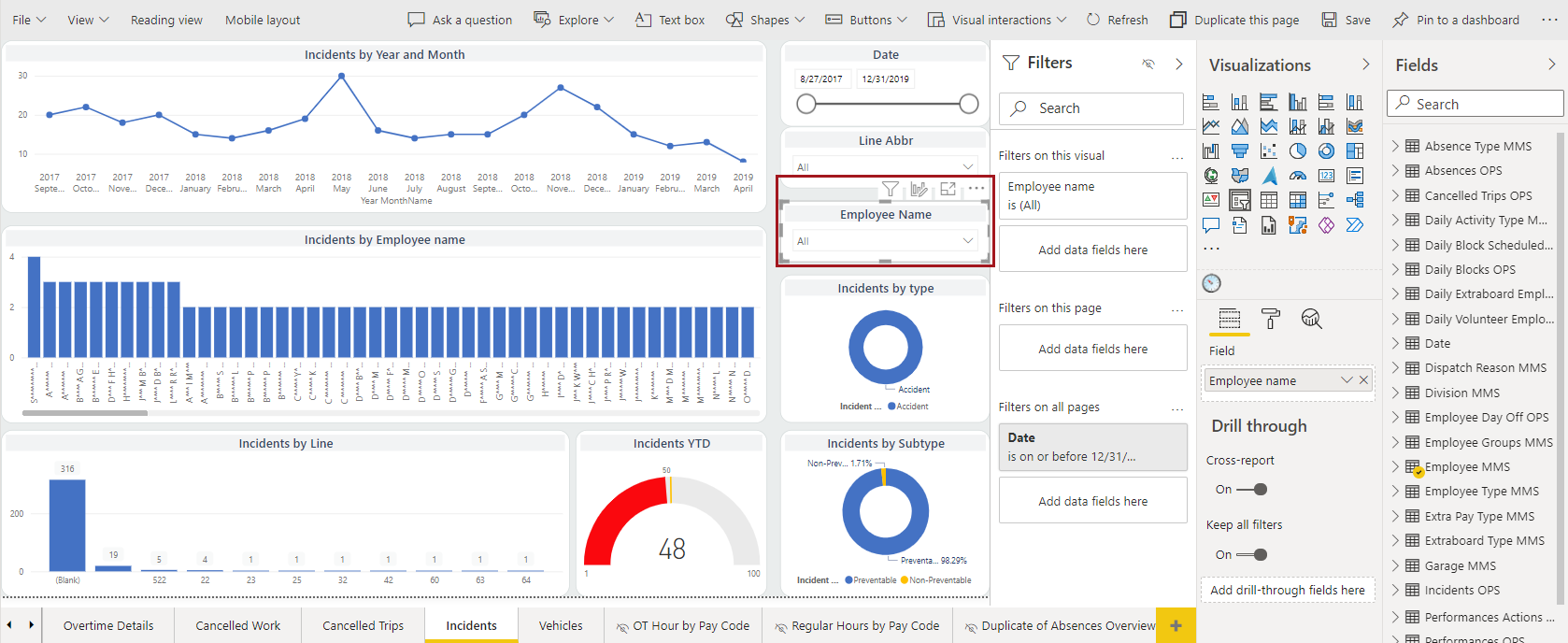
-
To prevent specific visuals from being affected by the slicer, do the
following:
-
Select Visual Interactions and turn on the
Edit interactions toggle.
Filter and None
options should appear next to each visual. If you don't see them, select
a field data entry in the slicer visual and they should appear. (The
slicer visual must be selected to update the other
visuals.)
-
On visuals to remain unchanged, select None.
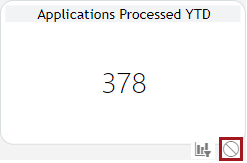
-
To format the slicer, do the following:
-
Select Format.
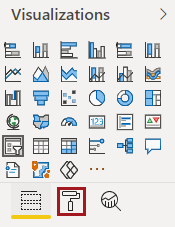
-
In the General section, select an
Outline color and Outline
weight.
-
To allow the slicer to accommodate the report user's screen size,
select Orientation
Horizontal and turn on the
Responsive toggle.
-
Set the slicer size and position on the report canvas, or define it
using the X Position, Y
Position, Width, and
Height options.
-
Define Alt Text that describes the slicer for
screen readers.
-
Define other formatting options as desired.
Formatting options include things like changing the slicer title and
the title display color, changing the visual icon color, and defining
whether certain Visual header options (action
items) should be available (for example, the More options
icon). Formatting can help power users make information
even more accessible to consumers reading the report.