Creating and Formatting Single-Value Visuals

Visuals that highlight one data point use specific visualizations.

  1. Open the report to which you want to add a single-value visual.
  2. In the Visualizations pane, select one of the following:
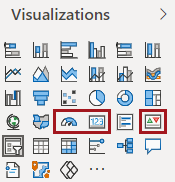
    Visualizations options with the gauge, card, and KPI options circled in red.
    • Gauge. Shows current status compared to an end goal.
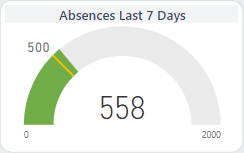
      A gauge visual showing a value of 558.

      Drag fields from the Fields pane to the Value, Minimum value, Maximum value, and Target value areas in the Visualizations pane Fields area.

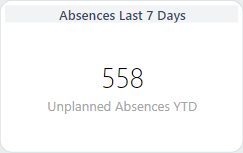
    • Card. Shows one value.
      A card visual showing a value of 558.

      Drag a field from the Fields pane to the Visualizations pane Fields area.

    • KPI. Shows current status compared to an end goal.
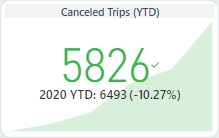
      A KPI visual showing a value of 5826.

      Drag fields from the Fields pane to the Indicator, Trend axis, and Target goals areas in the Visualizations pane Fields area.

      Tip: You cannot sort data in KPIs. Sort data in another visualization before selecting the KPI option.
  3. To format the visual, do the following:
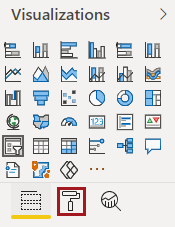
    1. Select Format.
      The Visualizations pane showing the Format option circled in red.
    2. In the General section, define the Alt Text that describes the visual for screen readers.
    3. Set the visual size and position on the report canvas, or define it using the X Position, Y Position, Width, and Height options.
    4. Define other formatting options as desired.
      Formatting options include things like changing the title and the title display color, changing the visual icon color, and defining whether certain Visual header options (action items) should be available (for example, the More options icon).
      • Gauge visualizations include Gauge axis, Data colors, Data labels, Target, and Callout Value formatting options.
      • Card visualizations include Data label, Category label, and Word wrap formatting options.
      • KPI visualizations include Indicator, Trend axis, Goals, Color coding, and Date formatting options.
      Formatting can help power users make information even more accessible to consumers reading the report.