Using Search in OneMobility
OneMobility allows you to search for client or booking data easily.
Search with the Global Search Box
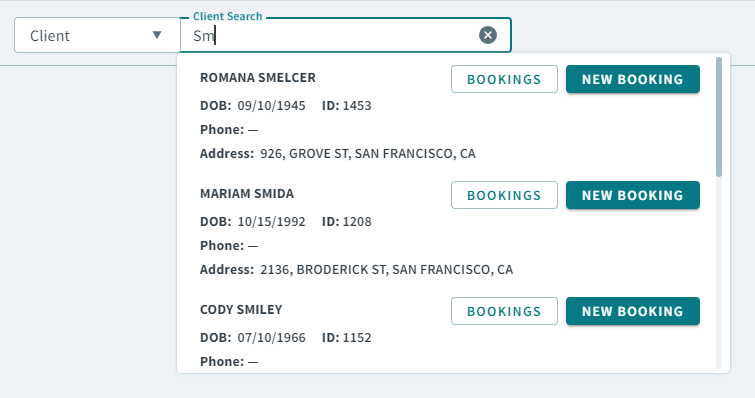
You can use the OneMobility Global Search Box to find client profiles, group profiles, or bookings. Search by entering a client or group name, or ID number for a client, group, or booking.
Note:
To search by ID number, enter / before the number
(for example, /127).
- To search for clients, select Client from the dropdown
list, and then type a client's name or their ID number.

- To search for groups, select Group from the dropdown list, and then type the group name or group ID number.
- To search for bookings, select BookingId from the dropdown list, and then type the booking ID number.
How to Use Search in a Page
When searching in a page, use the filter controls to narrow down your search results.
For example, in the Bookings page, you can use the
Type dropdown list to filter bookings by types:
Activated, Subscription, or
On-Demand.
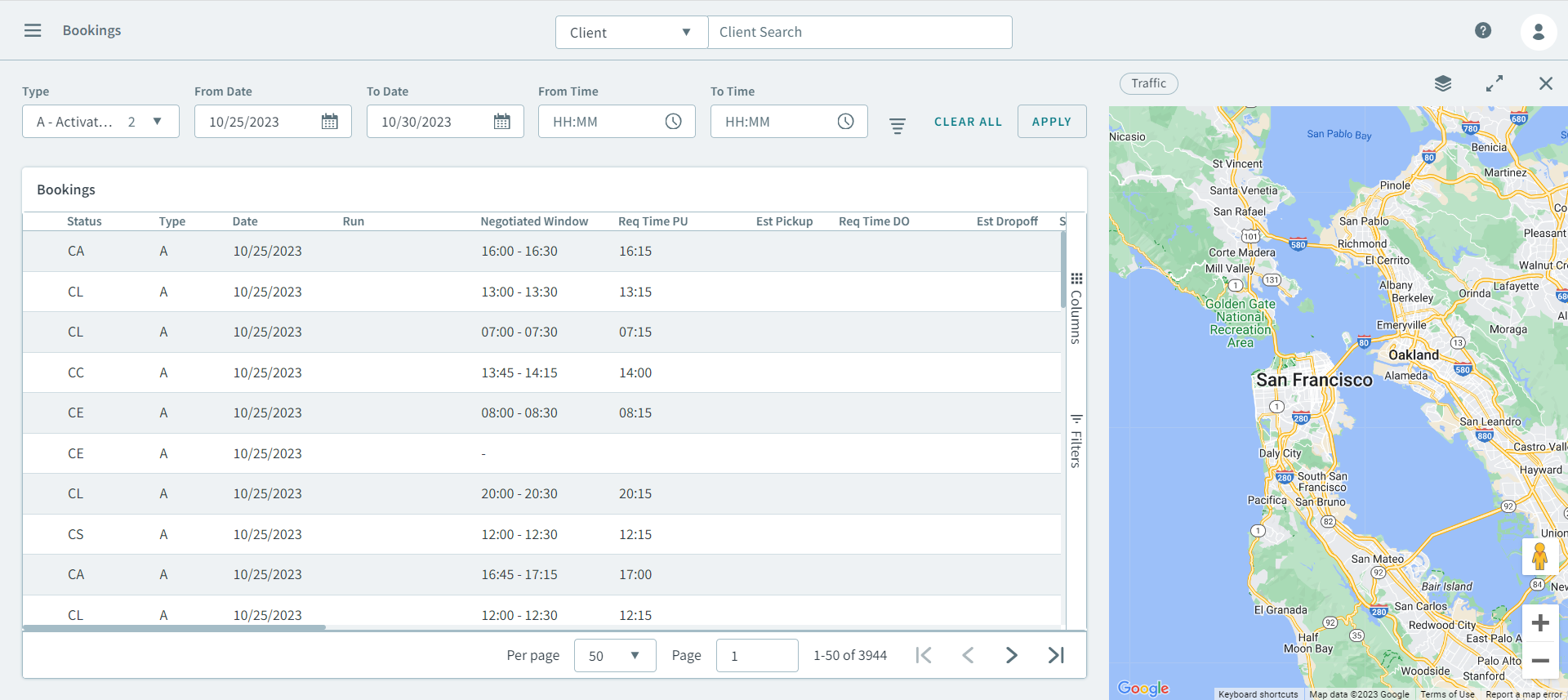
For complex searches, you can use the Advanced Filters. Click
 to show a list of advanced filter controls. Use these controls to filter to
your desired results in the grid below.
to show a list of advanced filter controls. Use these controls to filter to
your desired results in the grid below.

to show a list of advanced filter controls. Use these controls to filter to
your desired results in the grid below.How to search for a client's booking history
To view a client's booking history, do any of the following to access the client's
Bookings page:
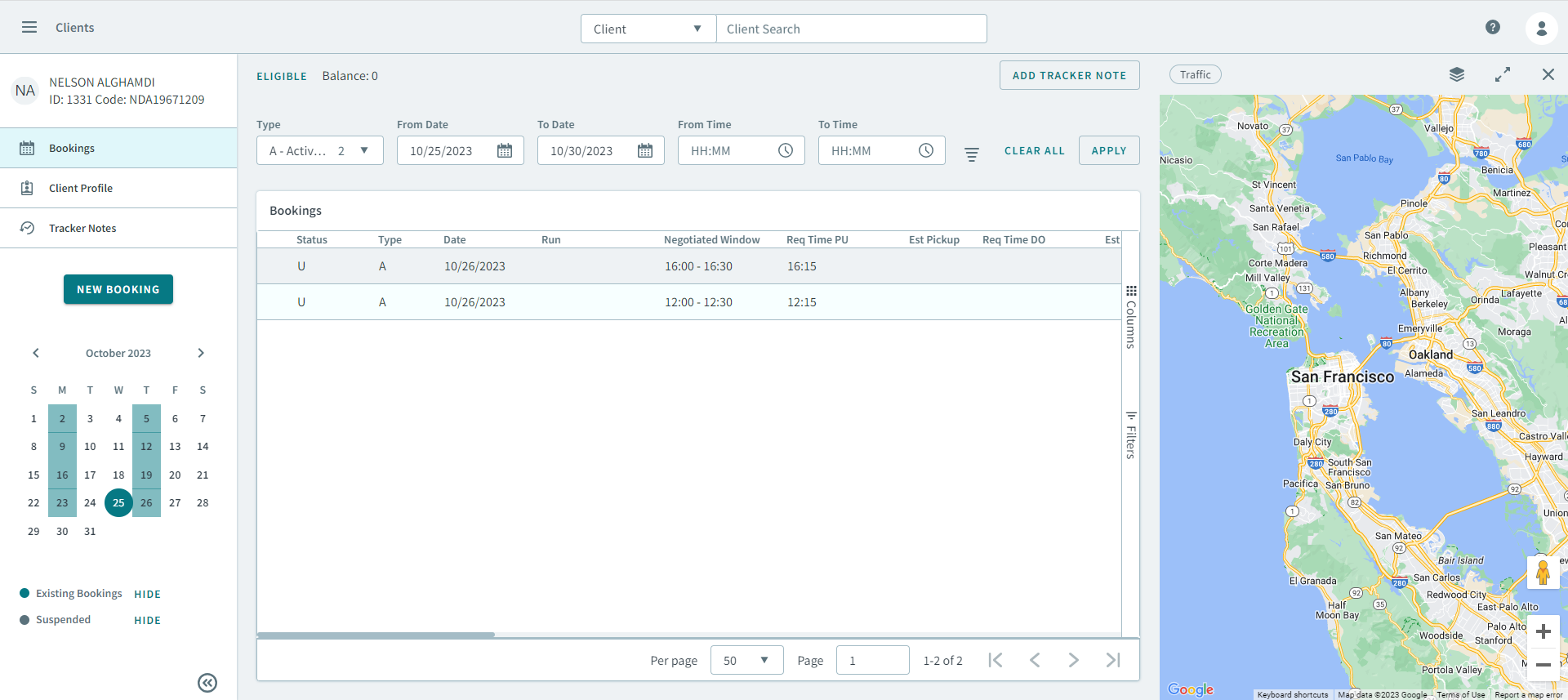
- Enter a client name or ID in the Global Search Box,
when the client card appears, click Booking.
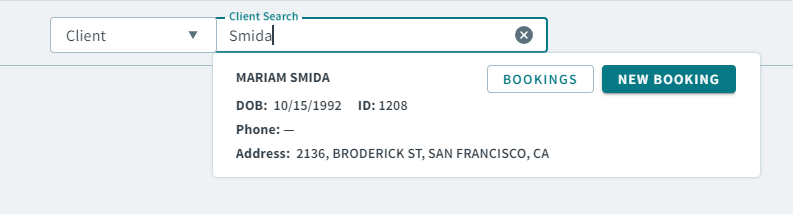
- Open a client profile from the Clients page, and click Bookings in the side pane.
Searching Best Practices
Follow these best practices when performing a search for quick and easy ways to
access client, booking, or trip information:
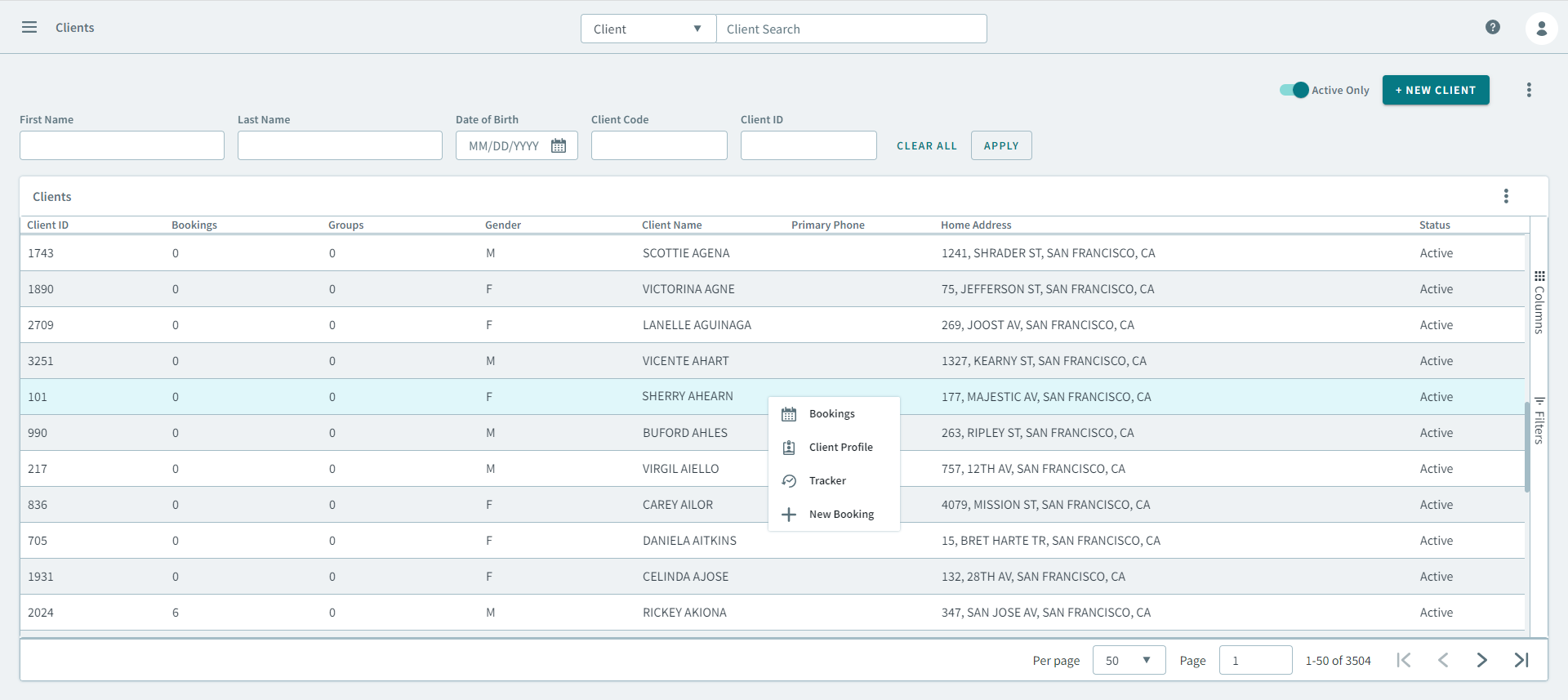
- In the Clients page, when searching for a client
profile, you can right-click a client to access the Client
Profile, Bookings, or
Tracker(tracker notes) options in the shortcut
menu.
- If you are unsure of what a client name or ID is, type the partial word or
number of the client in the Global Search Box to
display a list of matching results.