
Using Customizable Grids
Grids in OneMobility can be customized to display a page's data to your preference.
All of the grids in the OneMobility pages can be customized by adding or removing columns, and filtering which data to display.
Customizing columns
- In a grid, click Columns to show a list of columns to
hide.
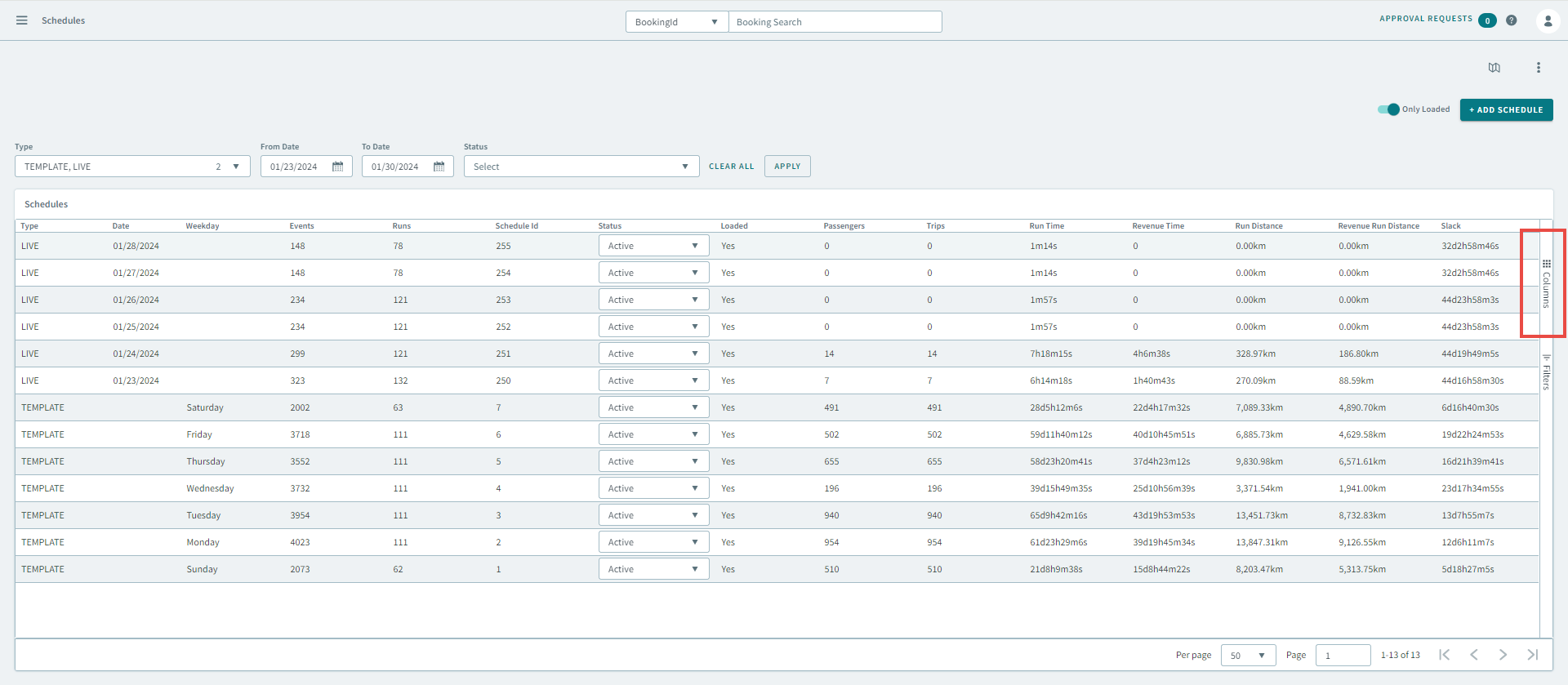
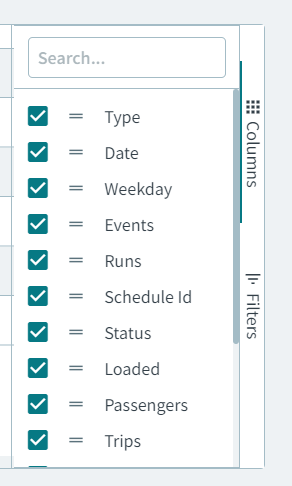
- In the Columns sidepane, de-select the check-boxes of the
columns to hide them from the grid.
Filtering Data
- Click Filters on the grid to show a list of the column
headers.

- Click the down-arrow of a column header to expand the data inside of the column.
- De-select the checkboxes of the data that you want hidden in the column.
