
Ancillary
Use the Ancillary page to setup and define ancillary data based on your transit agency needs.
 Main Menu> Ancillary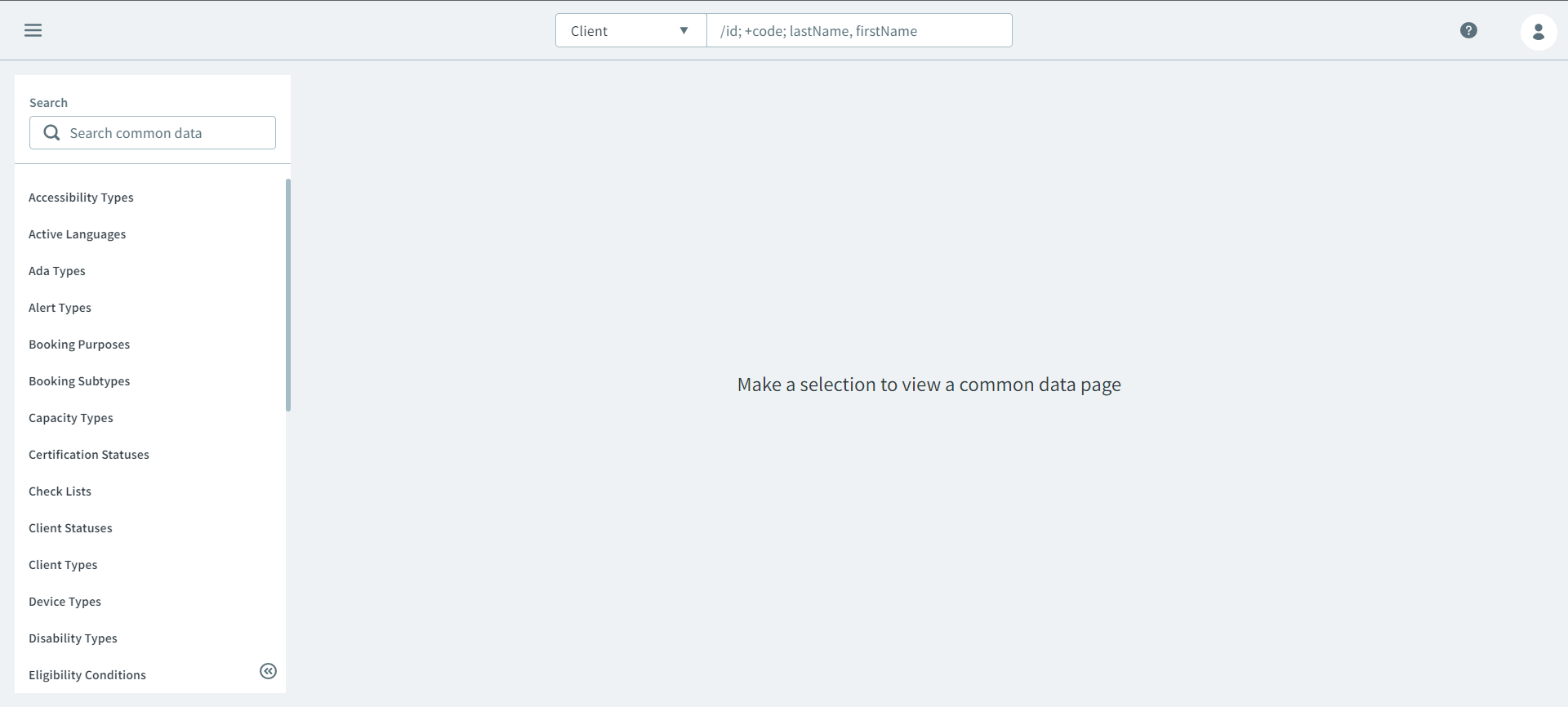
What is Ancillary Data?
Ancillary data is one of the primary layers of settings within One Mobility, it allows agencies to customize the options for ancillary type fields found in One Mobility. For example, the options in a Disability Types dropdown list can be tailored to the specific disability types that are most encountered by the transit agency.
Ancillary Data in itself is layered. Some types of ancillary data can only be created if other types of ancillary data have already been defined. For example, to define Passenger Types, Space Types and Fare Types must already be defined. If a drop-down list is provided, there's a good chance itvcontains a type of ancillary data. If the dropdown list is empty, it almost certainly contains ancillary data.
What's on the page?

 The Search pane contains default ancillary data
types, and when selected, allows you to create ancillary data within that
ancillary type. Most of these ancillary types are considered common data,
which means they are applicable to most agencies. However, there are some
ancillary types that only exist for a specific agency.
The Search pane contains default ancillary data
types, and when selected, allows you to create ancillary data within that
ancillary type. Most of these ancillary types are considered common data,
which means they are applicable to most agencies. However, there are some
ancillary types that only exist for a specific agency.Ancillary data reflects the needs of each individual transit agency. As a result, information defined for the space types or mobility types used by one transit agency typically does not reflect the information defined for another transit agency.
 The Ancillary Type grid displays the ancillary data for a selected
Ancillary Types.
The Ancillary Type grid displays the ancillary data for a selected
Ancillary Types. After an Ancillary Type is selected, the New
and Delete buttons are displayed.
After an Ancillary Type is selected, the New
and Delete buttons are displayed.  Selecting an ancillary data to edit, or clicking the
New button opens the Ancillary
Data pane.
Selecting an ancillary data to edit, or clicking the
New button opens the Ancillary
Data pane.