
Creating Ancillary Data
Ancillary data is created based on your transit site policies and customizes One Mobility to the needs of your transit agency.
Before you begin
Procedure
-
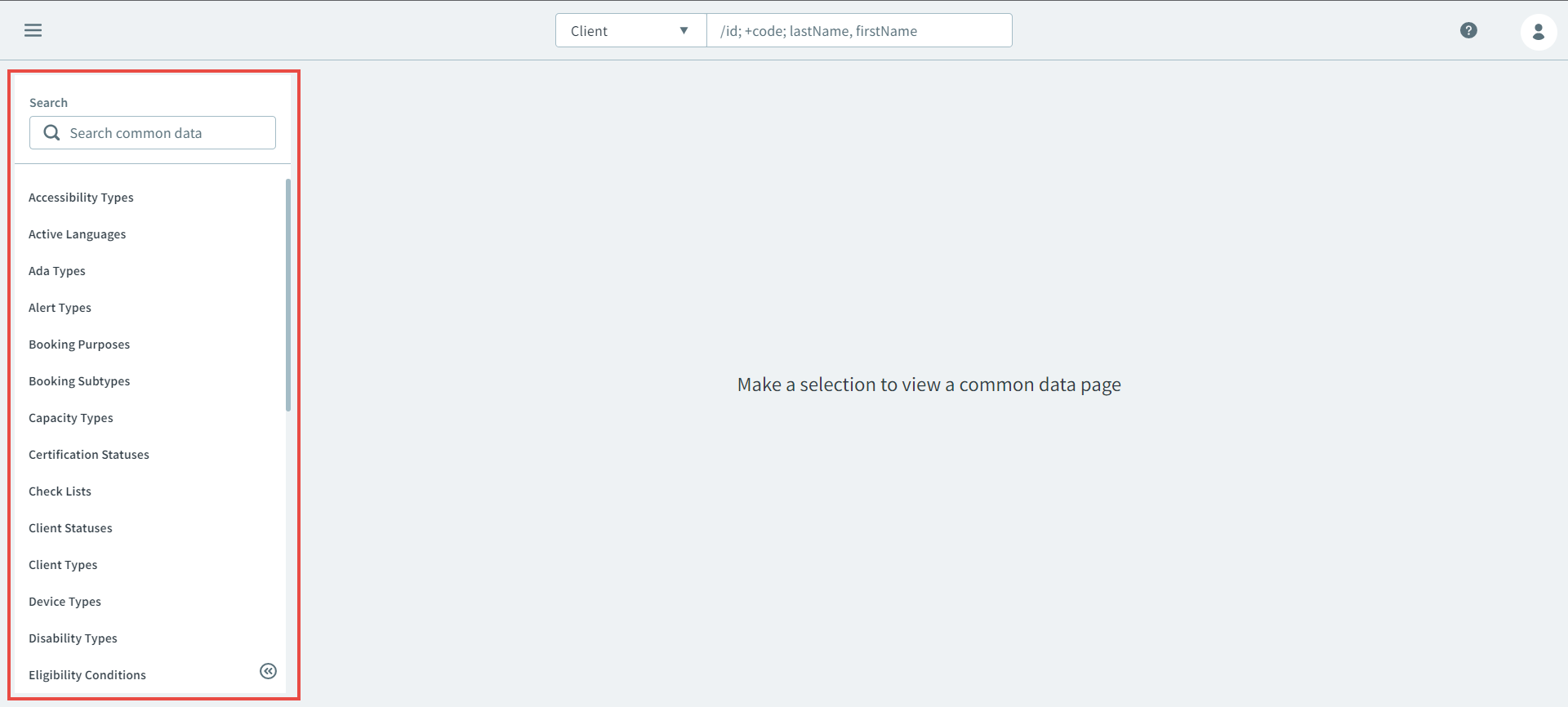
In the Search pane, select an ancillary type.
Important:If you can't find a specific ancillary type, speak to your System Administrator or Mobility on Demand Representative. Some ancillary types are created based on specific transit site policies. -
Click New.
The ancillary data pane opens.
- Complete the necessary fields for the ancillary data.
-
Click Save.
The ancillary data is created, and now appears in the grid of its ancillary type.