
Batch Scheduling
Batch Scheduling is a fast and easy way to schedule a large or small number of bookings at once.
What is Batch Scheduling?
Batch scheduling is the process of selecting a number of trips (bookings) in a schedule that you want to automatically assign to runs (vehicles) at one time.
Batch scheduling does more than just automatically schedule selected bookings. Batch Scheduling uses special strategies and optimizers that can produce a better schedule than if the bookings were independently scheduled.
A batch schedule, once started, can run unattended. It can be monitored at any time using the Batch Monitor. Batches can be started manually by a user, or started automatically by automated agents within the Schedule Server such as the Advance Schedule Agent.
Therefore, based on the information in each booking and scheduling parameters specified in PASS, or the automated agents in Schedule Server, the Batch Scheduling looks for the best solutions and creates the most efficient schedules.
The scheduling algorithm looks for solutions, schedules, unscheduled trips based on requested times in OneMobility, and scheduling parameters and properties specified in PASS. Also, performed trips (bookings) are considered frozen and are not included when batch scheduling.
How does Batch Scheduling work?
- Determine what trips you want to batch schedule - In this stage, you
select the schedule date (the live schedule of a particular day), and what
trips you want to batch schedule (scheduled, unscheduled, or all
trips).
The types of trips you select will depend on the purpose of the batch schedule. For example, you may select only scheduled trips to batch because of a temporary schedule change, where you must change the schedule time for a number of trips that were already scheduled (unperformed).
-
Determine what runs the trips should be scheduled on - You can apply the trips to the daily active runs, or to specific daily runs.
-
Batch schedule the trips - You can now perform the batch scheduling.
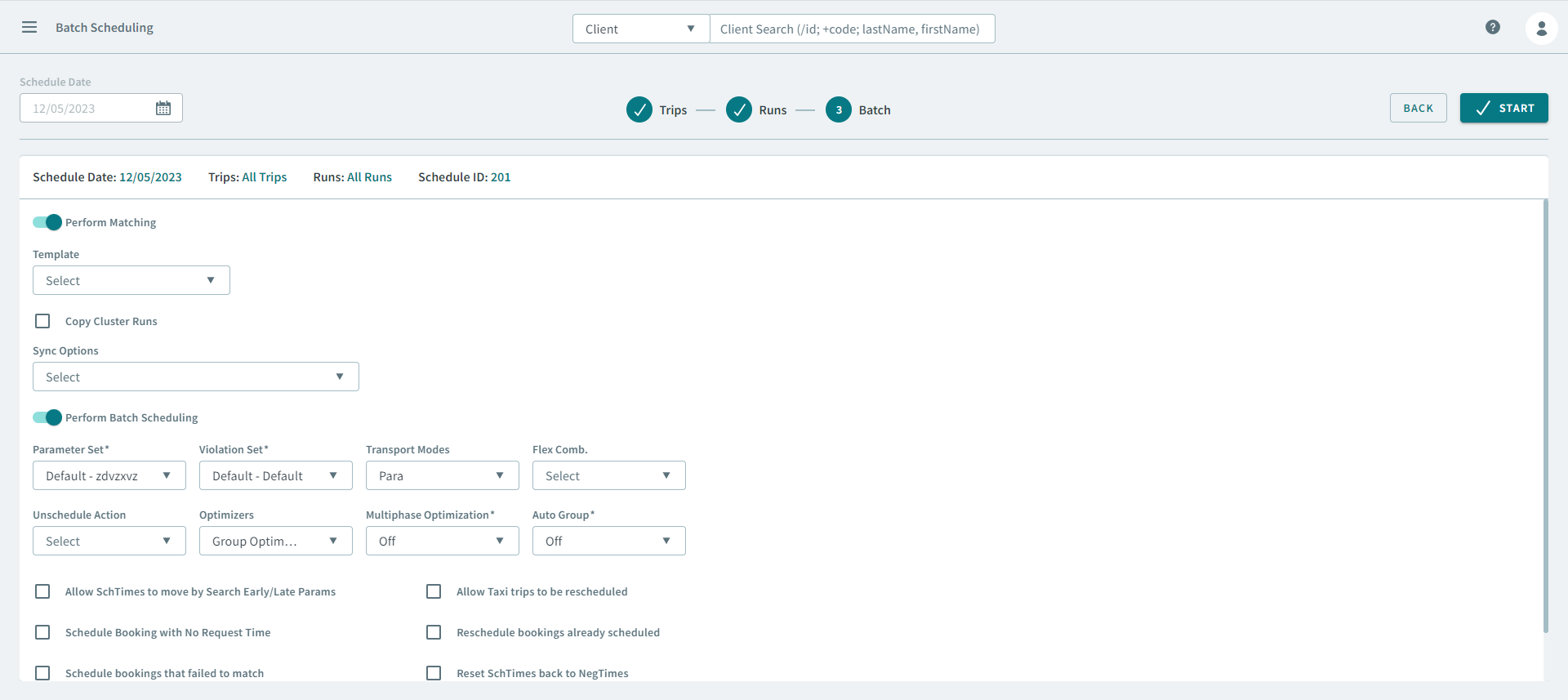
First, you have the option to Perform Matching. If you are batch scheduling subscription trips, you can match the subscription trips to a template schedule.
When you are ready to batch, use the Batch parameters to provide the information necessary for the scheduling algorithm to do its work. Once you click Start, the trips will be automatically scheduled.
When should you use Batch Scheduling?
- You have a large number of trips that you want to schedule.Note:This is preferred for large number of trips because Schedule Server will consider the entirety of a schedule when creating solutions.
-
When you want to schedule trips to runs associated with a specific provider, vehicle capacity type, or run group.
-
You want to schedule unscheduled casual trips that remain after you have already match scheduled using template matching.
- You want to re-optimize an already scheduled day to account for trip changes, such as advanced cancellations and service reductions.
What is Template Matching?
If you have a high ratio of subscription clients traveling every day, you can use Perform Matching in the Batch stage before completing the batch schedule.
- Scheduling template trips.
- Scheduling live trips by matching to template scheduling.
- Match templates (Perform Matching toggle) during the Batch stage.
Maintaining templates is an ongoing process that you need to do in order to achieve optimum schedules.
When you batch schedule by matching to a template schedule and you select either the Synchronize Geocodes or Synchronize Schedule Times in the Sync Options dropdown list, the system reverts all geocodes and schedule times for subscription trips to the match schedule.
If you have templates that are not up to date, errors might occur. For example, a client who has moved to a different address wants to change the pick-up time of his subscription trip. You change the master record but forget to delete the old template and activate a new one. When you match a live schedule to the template schedule, the information on the old template overrides the information on the live schedule. The vehicle is sent to the old address at the wrong time and the client misses the trip. To prevent such errors, use other Match options instead.
What's on the Batch Scheduling page?
Batch scheduling can be performed in OneMobility using the
Batch Scheduling page. Click  .
.
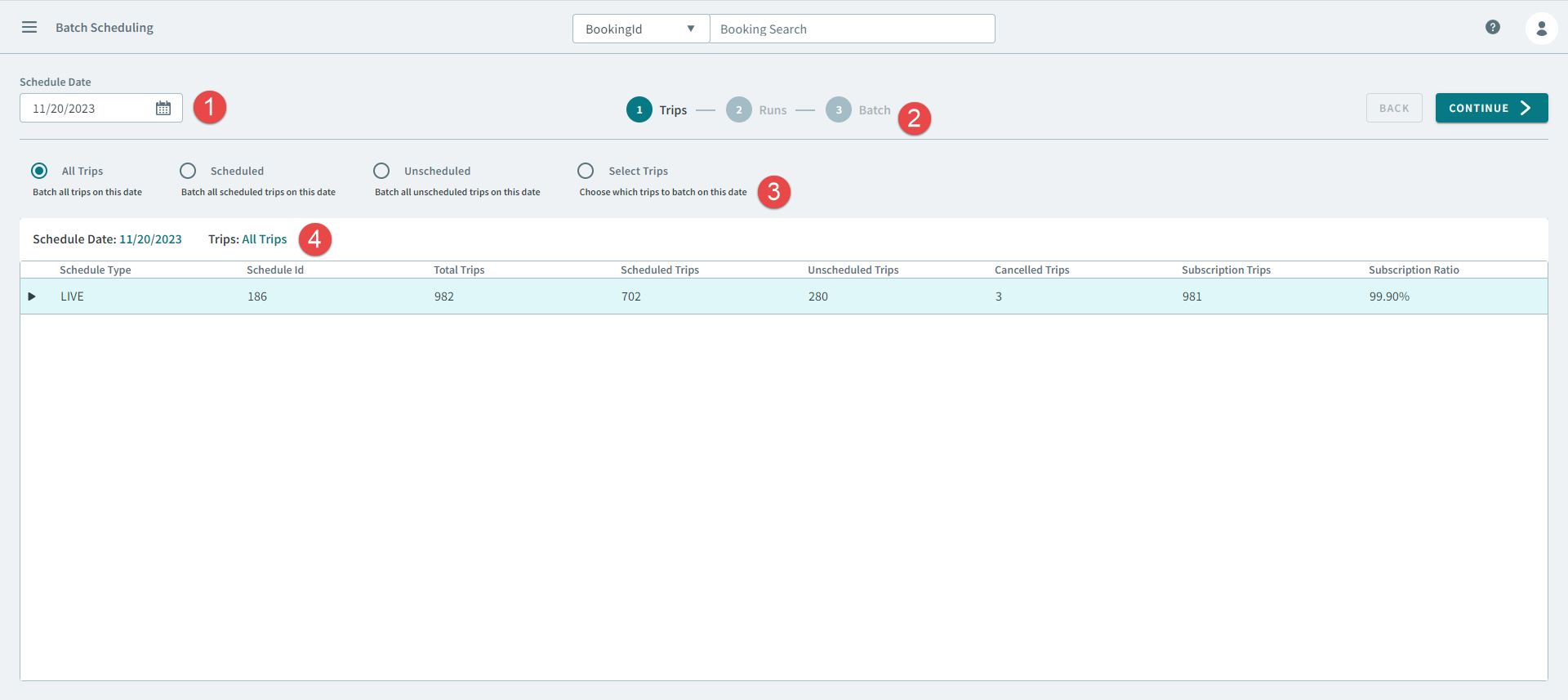
 Allows you to select the Schedule Date of the
live trips that you want to batch schedule.
Allows you to select the Schedule Date of the
live trips that you want to batch schedule.  Shows the three stages of batch scheduling:
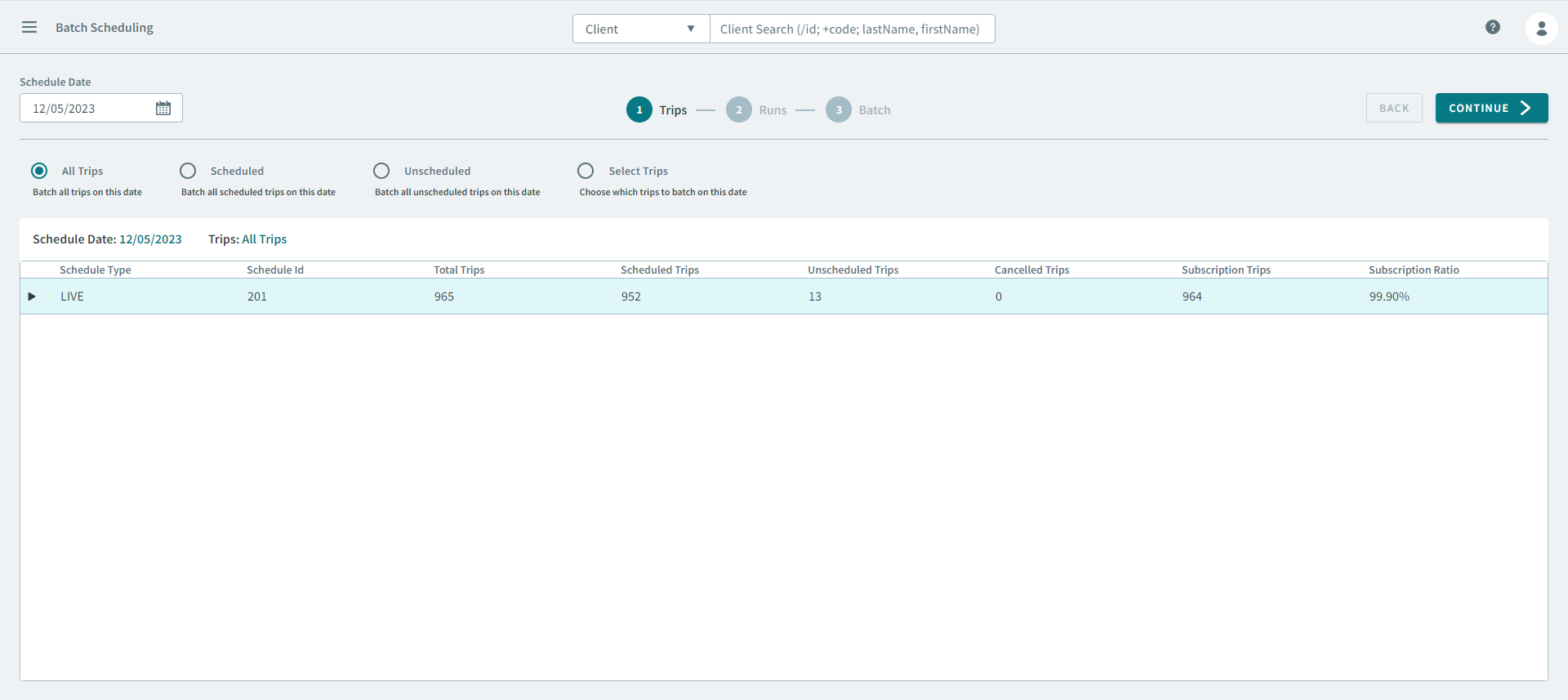
- Trips Stage - Select the trips for batch scheduling.
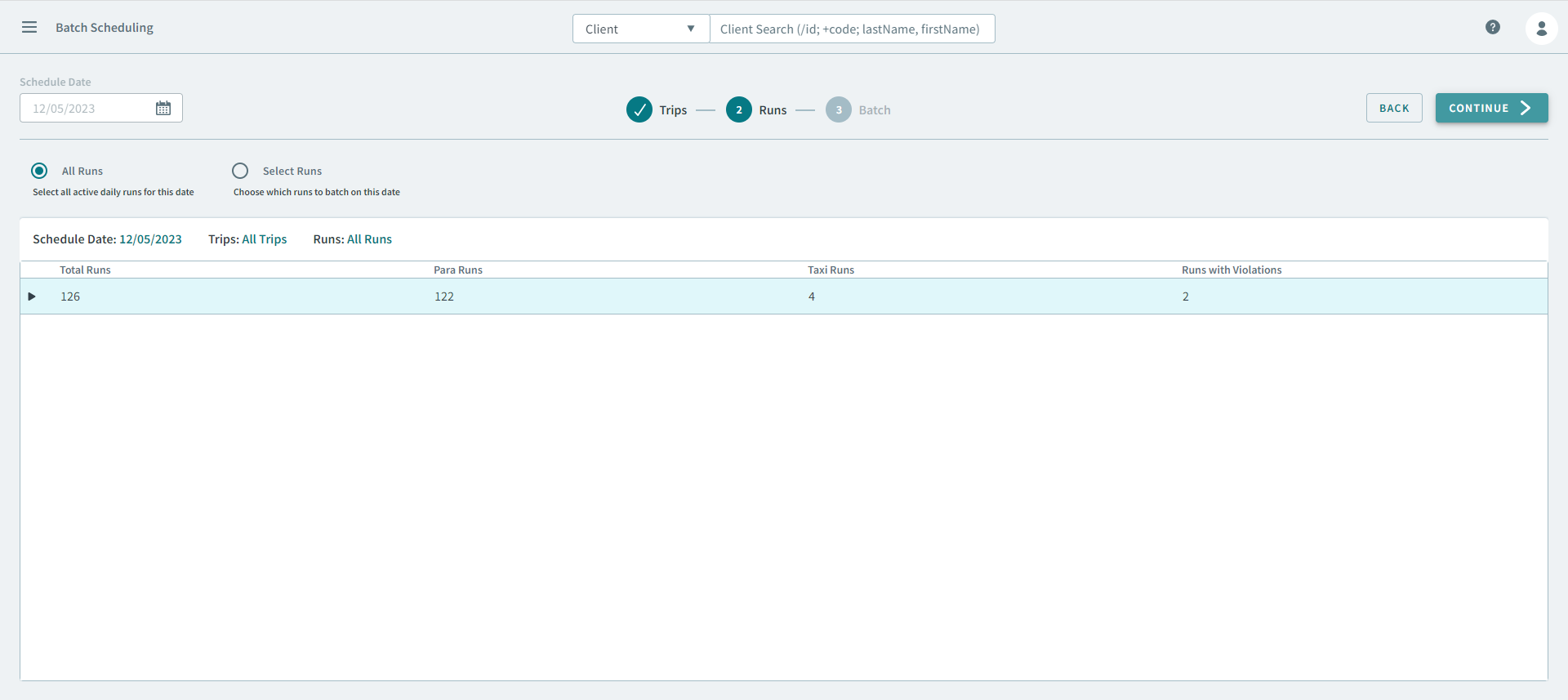
- Runs stage - Select the runs to schedule the
trips on.
- Batch Parameters stage - Perform the batch
scheduling. Additionally, there is an option to match the trips to a
template schedule.
To proceed to the next batch processing stage, click the Continue button after completing a stage.
- Trips Stage - Select the trips for batch scheduling.
 Text guidance for the user interface controls within a stage.
 The Batch Scheduling grid, which displays the information (for
example, scheduled and unscheduled trips in the Trips stage) for each of the
stages.
The Batch Scheduling grid, which displays the information (for
example, scheduled and unscheduled trips in the Trips stage) for each of the
stages.