
Batch Scheduling Trips
You can perform batch scheduling for all your trips (activated subscription and casual/on-demand) occurring on a live schedule.
Before you begin
Procedure
-
Enter or select a date from Schedule Date.

-
In the Trips stage, select one of the following
options:
- All Trips
- Scheduled
- Unscheduled
Note:For how to batch schedule Select Trips, see Batch Scheduling Select Trips to Select Runs.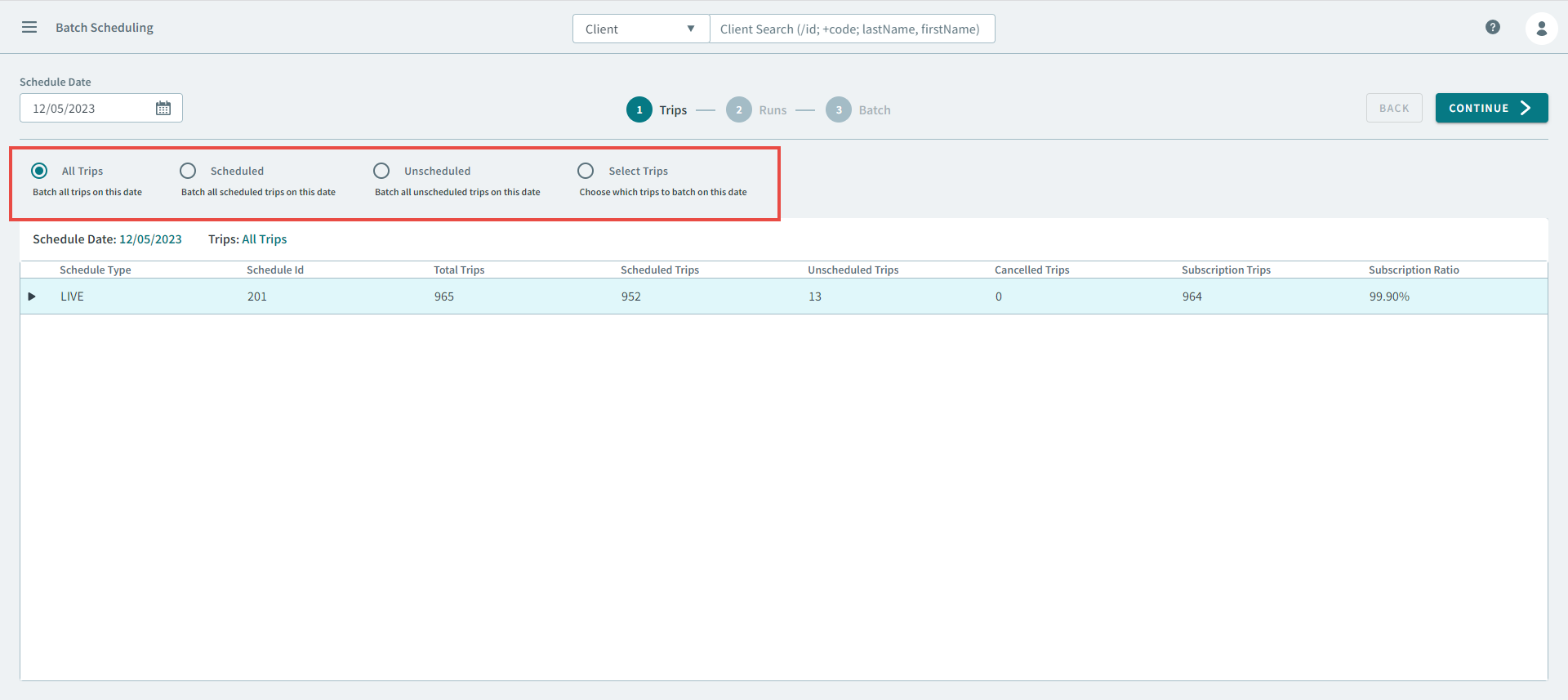
- Click Continue.
-
In the Runs stage, choose one of the following:
- The All Runs option is selected by default.
If you want to batch schedule trips to all runs, click Continue to proceed to the Batch stage.
- If you want to batch schedule trips to select runs, click
Select Runs.
- In the Select Runs
grid, use the runs parameters to display specific runs.
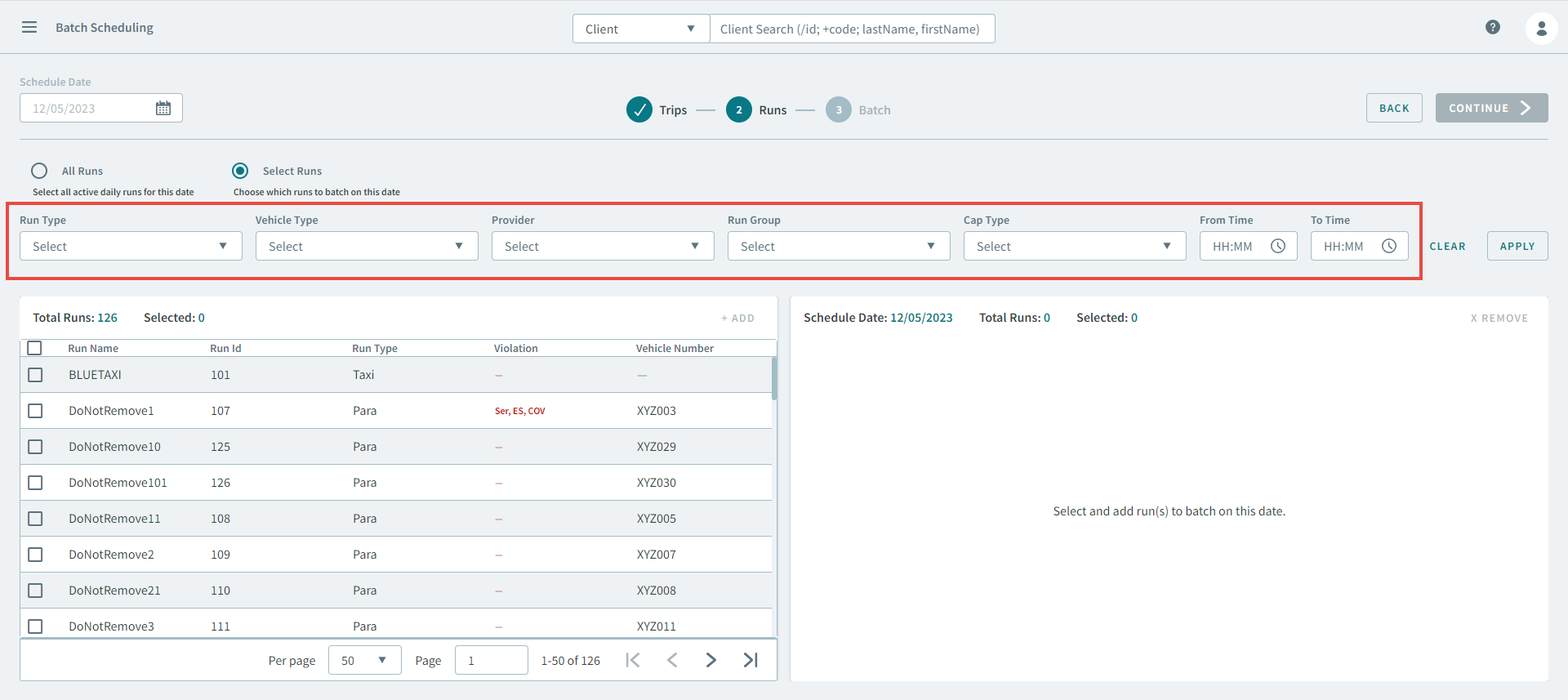
- Select the runs that you want the batch trips to be applied to.
- Click Continue.
- In the Select Runs
grid, use the runs parameters to display specific runs.
- The All Runs option is selected by default.
- Optional:
In the Batch stage, the Perform
Matching toggle is enabled by default. Turn the toggle off if
you do not want to match with templates.
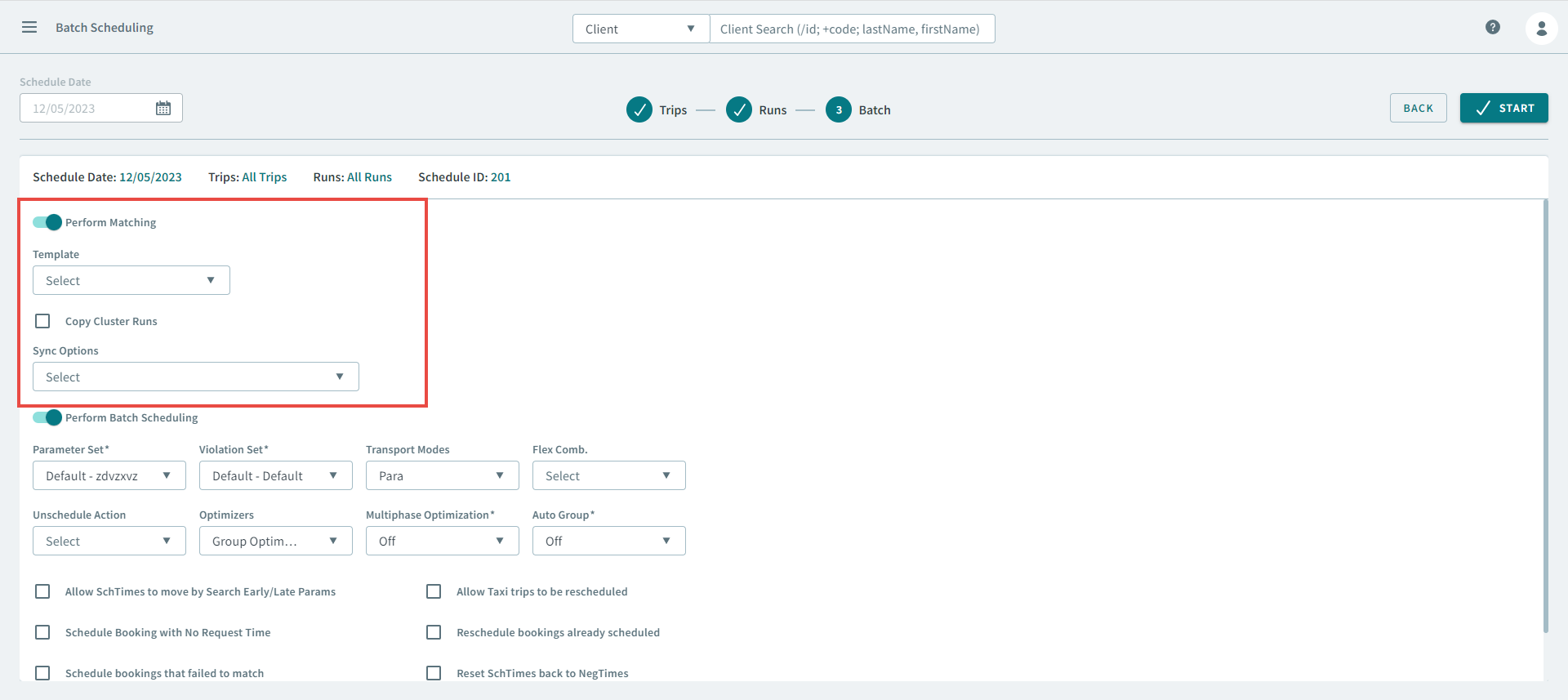
Note:See Batch Scheduling to learn more about how Perform Matching works.Notice:What happens if the Match options fail to schedule the trips?If some of the trips failed to be scheduled during the matching process, you must determine the reason. The following are possible reasons the trips failed to scheduled:- Reason: Template trip may not be
scheduled.
Solution: Schedule the template trip.
- Reason: No template trip exists.
Solution: Activate the template trip.
Reason: Master record does not match template records.
Solution: Delete old templates and create new template copies from the masterrecord.
-
Reason: A run that appears in the template list does not appear in the daily run list.
Solution: If the template needs to be updated, delete old template runs and reactivate the master run to the template list. If the run has been taken off the daily run list for a reason (for example, it is out of service), then manually reschedule the trip to another run.
- Reason: Template trip may not be
scheduled.
-
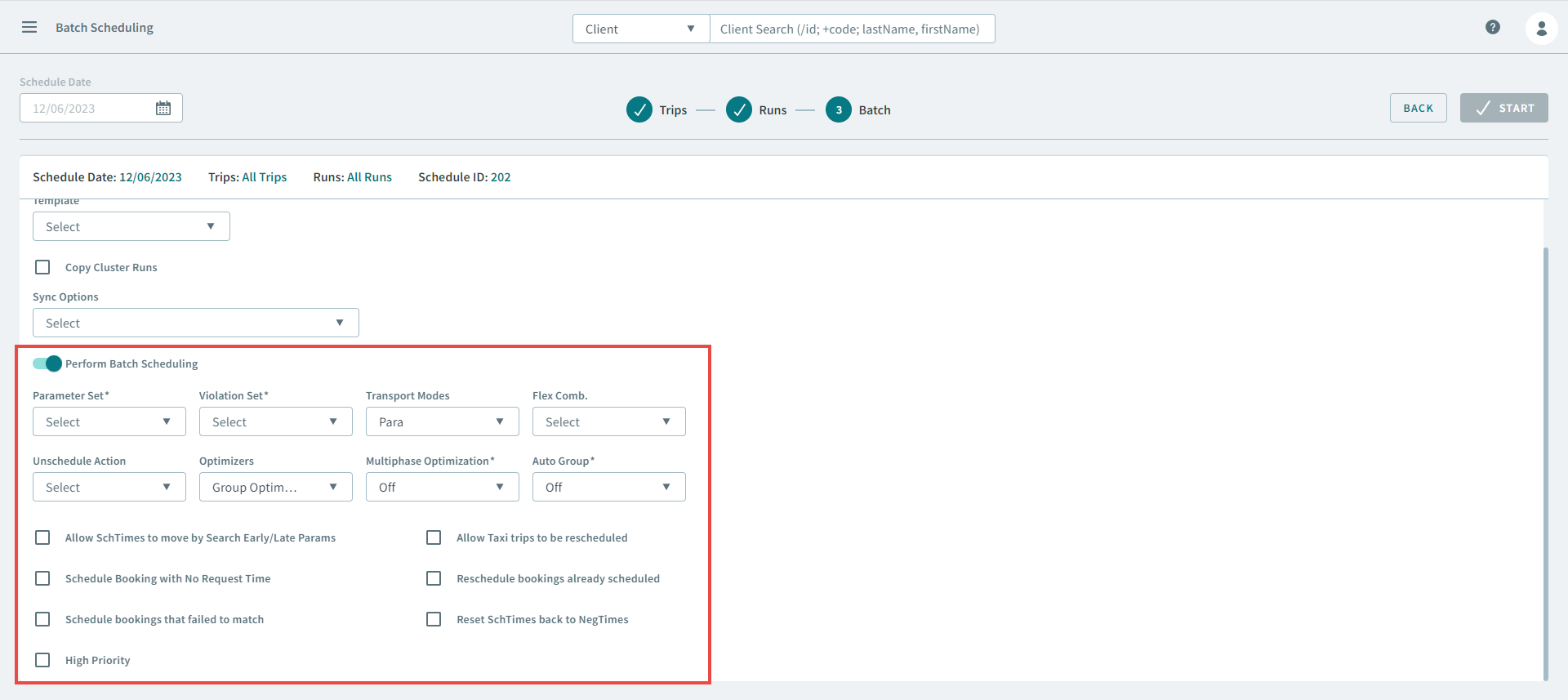
Turn the Perform Batching toggle on.
-
Complete the following Batch Parameters to define how the system schedules
trips during batch scheduling.
- Parameter Set
- Violation Set
- Transport Modes
- Flex Comb.
- Req
- Stop
- Unschedule Action
- Optimizers
- Group Optimizer
- Itinerary Optimizer
- Cluster Optimizer
- Run Optimizer
- Multiphase Optimization
- Auto Group
- Allow SchTimes to move by Search Early/Late Params
- Allow Taxi trips to be rescheduled
- Schedule Booking with No Request Time
- Reschedule bookings already scheduled
- Schedule bookings that failed to match
- Reset SchTimes back to NegTimes
- High Priority
- Click Start.