
Schedule Editor
Schedule Editor is used to access trip information as well as to make schedule changes.
Schedule Editor allows you to perform the following tasks:
- Display loaded schedules, run itineraries, and client/booking information
- Manually edit a schedule, insert breaks and flag stops into a run itinerary
- Mark trips as canceled
- Schedule, reschedule, and edit bookings
- Mark the manner in which events are sent to drivers (for example, by voice), and record arrival and perform times for pick-up and drop-off events
What's on the Schedule Editor page
The Schedule Editor page shows scheduling information (schedules, runs, client itineraries, and booking information) and allows you to edit a schedule (insert breaks, resequence events, and so on).
When you first open Schedule Editor, only loaded schedules are shown. The following
are the different UI elements that make up the Schedule Editor page:

 A KPI of the runs and trips from the live schedule.
 Schedule type options that appear in the dropdown list are defined
in the Schedule Type ancillary data. Typically it is
a live schedule or template.
Schedule type options that appear in the dropdown list are defined
in the Schedule Type ancillary data. Typically it is
a live schedule or template. If LIVE is selected in Schedule
Type, Current Schedule displays a
pop-up calender where you can select a date to schedule trips. If
TEMPLATE is selected, Current
Schedule changes to a dropdown list containing days of the
week: Monday to Sunday. The current day is selected by default. When a day
is selected, unscheduled trips and runs are displayed in the panes
below.
If LIVE is selected in Schedule
Type, Current Schedule displays a
pop-up calender where you can select a date to schedule trips. If
TEMPLATE is selected, Current
Schedule changes to a dropdown list containing days of the
week: Monday to Sunday. The current day is selected by default. When a day
is selected, unscheduled trips and runs are displayed in the panes
below. Click the
  Search icon opens a pop-up window that allows you to search for daily
run events by Runs, Clients,
and Vehicles.
Search icon opens a pop-up window that allows you to search for daily
run events by Runs, Clients,
and Vehicles.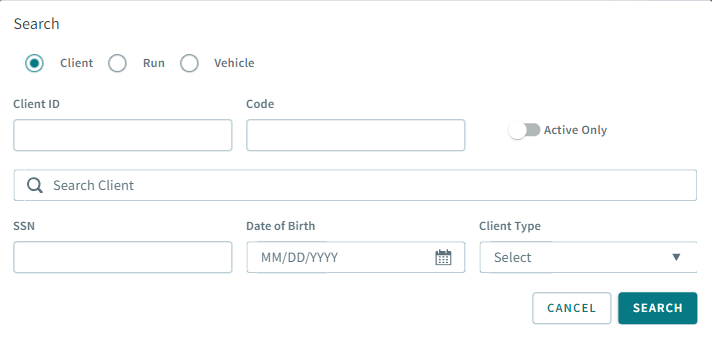
 Click the
  plus icon to view unscheduled trips, scheduled trips, and runs.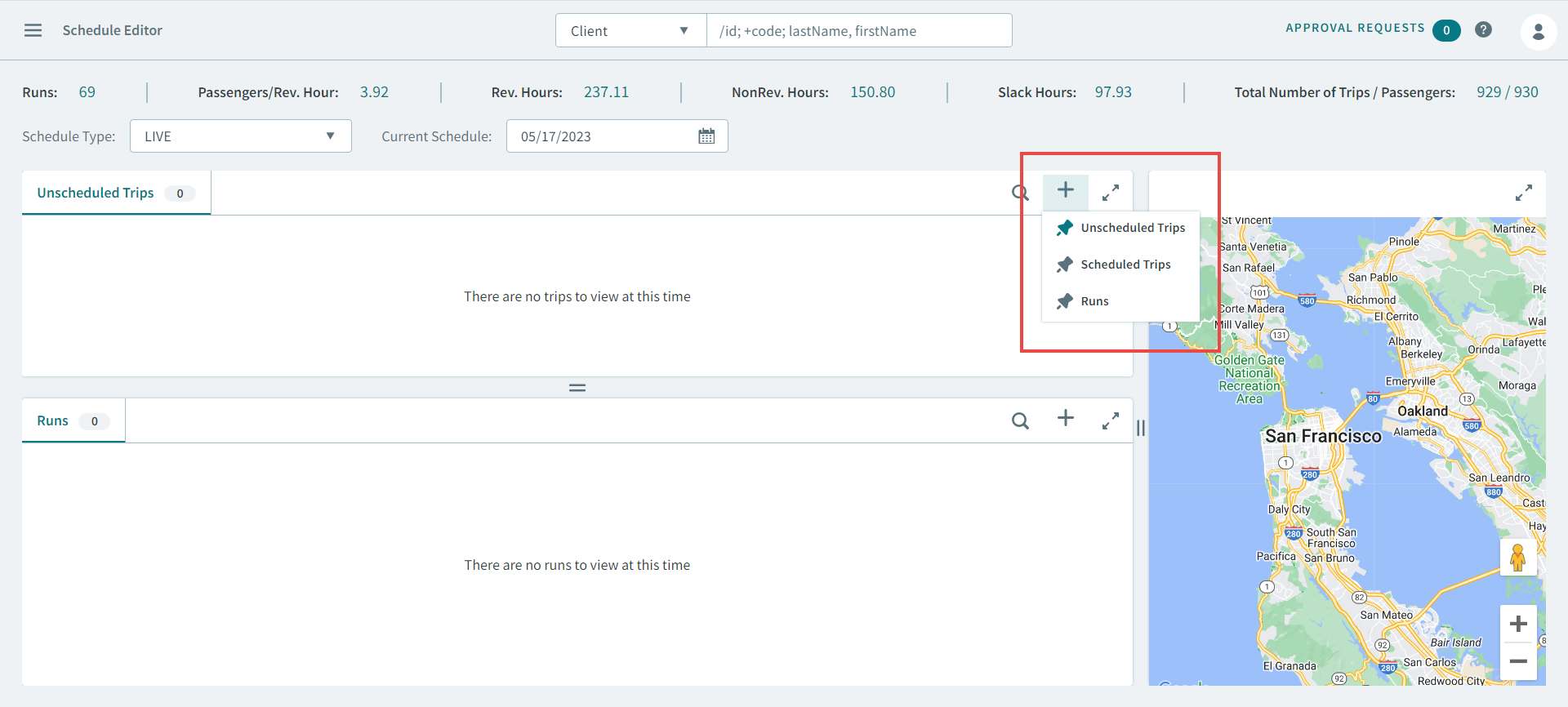
 Click the
  expand icon to use grid snapping. You can also manually
enlarge and minimize grid sizes.
expand icon to use grid snapping. You can also manually
enlarge and minimize grid sizes. The Schedules grid where you can view schedules
  The Runs grid where you can view a list of runs for a selected
schedule.
The Runs grid where you can view a list of runs for a selected
schedule.