
Add Break Before in Schedule Editor
Insert a break to occur before an event on a run itinerary.
Before you begin
Procedure
- Select Live or Template from Schedule Type
-
Do one of the following:
- If Live was selected, type or select a date from Current Schedule.
- If Template was selected, select a day of the week from Current Schedule.
Runs are displayed in the Runs tab.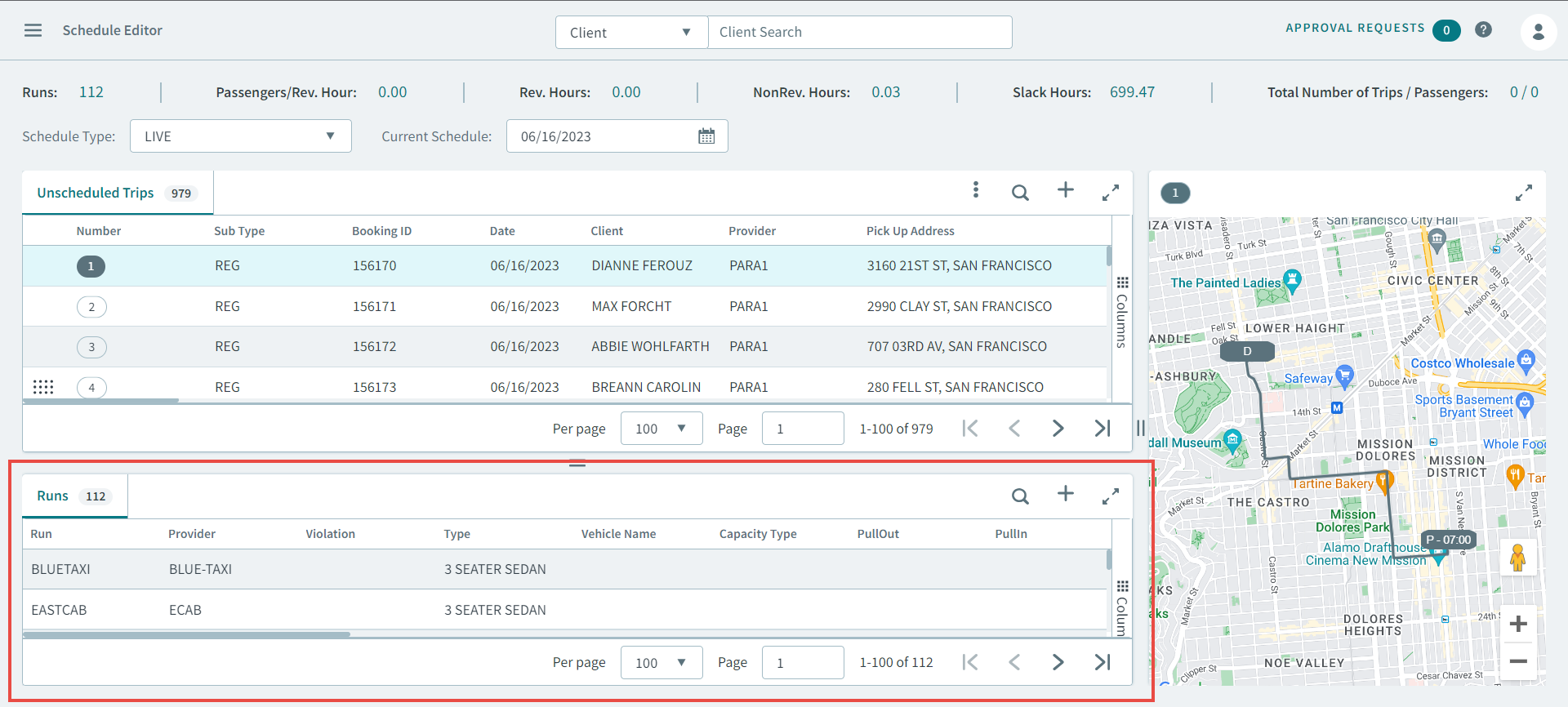
-
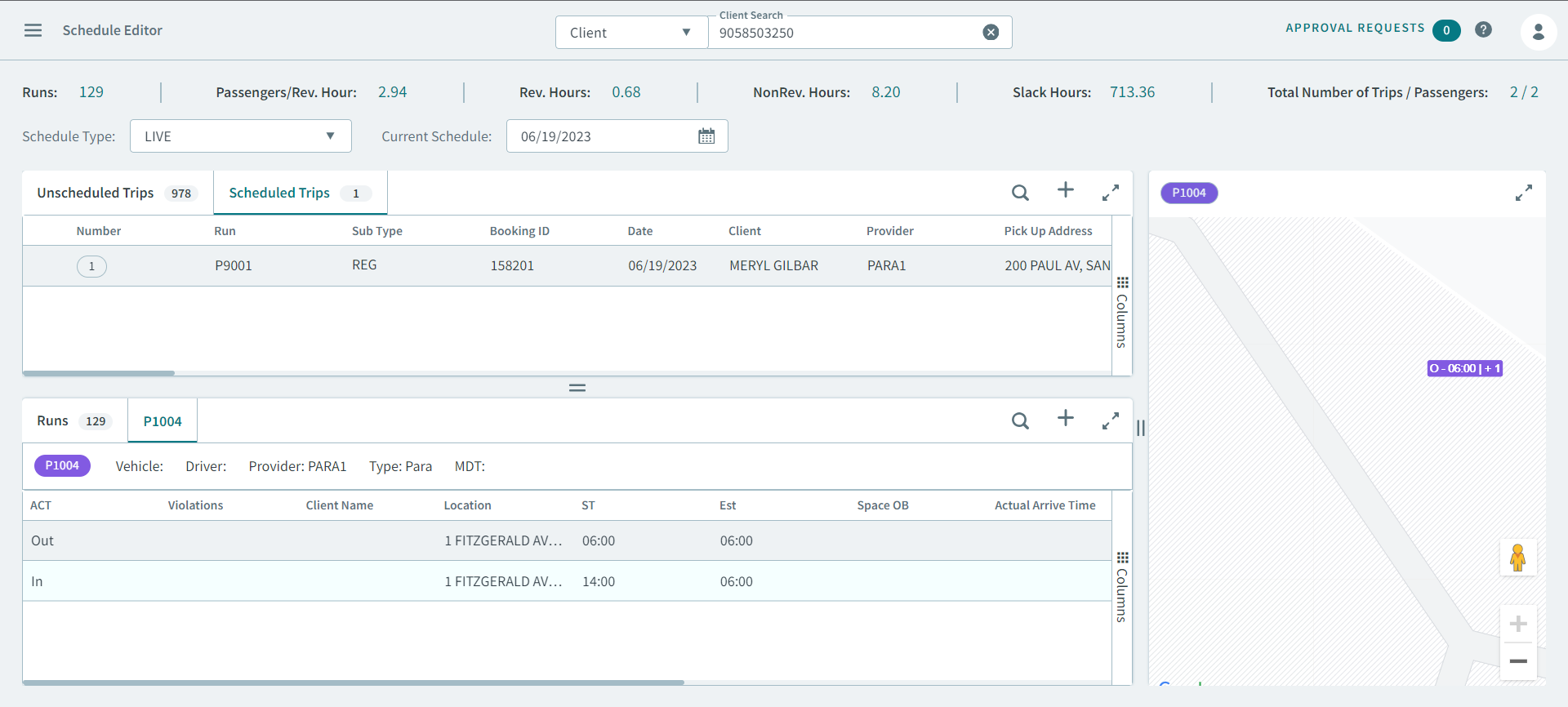
To view a run itinerary, double-click a run or right-click and select
Open Run from the pop-up menu.
The Run Itinerary tab opens.
-
Right-click an event and in the pop-up menu, select Add Break
Before.
Add Break pop-up window opens.
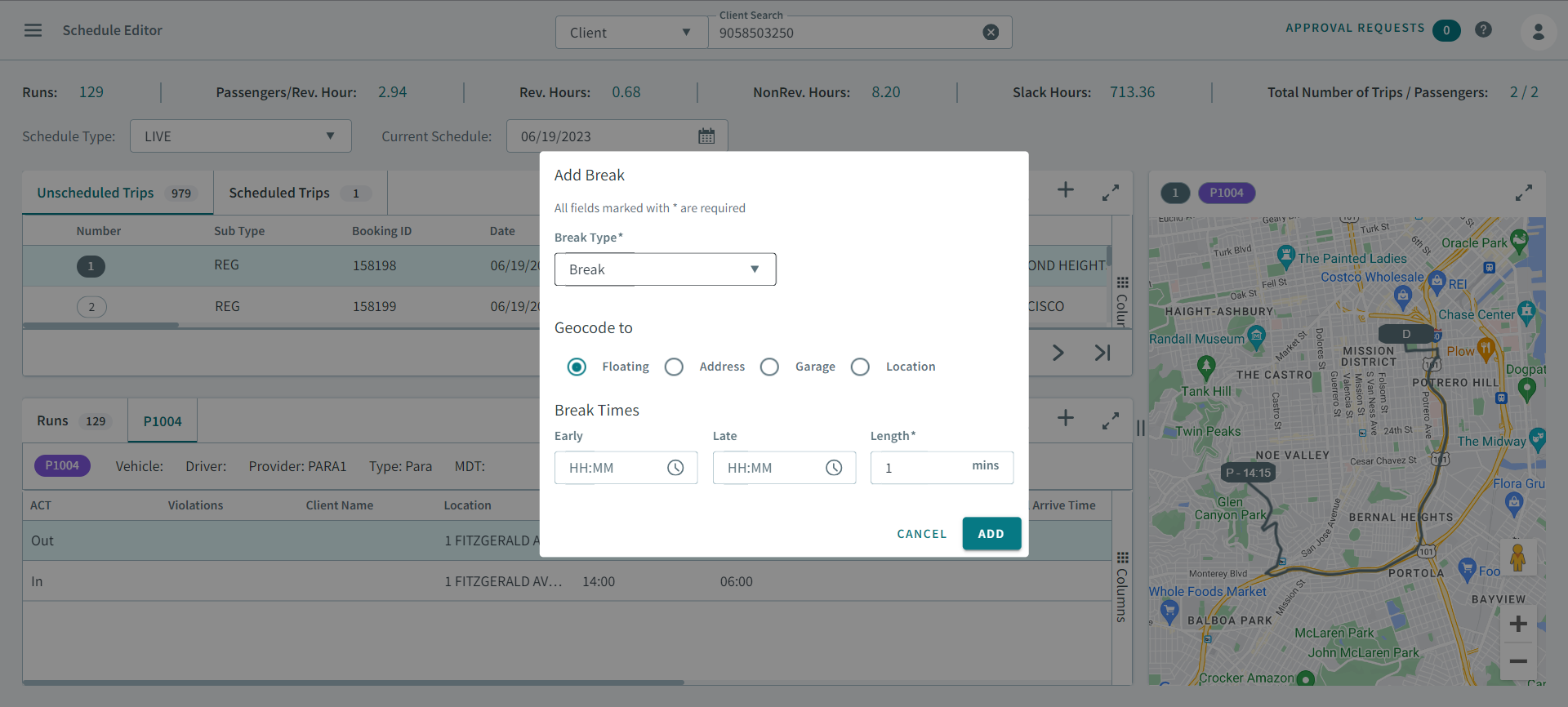
- Select a type in the Break Type dropdown list.
-
Select one of the following in Gecode to:
- Floating - If selected, allows the driver to take
a break wherever the vehicle is located when the break begins.
When you use the Floating option, OneMobilitymakes no allowance for travel time to/from the break location.
For example, if you set the length of the break at 30 minutes the driver could be scheduled for a pick-up as soon as the break is finished.
To incorporate travel time that does not compromise the break time, select Floating Geocode and set the break time to be a little longer than the actual break.
- Address - If selected, type the address in the
address box and geocode that address.
Using a geocoded address will take into account the driving time.
- Garage If selected, in the search box, type the
name of the garage. For example, AATA.
Once the system has found a match to your entry, the address appears in the address box.
- Location - If selected, in the search box, type the common location. For example, Benson Books. If OneMobility is able to locate the entry in the database, the address appears in the address box.
- Floating - If selected, allows the driver to take
a break wherever the vehicle is located when the break begins.
-
In Break Times, fill in the following fields:
- Early - Specifies the earliest time on the run that a break can be taken.
- Late - Specifies the latest time that a break can be taken.
- Length - Specifies the duration (in minutes) of the break.
For example, if you type 11:00 as the Early time, 13:00 as the Late time, and 30 minutes as the Length, then the 30-minute break can occur between 11:00 and 13:00. The exact time depends on the trips scheduled around the break. If you are updating a past schedule, you need to type the length of the break only.
- Click Add.