
Unscheduling a Booking
You can unschedule a previously scheduled booking in Schedule Editor.
Before you begin
Schedule Editor must be open.
Procedure
- Select Live or Template from Schedule Type
-
Do one of the following:
- If Live was selected, type or select a date from Current Schedule.
- If Template was selected, select a day of the week from Current Schedule.
Unscheduled Trips and Runs tab opens.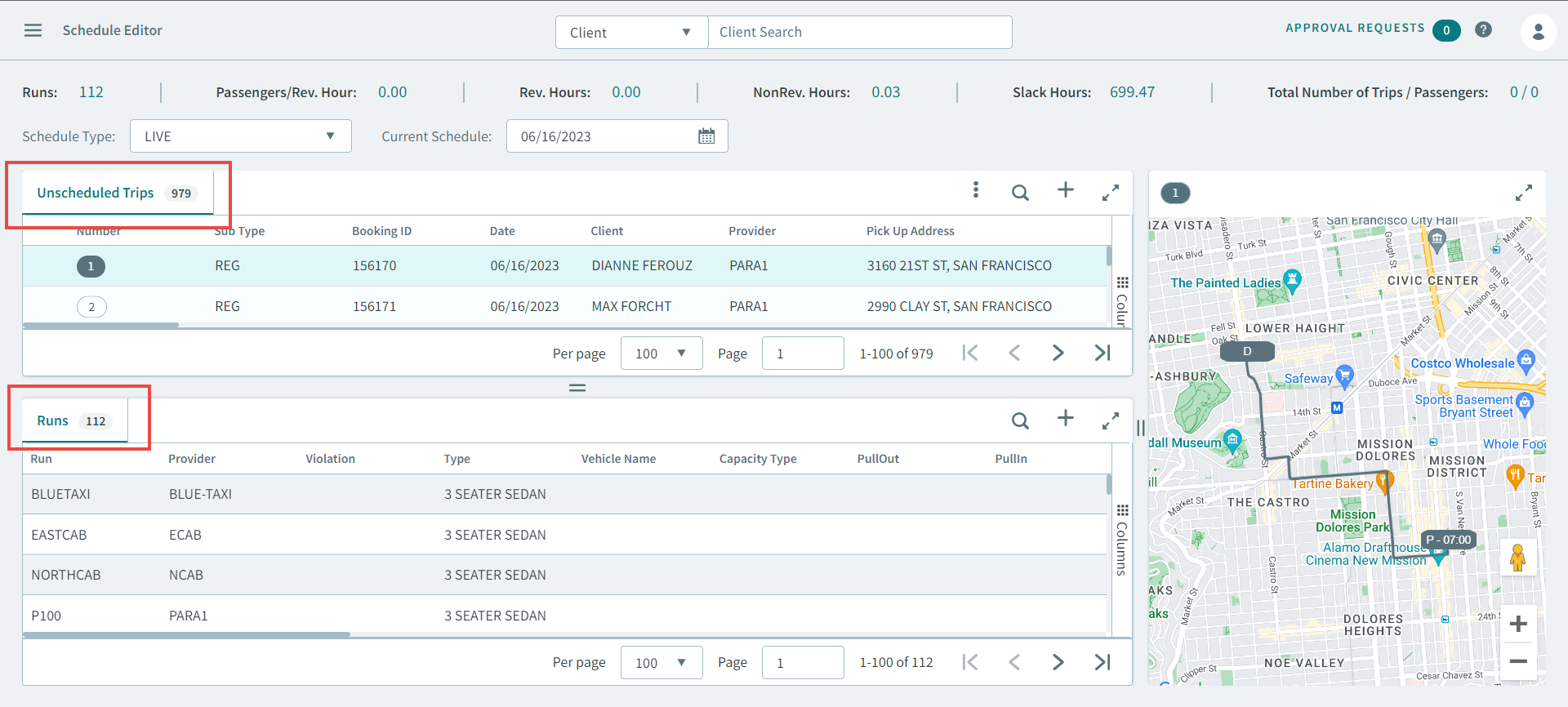
-
To view scheduled trips. Click the
 plus icon, and select Scheduled Trips from the
pop-up menu.
plus icon, and select Scheduled Trips from the
pop-up menu.
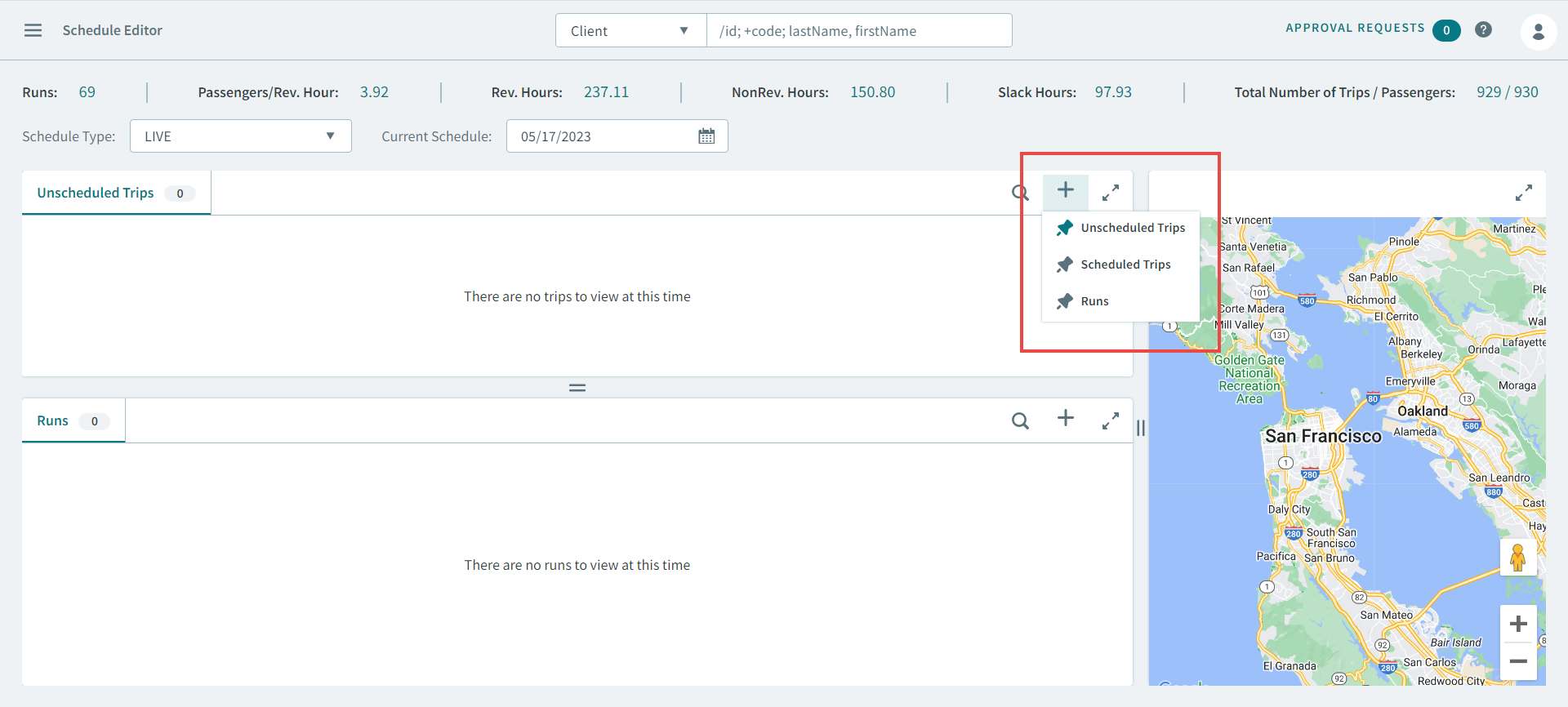
A Scheduled Trips tab is pinned to the Schedules pane. You can view both scheduled trips and unscheduled Trips at the same time, by navigating between the two tabs. -
In the Scheduled tab, right-click a booking and select
Unschedule.
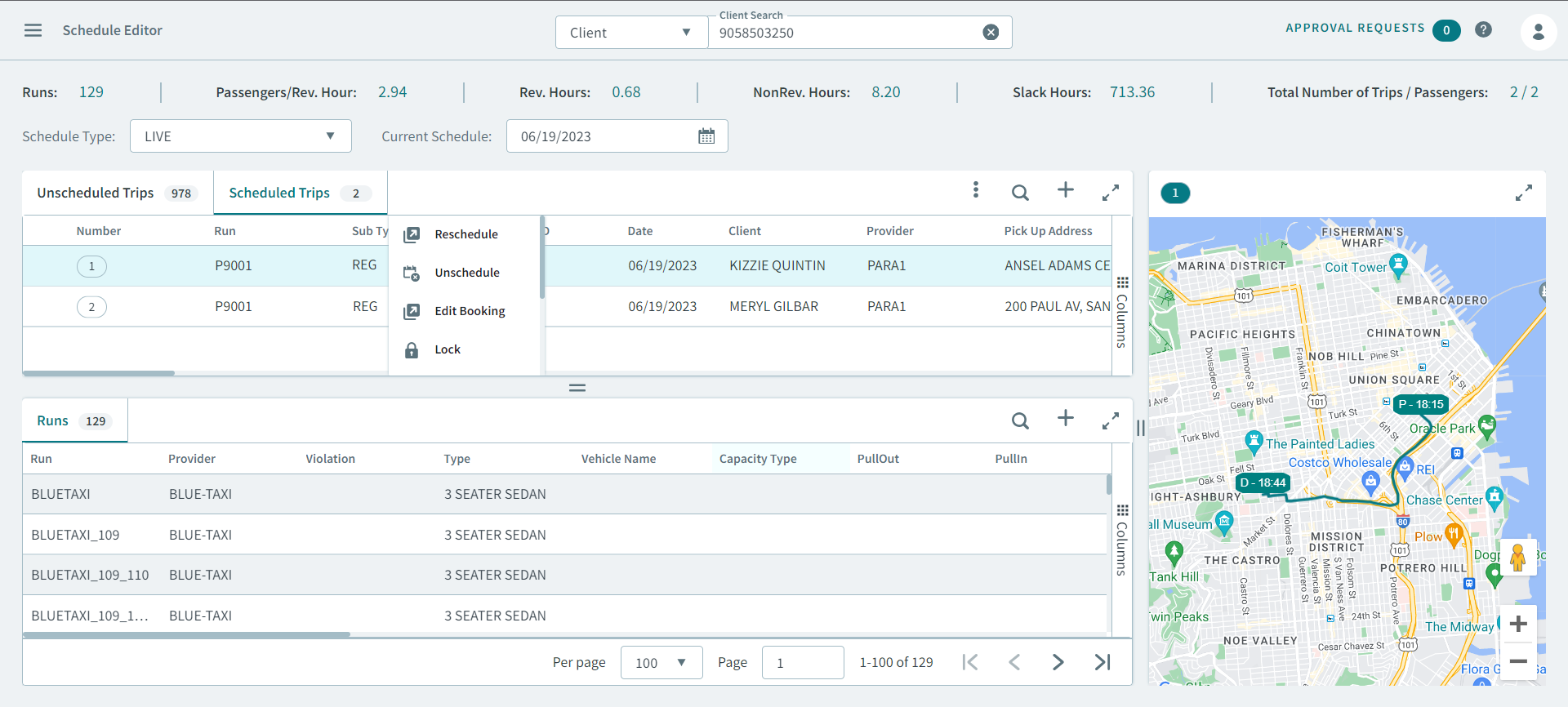
The booking is unscheduled.