
Assigning Driver/Vehicle in Schedule Editor
You can assign a driver/vehicle to a run in Schedule Editor.
Before you begin
Schedule Editor must be open.
Procedure
- Select Live or Template from Schedule Type
-
Do one of the following:
- If Live was selected, type or select a date from Current Schedule.
- If Template was selected, select a day of the week from Current Schedule.
Unscheduled Trips and Runs tab opens.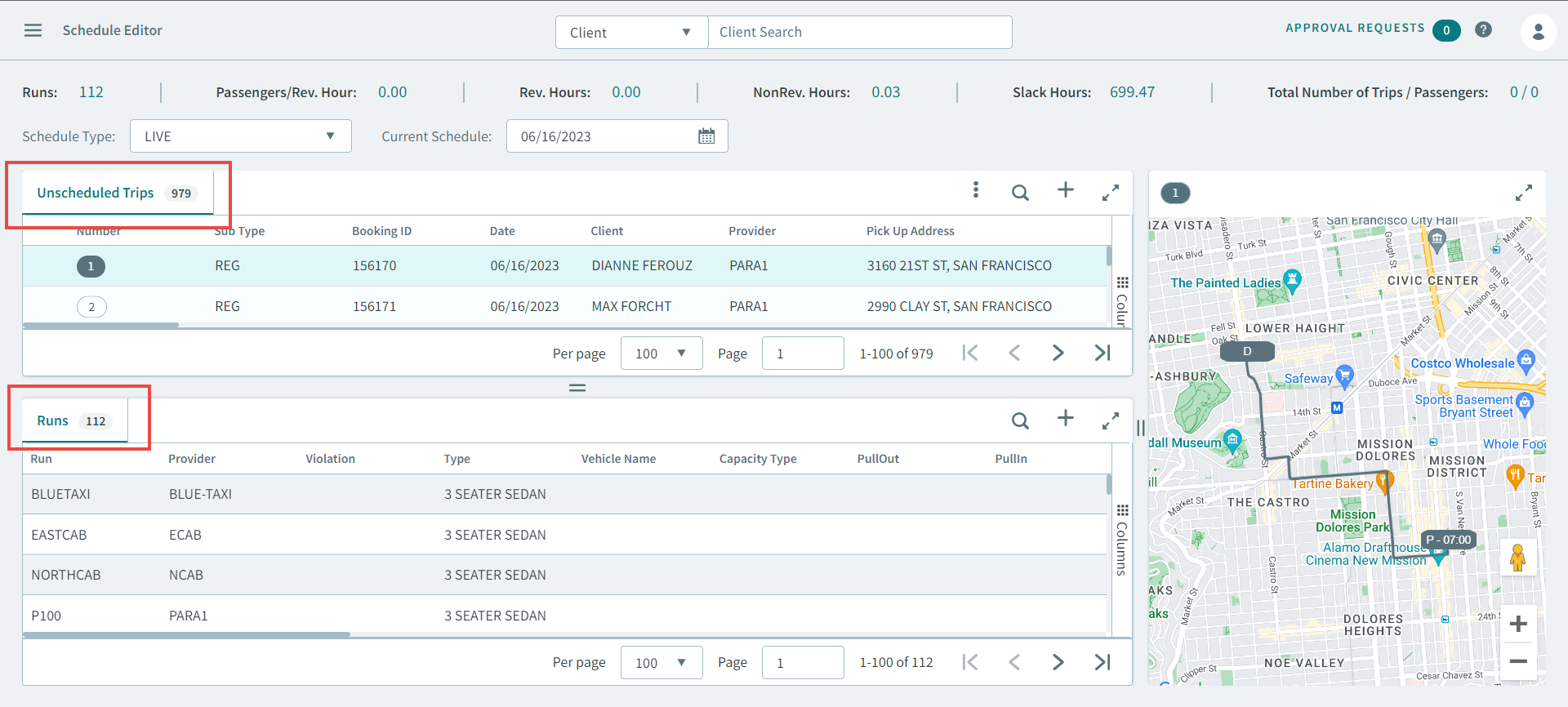
-
Right-click a run, and in the pop-up menu, select Assign
Driver/Vehicle.
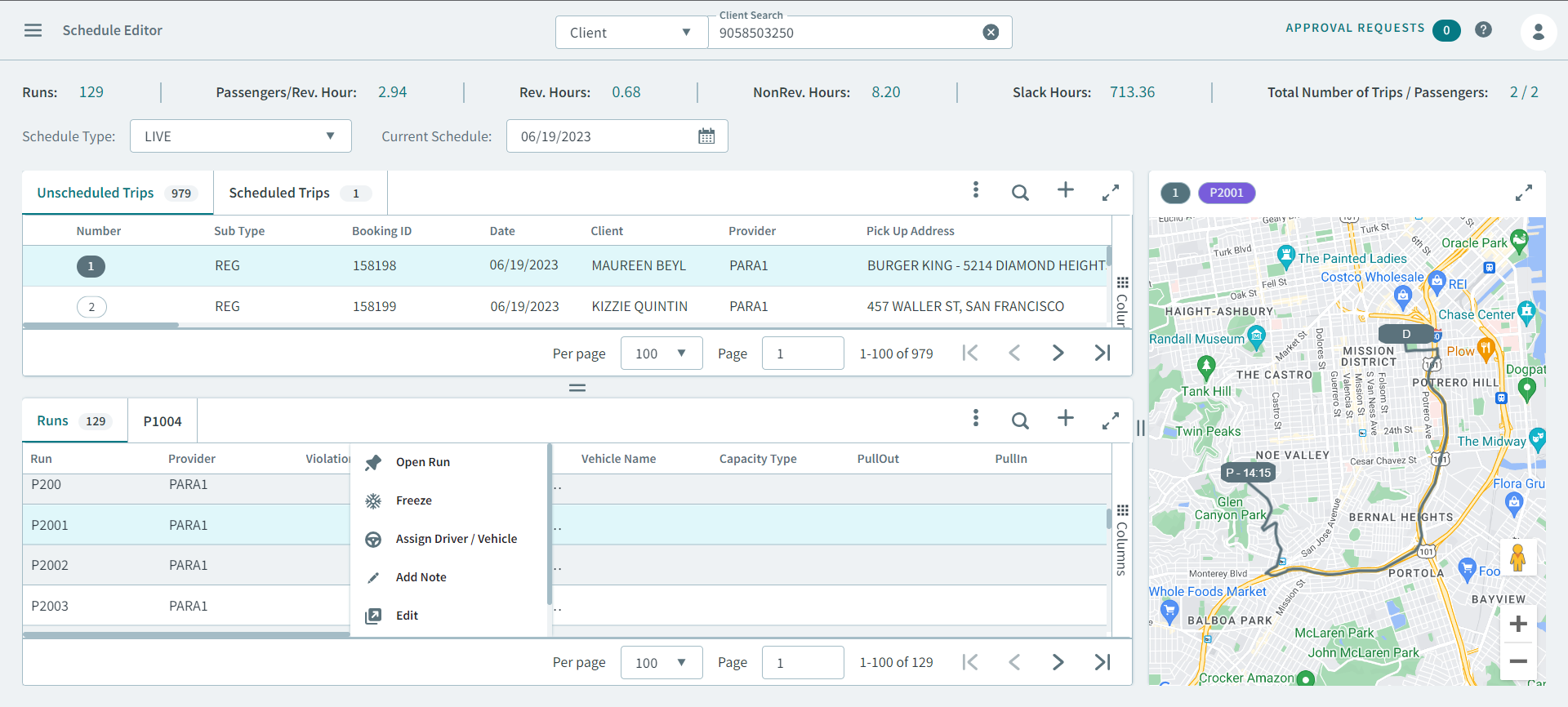
The Assign Driver/Vehicle pop-up window opens.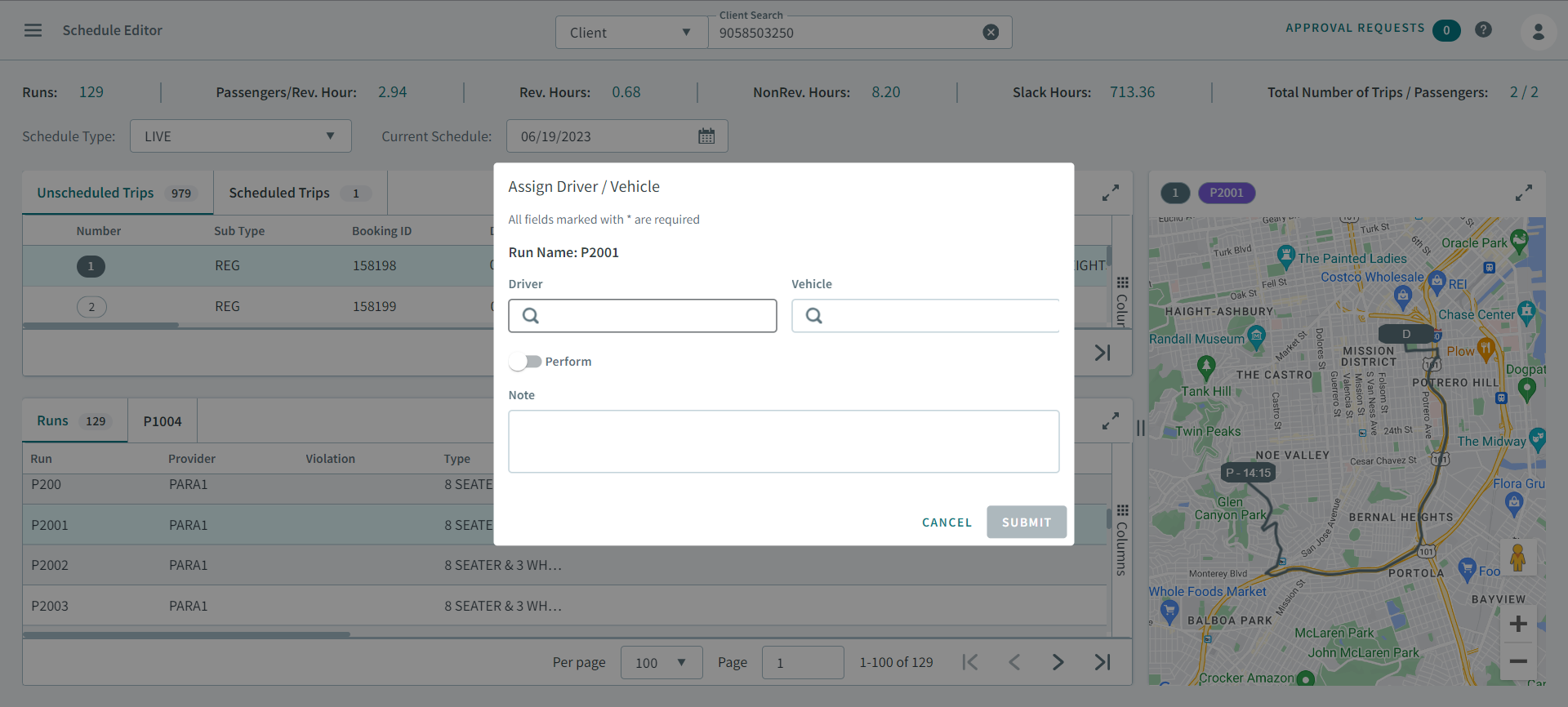
- In the Driver search box, type a driver's name, or click in the search box for a list of drivers.
- In the Vehicle search box, type a vehicle name.
- Turn the Perform toggle on.
- Optional: Enter information into the Note text area.
- Click Submit.