
Freezing/Unfreezing a Run or Run Event in Schedule Editor
Freezing a run prevents trips from being added to it, and existing trips from being removed from it. Unfreezing will remove the freeze status.
Before you begin
Schedule Editor must be open.
About this task
A frozen run is excluded from run clustering and batch scheduling, and it is not offered for solutions when running the Booking Wizard. A frozen run will appear in the Tracker Action page with the Track Code PASS/RunFrozen (if defined in Tracker Action ancillary data).
Procedure
- Select Live or Template from Schedule Type
-
Do one of the following:
- If Live was selected, type or select a date from Current Schedule.
- If Template was selected, select a day of the week from Current Schedule.
Unscheduled Trips tab is displayed in the Schedules pane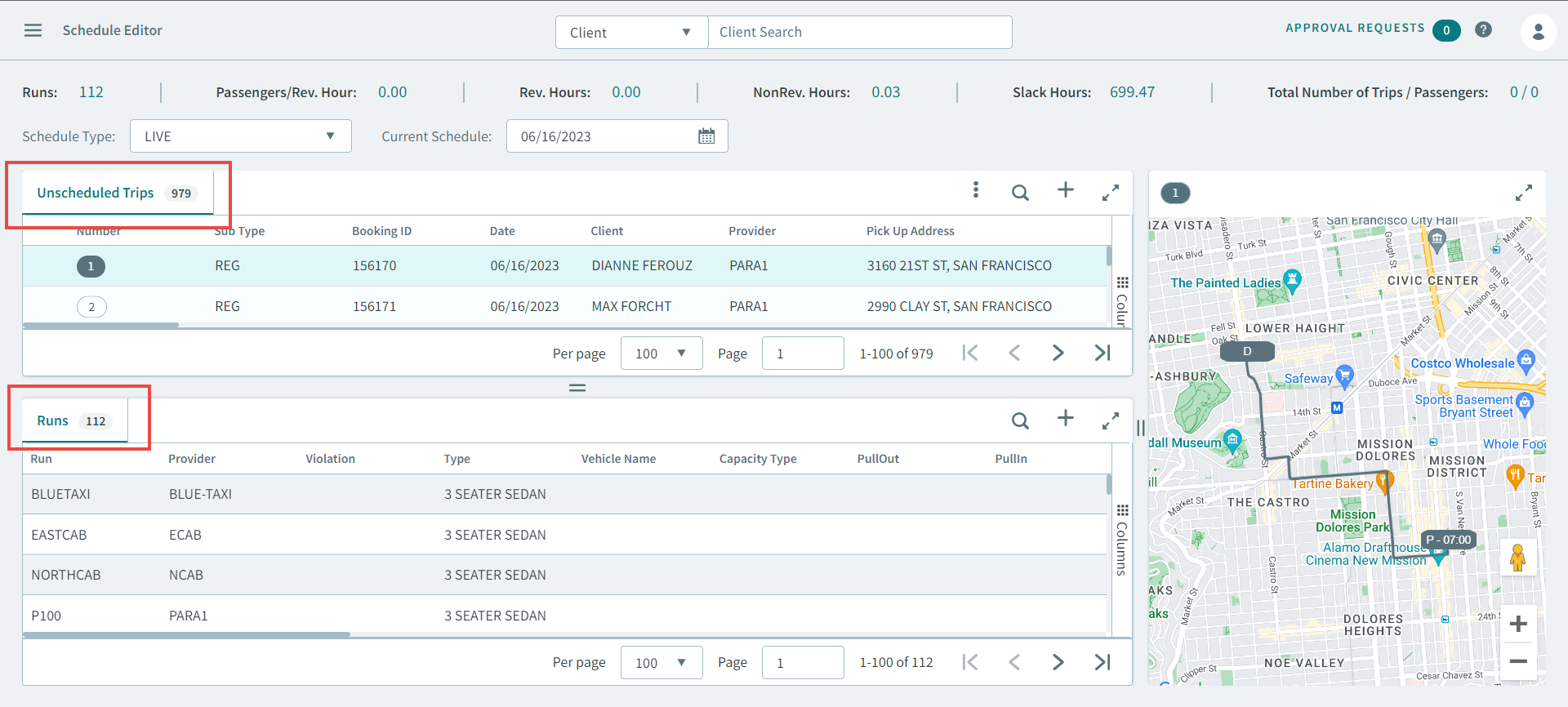
-
To freeze/unfreeze a run, do one of the following:
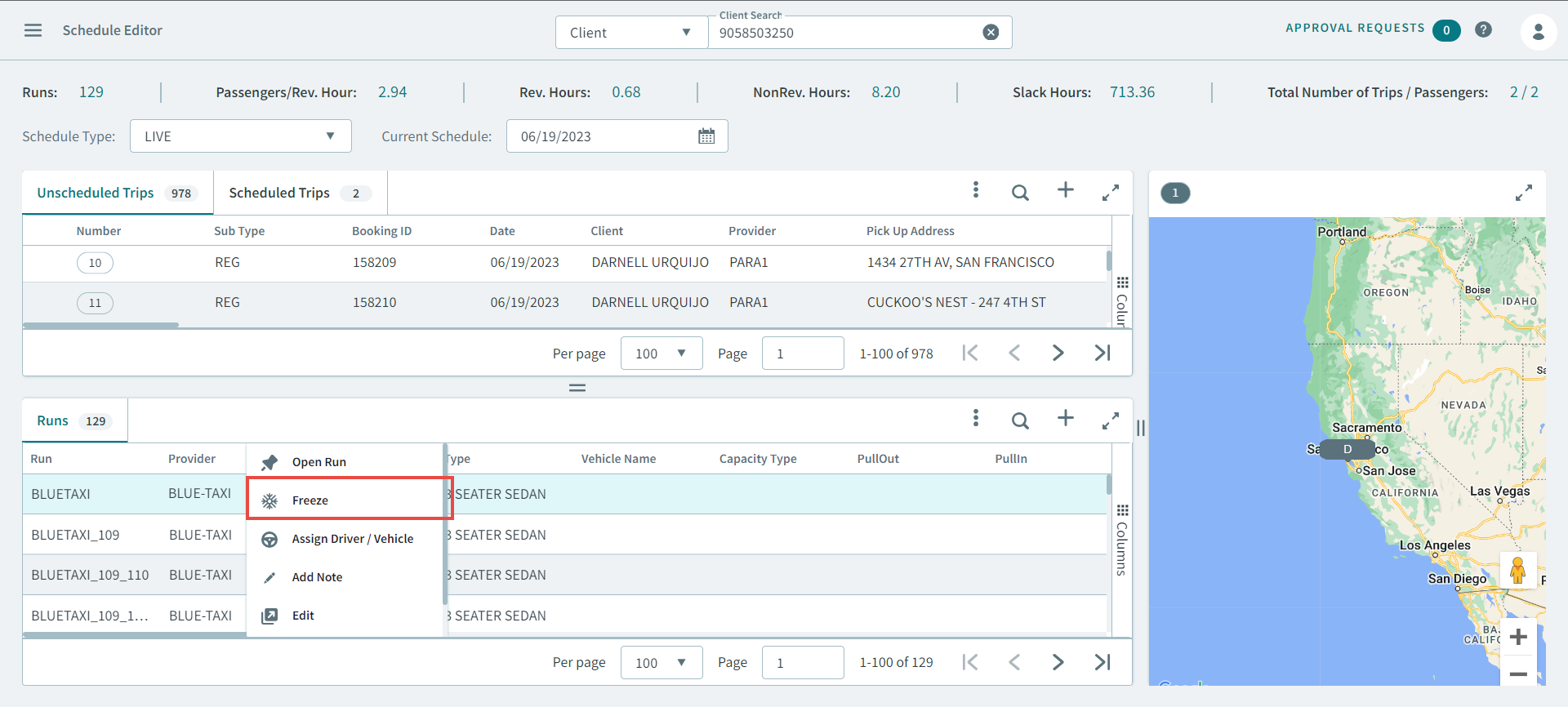
- In the Runs tab, right-click a run and in the
pop-up menu, click Freeze.
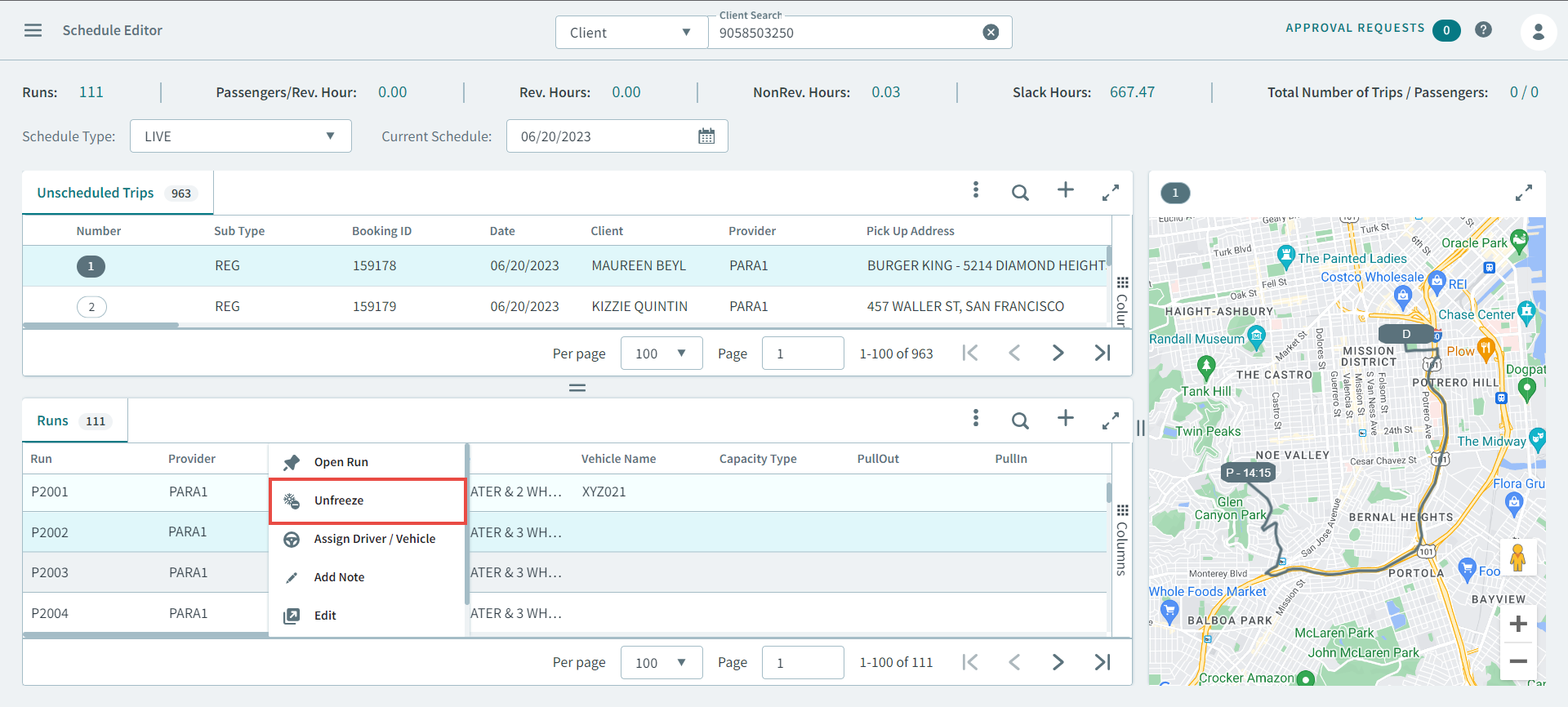
- In the Runs tab, right-click the frozen run and
in the pop-up menu, click Unfreeze.
- In the Runs tab, right-click a run and in the
pop-up menu, click Freeze.
-
To freeze or unfreeze an event, double-click a run in the
Runs tab
- To freeze a run event, right-click an event in the Run Itinerary tab, and select Freeze from the pop-up menu.
- To unfreeze a run event, right-click a frozen event in the Run Itinerary tab, and select Unfreeze from the pop-up menu.