Understanding Maps in OneMobility
The OneMobility map provides a geographical representation of a service area.
There are many types of data displayed on the map that can help transit agency staff when performing their tasks, data such as, streets and barriers, bus stops, routes, trips, and walking distances.
Where can you find maps in OneMobility
- Clients - In a client profile, the client's address will display on the map.
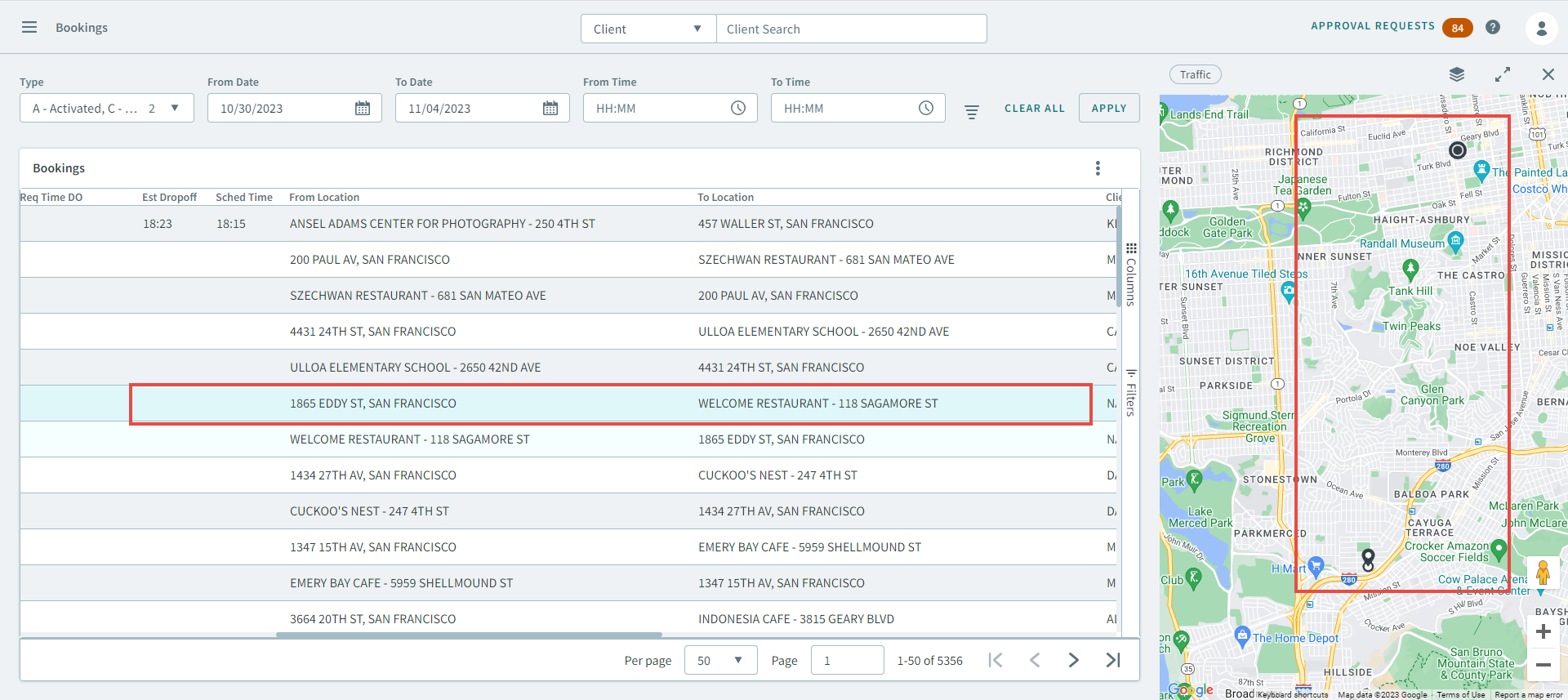
- Bookings - The map will display the pick-up and drop-off points of a
booking.
Maps Menu
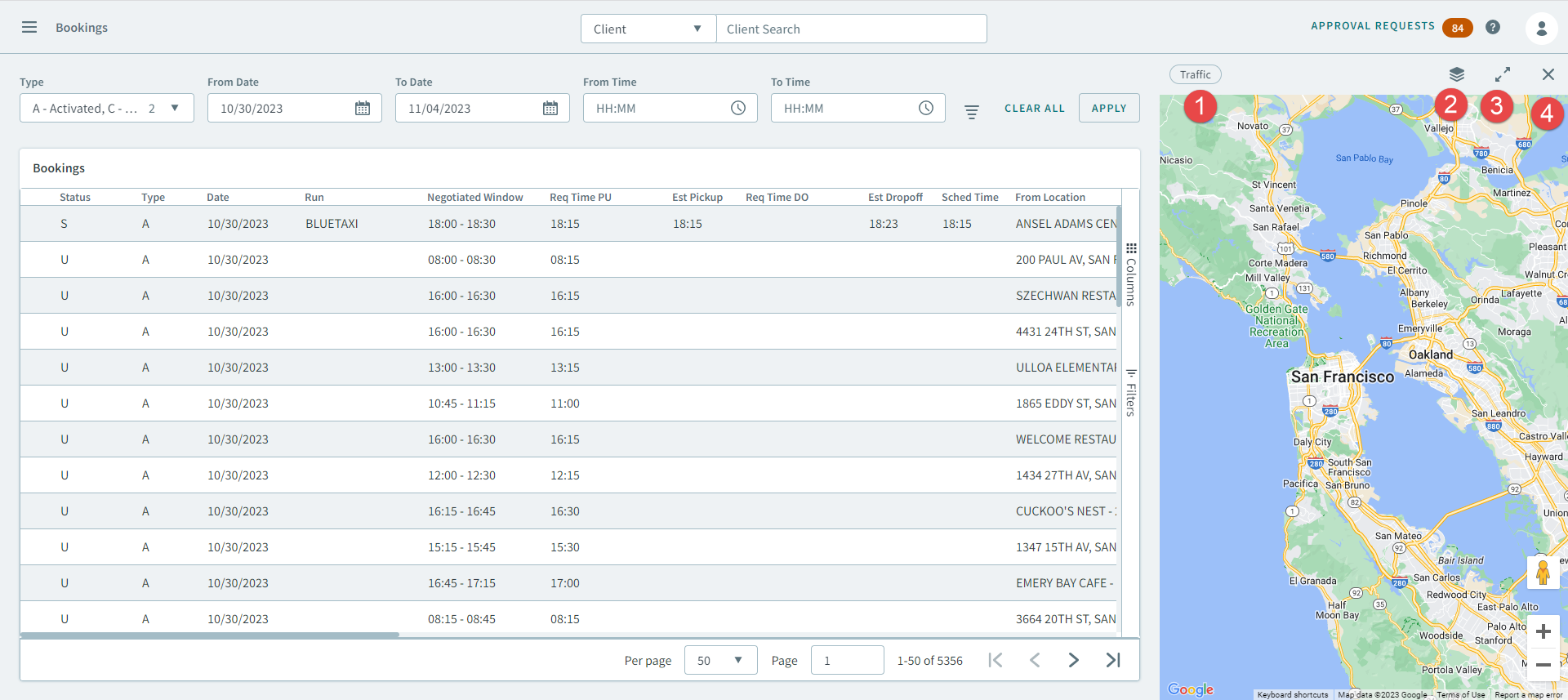
 Click the Traffic button to display a
real-time visualization of the day's traffic.
Click the Traffic button to display a
real-time visualization of the day's traffic. Click
Click  Polygon to open the
Polygon pop-up window, where you can select a
polygon type that will display on the map.
Polygon to open the
Polygon pop-up window, where you can select a
polygon type that will display on the map.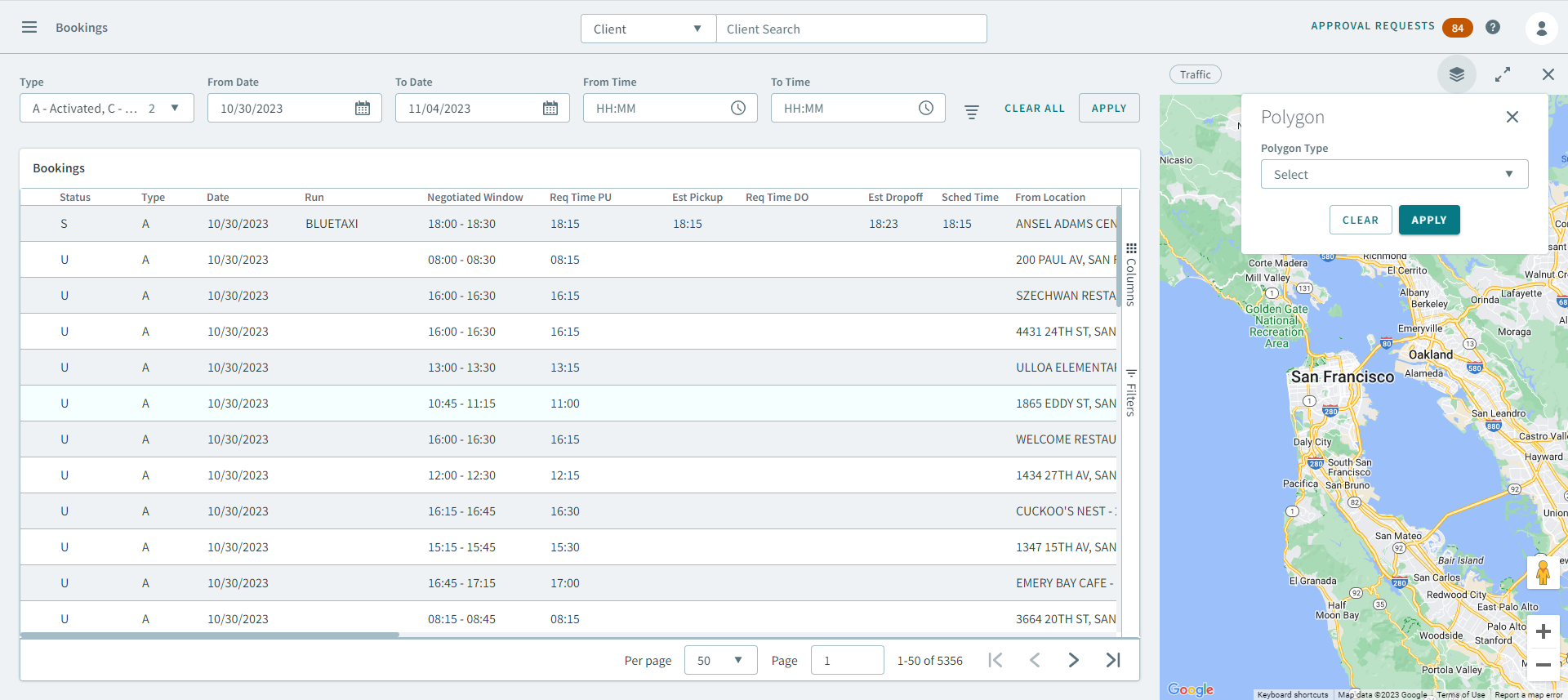
 Click
Click  to maximize the size of the map.
To minimize it back to it's original size, click
 .
. Click
Click  to close the map.
Geocoding
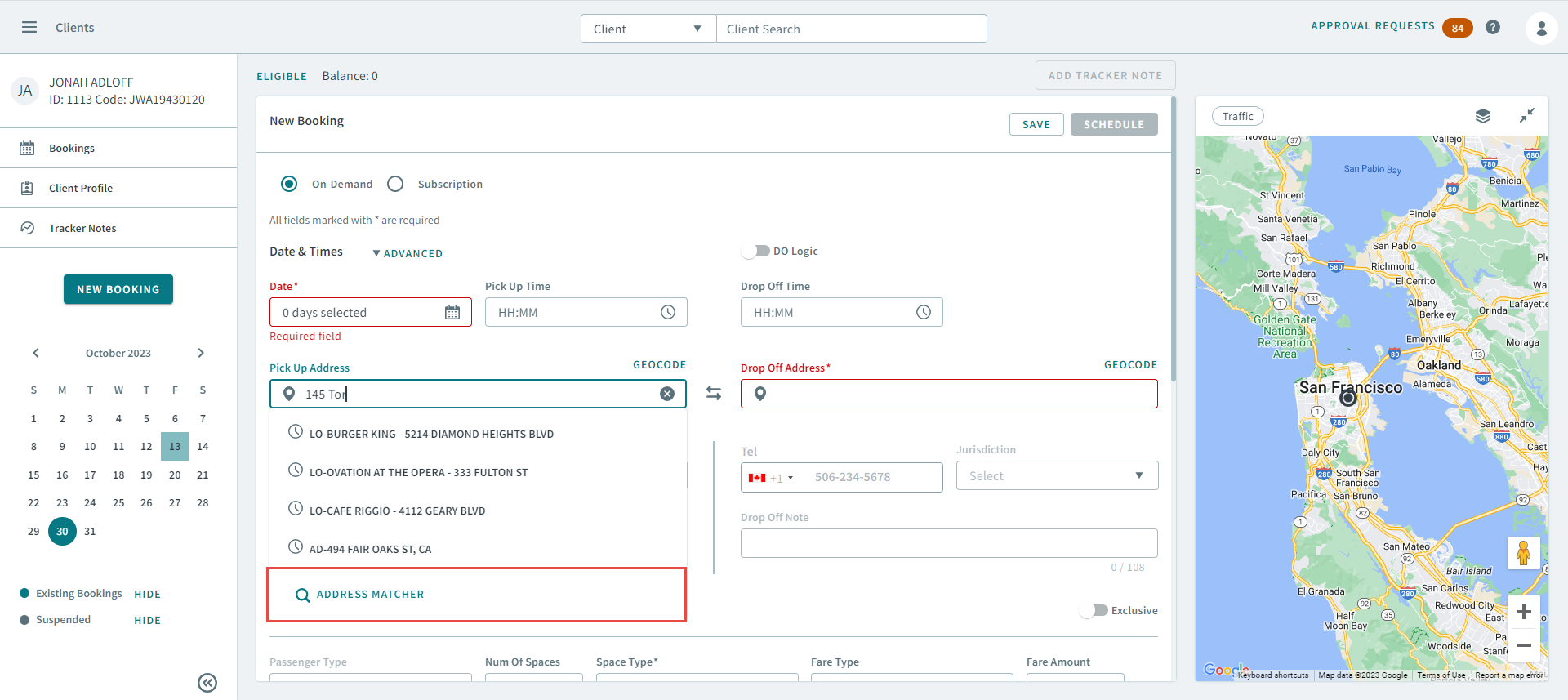
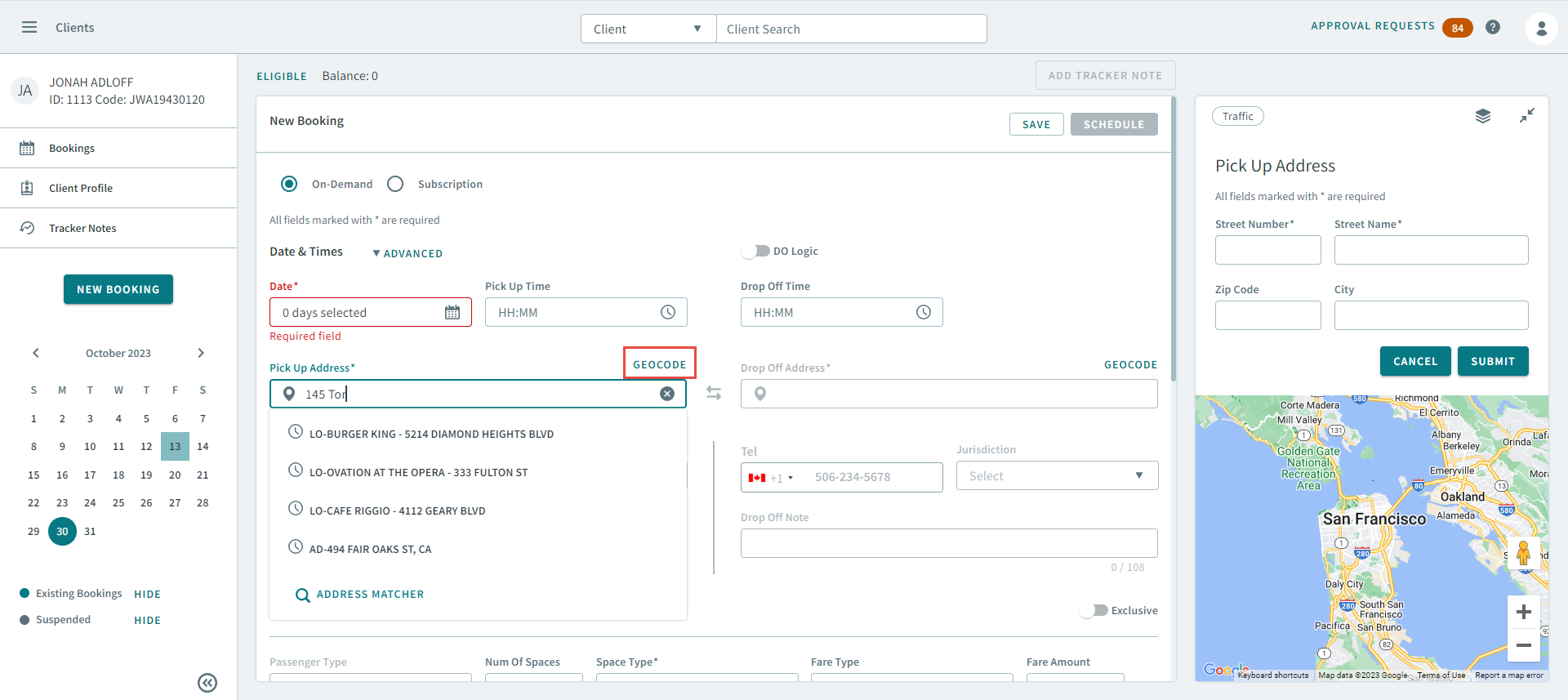
OneMobility uses geocoding to assign longitude and latitude to an address on the map. You perform geocoding by searching for an address in a booking and submitting it as a geocoded address.
Address Matching
Address matching is an important part in locating and verifying addresses on the map. It works by matching a user input address with map data (Google, LOC, and T4). It is also used with geocoding when coordinates require an address.
You can address match when creating or editing a booking. This is useful for verifying the pick-up and drop-off addresses of a client.