
Geocoding Addresses
Geocoding an address assigns precise longitude and latitude values on the map.
Geocoding allows OneMobility to calculate the distance and time it takes for a vehicle to travel from point-to-point along established routes.
When do you geocode?
Geocoding an address can be done at anytime, during booking creation, or later on when you are editing a booking.
Geocoding is done automatically in the address fields (Pick Up Address and Drop Off Address), or with Address Matcher.
In the Pick Up Address or Drop Off Address field, the matching results are common locations or addresses from Google Maps. In Address Matcher, you have the benefit of geocoding an address with Google Maps, Trapeze4, and Location Address Type to ensure you get the desired result.
If you are still unable to geocode an address using map data, then you can manually geocode an address by selecting Geocode above the Pick Up Address or Drop Off Address fields.
How do you manually geocode?
- Type the address in the Pick Up Address or
Drop Off Address field.Tip:Do not include street prefixes such as North, West, or South and suffixes such as street, road, lane, or avenue in order for OneMobility to generate more matches to the name.
- If there are no matching results, click Geocode above
the Pick Up Address and Drop Off
Address field.
The Pick Up Address pop-up window opens.
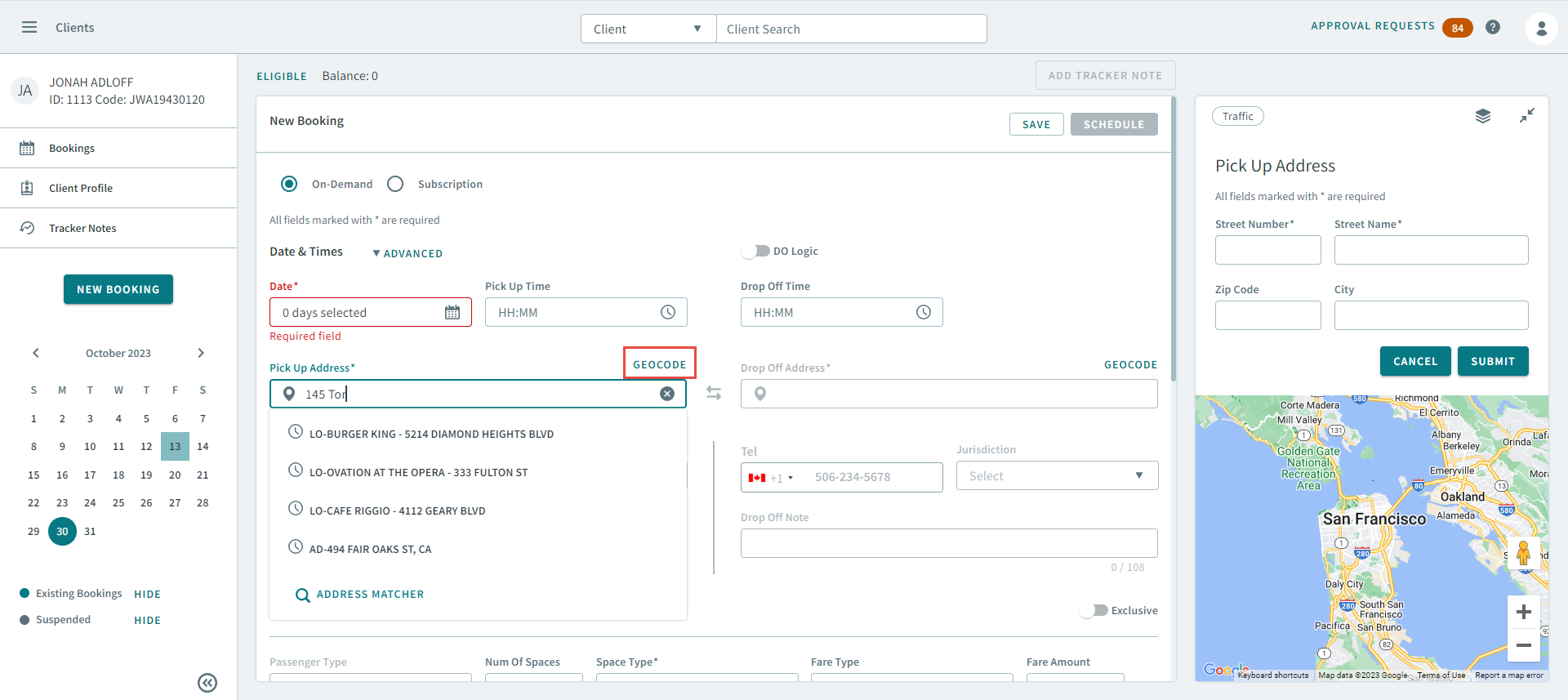
- Use the map to find the co-ordinates of the address, and then click on the
map to add a pin drop of the location. Note:A green pin will display on the map indicating the point that will be geocoded.
- Type the address into the following fields:
- In Street Number field, enter a number.
- In the Street Name field, enter a name.
- In the Zip Code field, enter a number.
- In the City field, enter a name.
- Click Submit.