
Adding a No Show in Schedule Editor
OneMobility offers a variety of cancellation reasons and codes.
Before you begin
About this task
How OneMobility cancel codes are used depends on the individual policies at your site. Site-specific codes and rules about cancellation code and no show usage are defined by a system administrator in Schedule Status Codes ancillary data.
Procedure
- Select Live or Template from Schedule Type
-
Do one of the following:
- If Live was selected, type or select a date from Current Schedule.
- If Template was selected, select a day of the week from Current Schedule.
Runs are displayed in the Runs tab.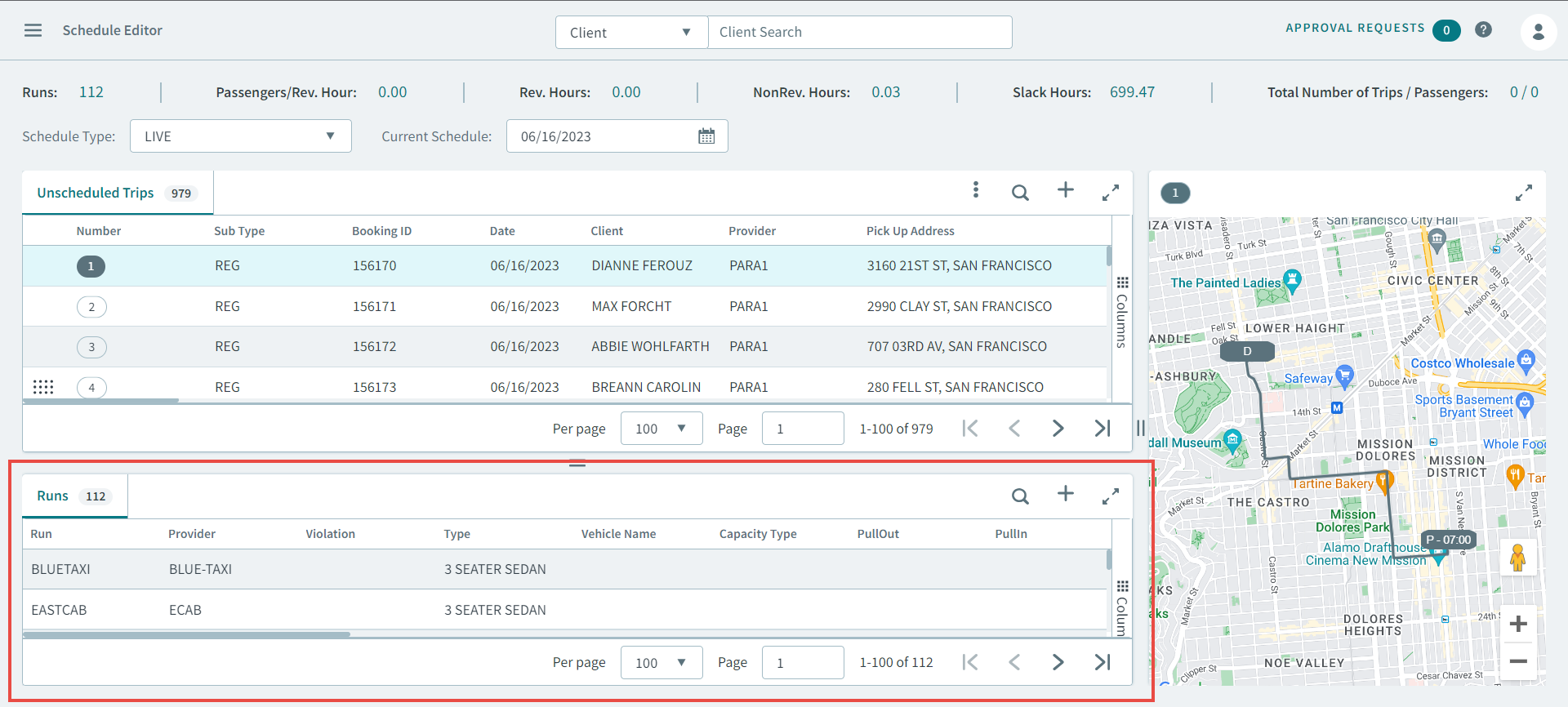
-
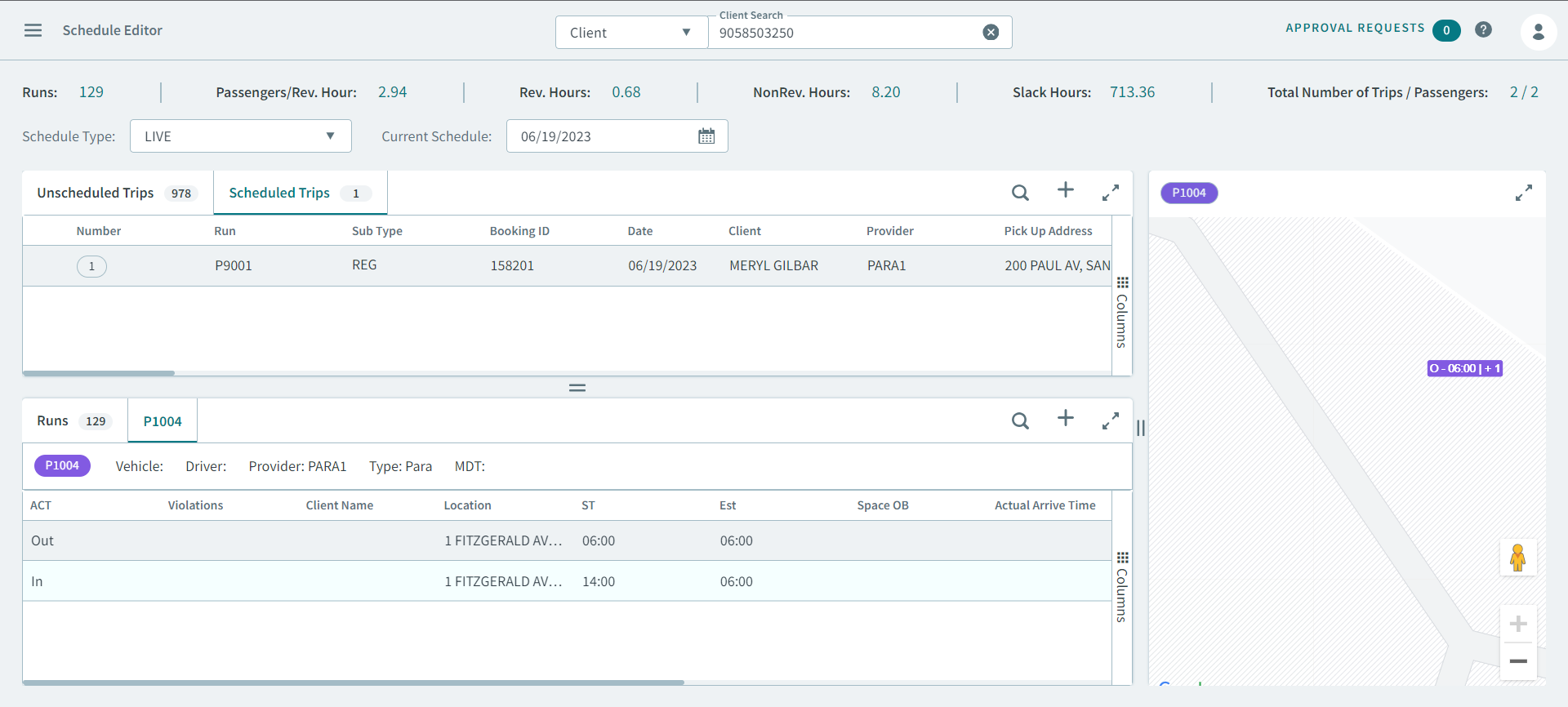
To view a run itinerary, double-click a run or right-click and select
Open Run from the pop-up menu.
The Run Itinerary tab opens.
-
Right-click an event and in the pop-up menu, select No
Show.
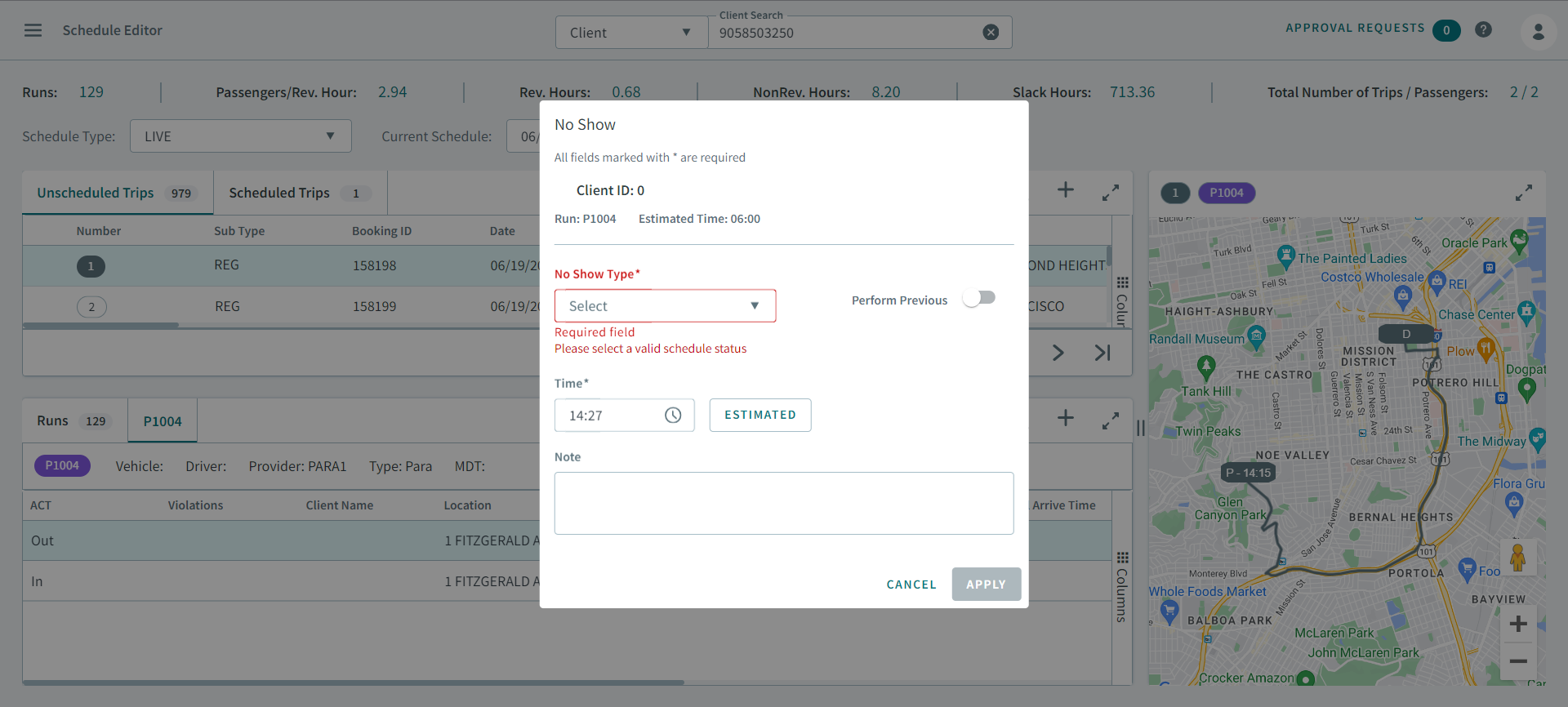
The No Show pop-up window opens.
-
In the No Show Type dropdown box, select a no show
type.
Tip:No show types are created in Schedule Status Codes in the Ancillary Types page.
- Turn Perform Previous toggle ON.
-
Enter the time that the no show occurred.
- In the Time box, enter a time (hh:mm).
- Click Estimated to populate an estimated time into the Time box.
- In the Note text area, enter any additional information for the no show.
- Click Apply.