Sending Case Emails
The case email to be sent must be attached to the case.
Before you begin
About this task
Procedure
- Select the case card for the case where the email will be sent.
-
In one of the panes, click the Menu
button:

-
Click Case Emails.
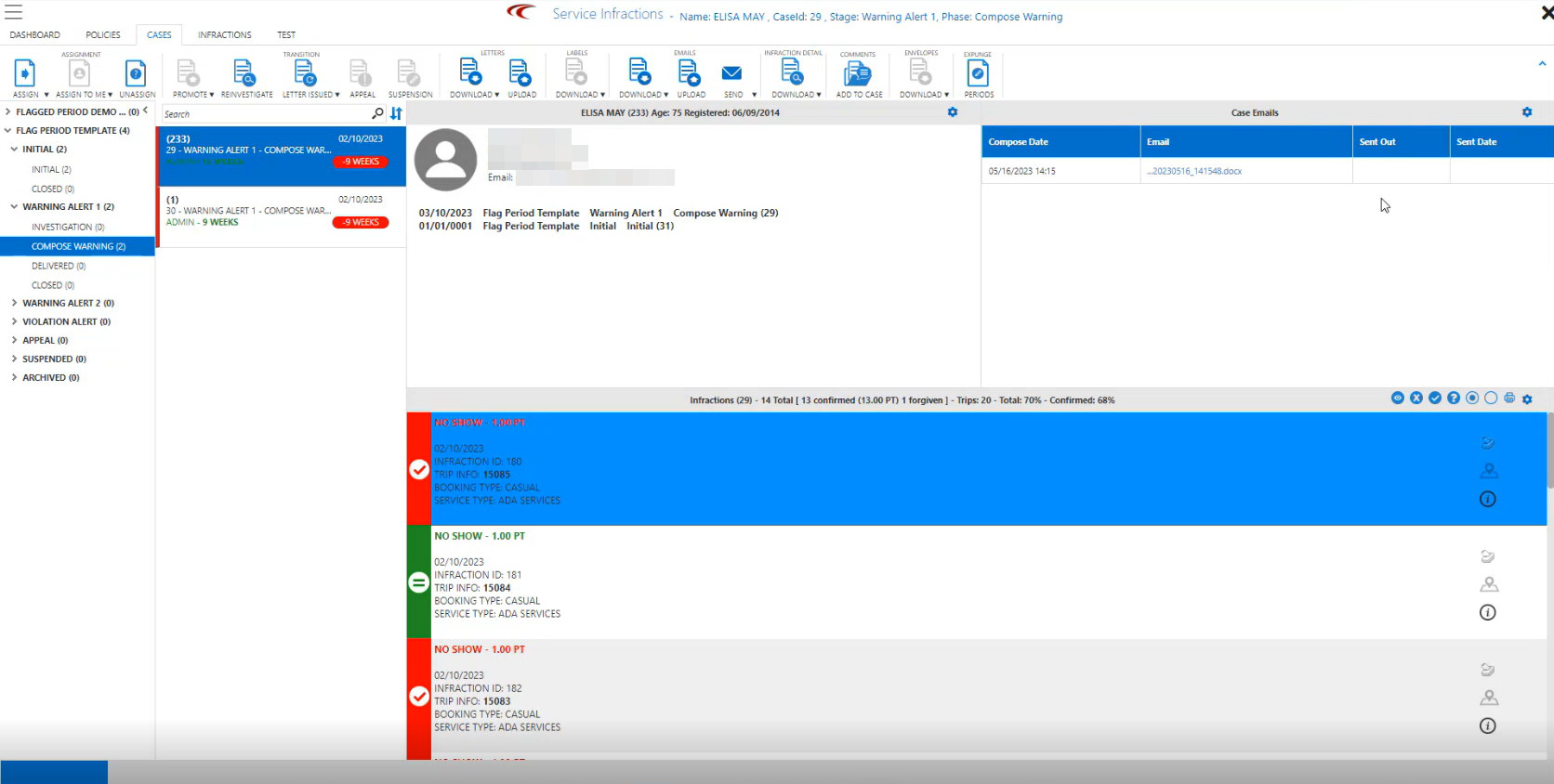
Case Emails appear in the selected pane.
-
Do one of the following:
To Do this Sends the email for the selected case. Click Send: 
Sends all emails in the selected phase. Click the Send arrow (  ), then click All In Phase.The Email has been sent out message appears.
 -
Click OK.
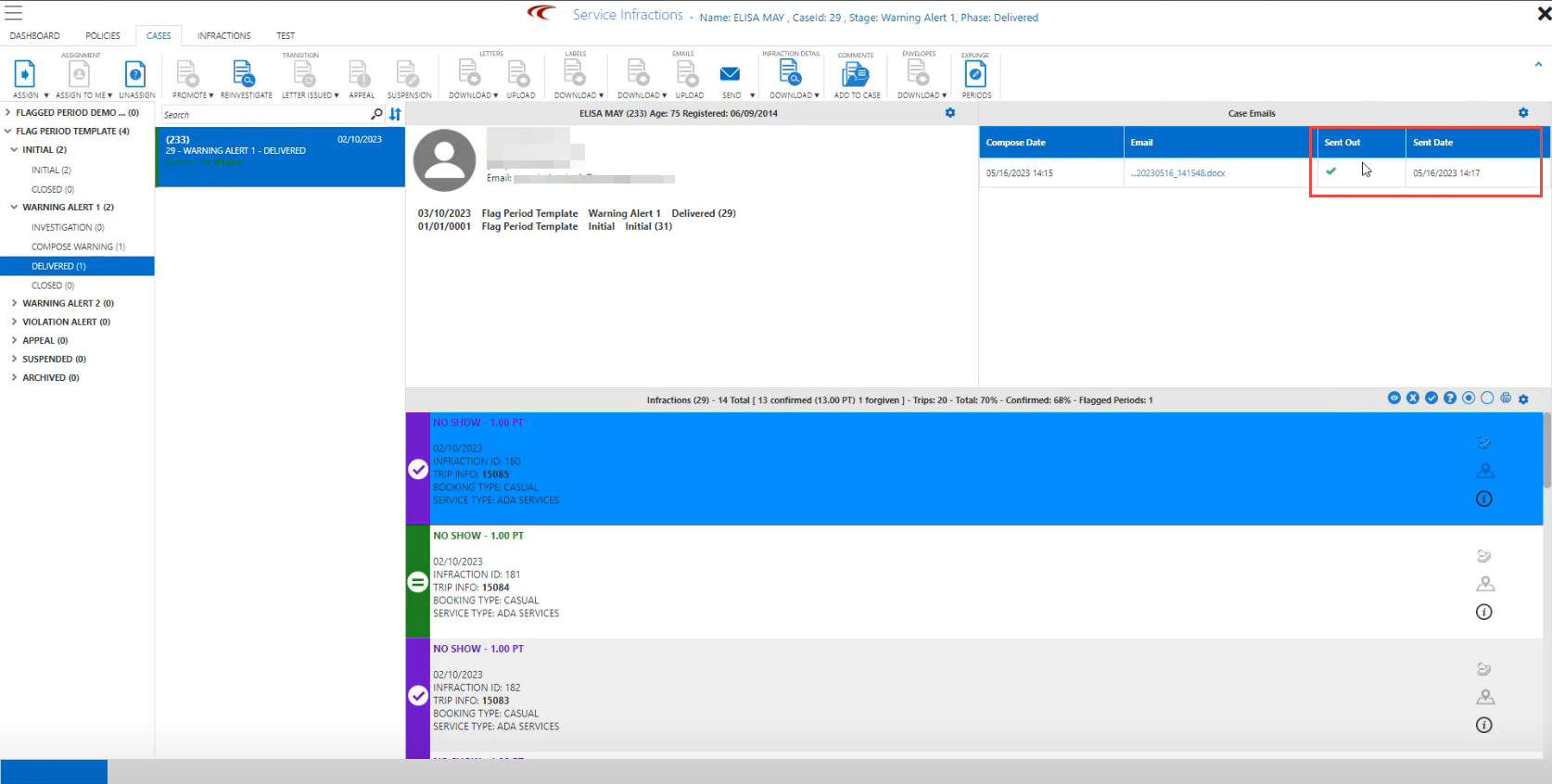
In the Emails widget, sent emails are indicated by a check mark in the Sent Out column, and a date in the Sent Date column.