
Linking Feedback to an Incident
For enabled incident types, related COM feedback can be linked to the incident.
-
In the OPS Incidents Admin screen, select an incident
enabled for feedback and then Feedback:

-
Select Show all related feedback records.
COM feedback records related to the incident are shown based on date, vehicle ID, employee ID, division ID, and run ID. Select a record to show feedback details.
-
Select the record to link and select Link.
When you select a linked record, the Link button toggles to Unlink.
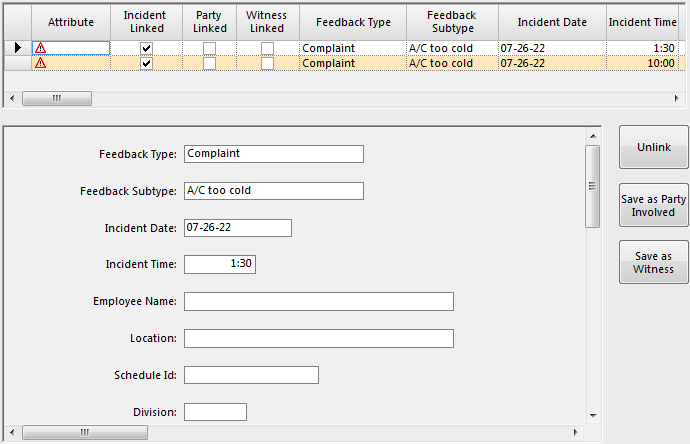 The Incident Linked, Party Linked, and Witness Linked columns show the status of the record.
- Select Save as Party Involved or Save as Witness.
