
Adding Multiple Days to a Casual Booking
A client may want to book a number of trips that have the same origin, destination, pick-up and drop-off times but do not occur at regular intervals.
Before you begin
About this task
When a trip itinerary is added to multiple days, separate identification numbers (Itinerary IDs) are created for each itinerary. A trip itinerary booked for Thursday the 14th will have a different itinerary ID than a trip itinerary booked for Thursday the 28th, even if the locations and times are identical.
Procedure
- In the Client field, search for and select the client.
- Select the Casual option.
-
Click the Calendar button:

-
In the calendar, highlight all the calendar days on which this trip booking will
occur.
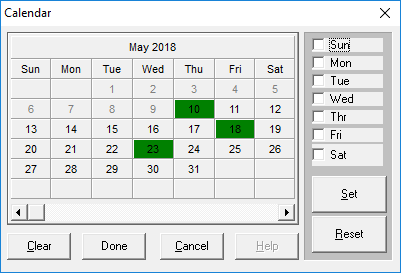
Use the scroll bar to see future months.Use the week day options (Sun, Mon, Tues, Wed, Thr, Fri, Sat) and the Set button to highlight all available dates that fall on the selected week days. -
Click Set, and then click Done to accept the dates you have just entered.
After the trip has been saved, the word multiple appears in the Booking ID field of the Detail tab (instead of a booking ID number).

-
Continue adding information about the trip as needed.
If you attempt to enter a date and time for which a trip for the same client is already booked, the Trip Confirmation tab of the Client/Booking Info dialog box appears. The dialog box shows the originally booked trip to help avoid double bookings for the same client.
- Do one of the following:
To Do this Save the booking for batch scheduling later Click the Save button: 
Schedule the booking immediately Click the Schedule button: 