
Adding Tracker Notes to a Booking
Tracker Notes provide additional information about a booking. They can be added when creating or editing a booking.
Before you begin
Procedure
-
Add Tracker Notes when you create a new booking, or when you are editing an
existing booking:
- Create a new booking
- Click the
 Accordian icon on the top left
corner, then click Clients.
Accordian icon on the top left
corner, then click Clients. - On the Clients page, use the search fields to find a client profile and click Apply.
- On a client profile, click the
 Three dots icon next to a profile
in the grid, and then click New Booking
from the pop-up window.
Three dots icon next to a profile
in the grid, and then click New Booking
from the pop-up window.
- Click the
- Edit a booking
- Click the Accordian icon on the top left
corner, then click Bookings
- On the Bookings page, search for the booking
you want to edit. Click the
 expand icon to show filters that can
narrow down the list of bookings.
expand icon to show filters that can
narrow down the list of bookings. - Select the booking to edit.
- Click the
- Create a new booking
-
At the top of the page, click Add Tracker Note
The Add tracker note dialog box opens.
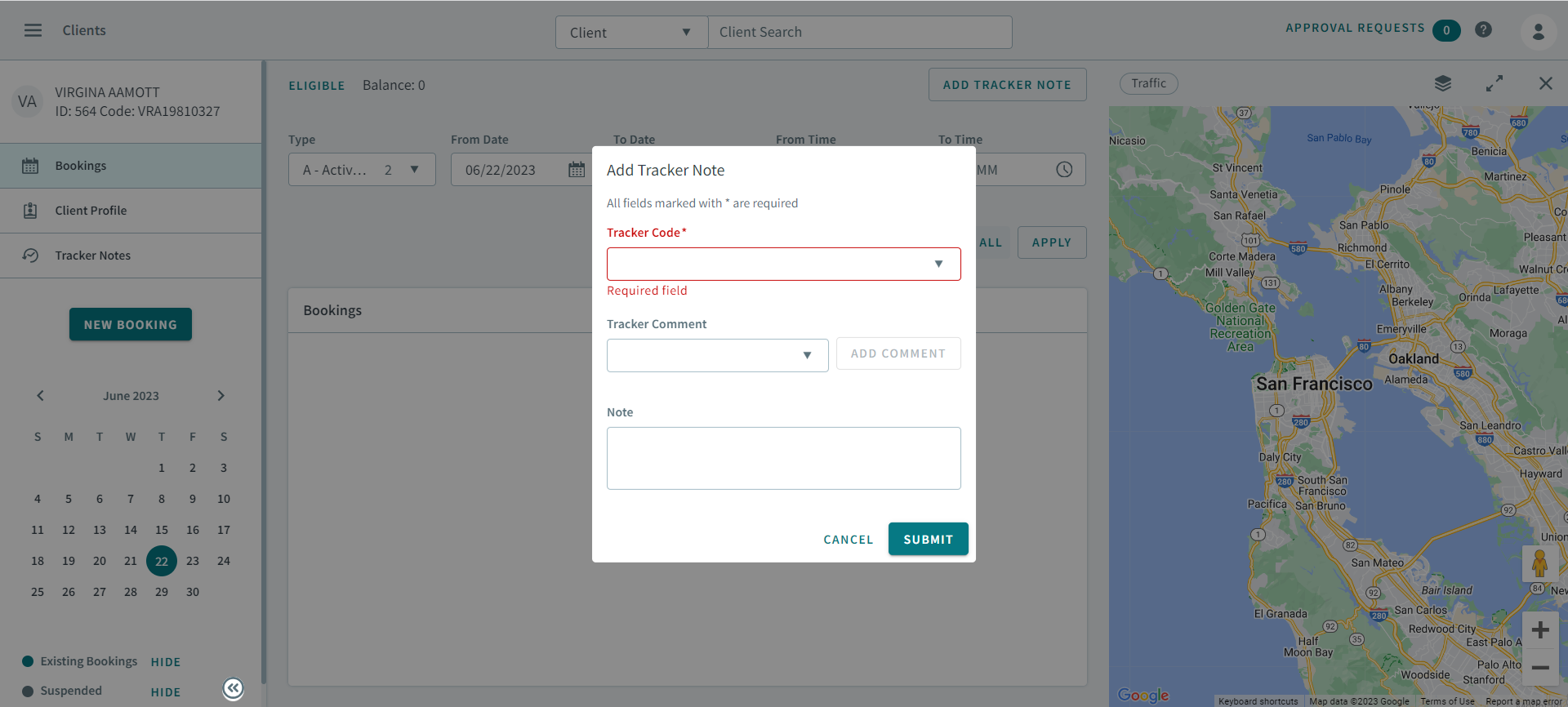
- Select a code from the Track Code dropdown list.
- Optional: Select a comment from the Tracker Comment dropdown list.
- Optional: Type a note in the Note area.
- Click Submit.