
Columns in the Leg Detail Frame
Some columns in the leg detail frame can be updated with additional information about the booking.
| Column | Description |
|---|---|
| Pass | Shows the passenger type assigned to the client (for example, CLI). The client passenger type is always generated by default for each booking and is determined by the Default Client Passenger Type property. To choose another passenger type, click the Passenger type field and select another passenger type in the list. |
| Space | Shows the space type assigned to the client in the client registration file. If no space type is assigned to the client, the space type determined by the Default Space Type property appears. |
| PU | The number of spaces required for a passenger aboard the vehicle upon pick-up (when the Origin tab is activated). For example, 2 means that two spaces are required for this passenger, not that there are two passengers. To edit the number of spaces, overwrite the existing entry. |
| DO | The number of spaces required for a passenger aboard the vehicle upon drop-off (when the Destination tab is activated). |
| Calc (Calculate) |
Shows Yes or No:
|
| Fare Type | The fare type assigned to the client in the client registration file (Detail).
If a client eligibility condition is in effect for the booking, the fare type
assigned for the eligibility condition is used. If no fare type is assigned for the
client in the client file, the Default Fare type is used. To view the fare types defined as the default, click , and on the Profile tab look for Faring. Click the Save button or $ button to recalculate the fare if the fare type has been changed. For example, if a reservationist is on the phone and the client asks for an updated price on the spot. The Fare Summary dialog box appears showing a breakdown of the fare that has been paid or will be paid by any funding sources and the client. 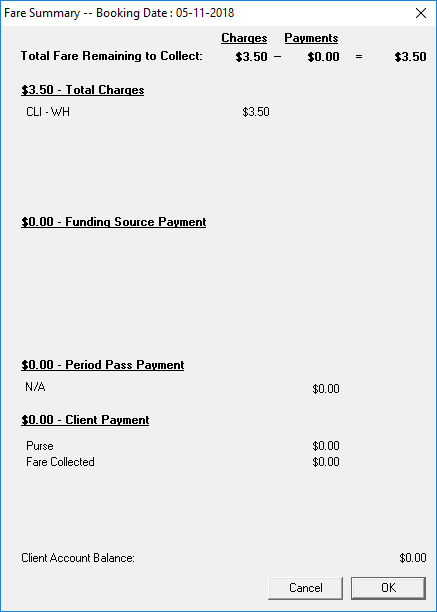 (Optional) Users can choose to display this dialog box whenever a booking is saved if the Show Fare Summary on Save user-defined property (found , on the Booking Screen tab) is enabled. |
| Client | Shows the fare charged to the client for the trip. |
| PP | Shows the amount of the fare covered by a period pass. (EZ-Wallet module.) |
| FSrc1* |
The heading shows the first funding source to subsidize the trip. Under this column heading is the portion of the fare to be paid by the funding source. There are five funding source columns. If a funding source is used, the abbreviation appears in place of this heading. |
| Deducted | Shows the amount to be deducted from the client purse for the trip. |
| Collected | Shows the amount to be collected by the driver for the trip. |