
Setting a Vehicle Status
Vehicle status shows a vehicle that is active or inactive, and provides the reason for their availability or lack of availability (for example, a two-day maintenance period).
Before you begin
Procedure
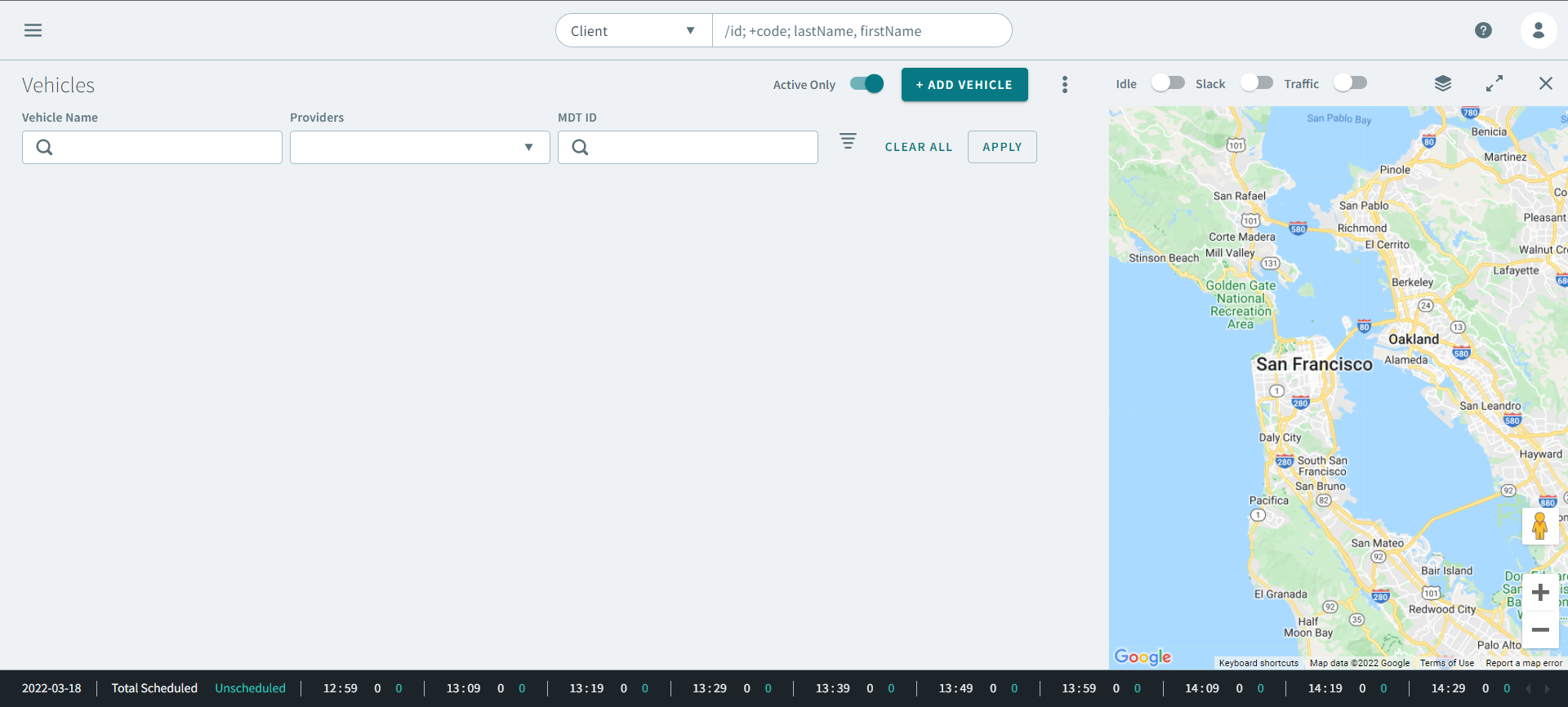
- To find a vehicle, enter information in the following fields:
- Optional:
To narrow search results, click the
 Advanced Search icon.
The Advanced Search parameters expands.
Advanced Search icon.
The Advanced Search parameters expands.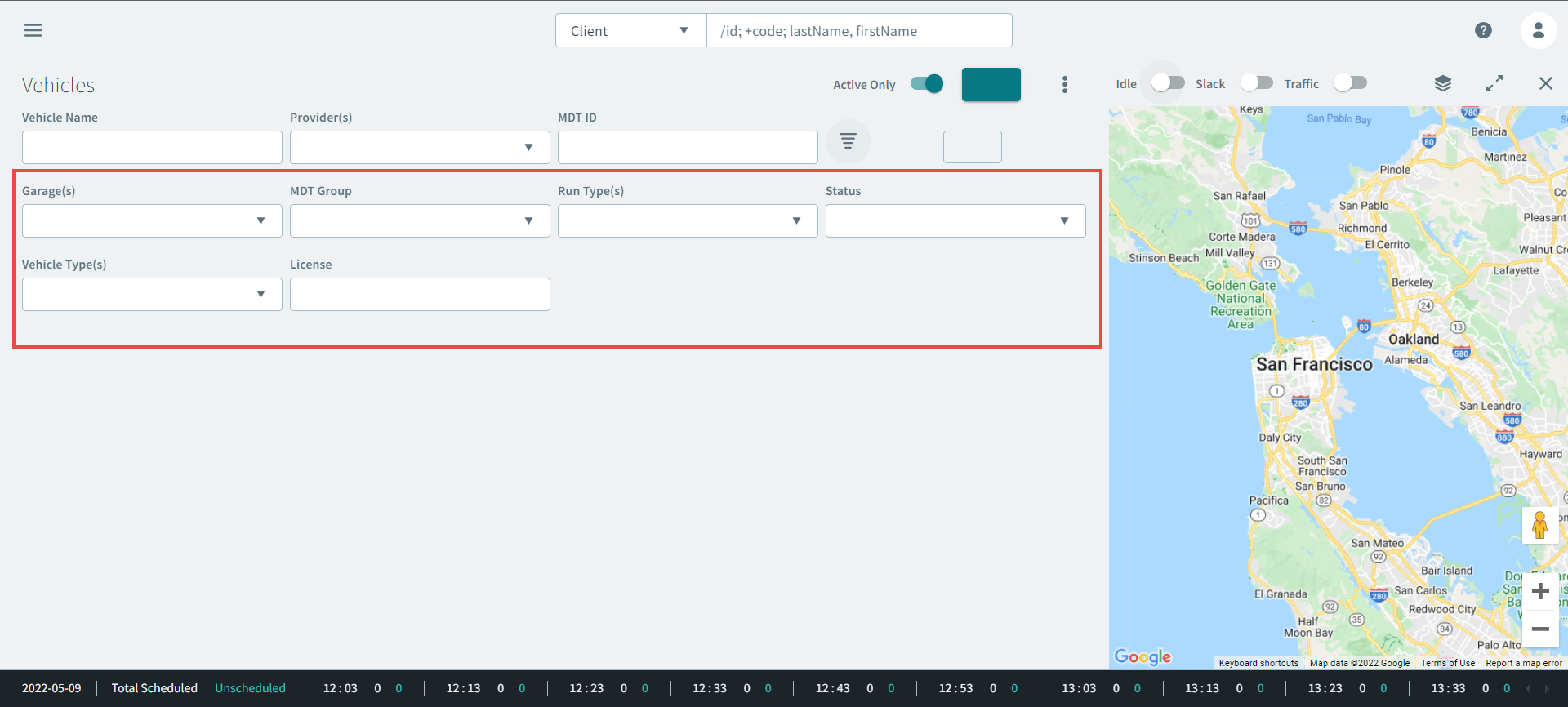
- Optional: Enter the vehicle information in the following parameters:
-
Click Apply.
The vehicle displays in the grid.
- Double-click the vehicle in the search results.
- In the vehicle profile, scroll down to the Status section to view vehicle's status.
-
To set a status, click +Set Status.
The Set Status pop-up window opens.
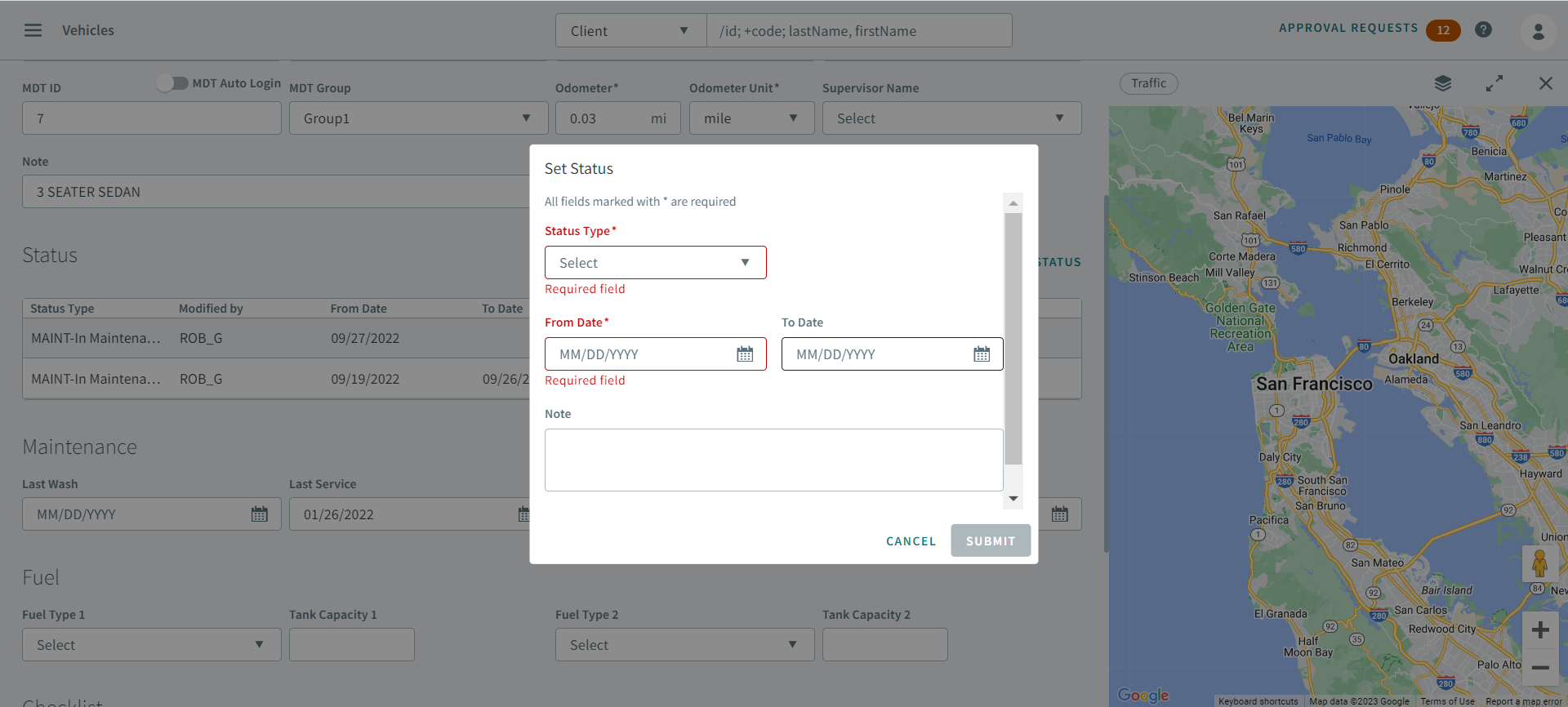
- Select a status type from the Status Type drop-down list.
- Enter or select a date in the From Date box.
- Enter or select a date in the To Date box.
- In the Note text box, enter additional information.
- Click Submit.