
Creating a New Location
Locations (for example, hospitals or restaurants) can be added and geocoded in One Mobility.
Before you begin
About this task
Additional information about locations, such as location capacity and a picture, can be defined.
Procedure
-
Click +New Location
A new location profile opens.
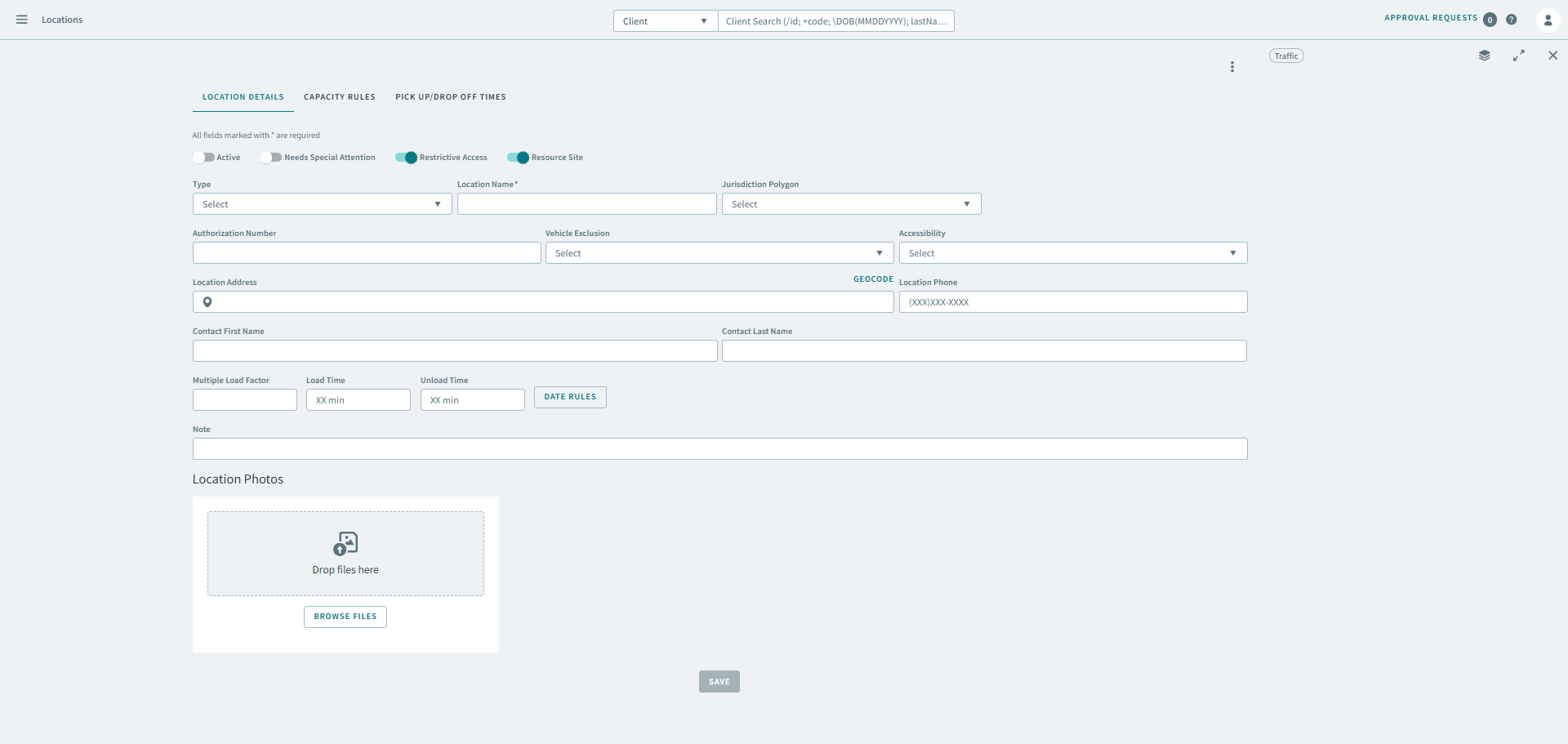
On the Detail tab, complete the necessary fields.
for a trip.
3. Click the Save
-
On the Location Details tab, turn the necessary toggles
on.
- Active
- Needs Special Attention
- Restrictive Access
- Resource site
-
Complete the necessary fields:
- Type
- Location Name
- Jurisdiction Polygon
- Authorization Number
- Vehicle Exclusion
- Accessibility
- Location AddressNote:The address typed here will appear in Bookings whenever the location is selected as a pickup or dropoff. To geocode a location, see Geocoding Addresses, and Using Address Matcher.
- Location Phone
- Contact First Name
- Contact last Name
- Multiple Load Factor
- Load Time
- Unload Time
- Optional:
Click Date Rules.
- Optional: Under Location Photos, drag and drop a photo of the location, or click Browse Files to find the photo.
- Click Save.