
Editing Bookings
You can edit on-demand bookings from the Bookings page.
Procedure
-
In the Global Search Box, do one of following to open a
booking:

- If you know the booking ID, select BookingId in
the dropdown list.
- Type a booking ID in the Booking Search text box.
- The booking details display in the Booking
Search textbox.
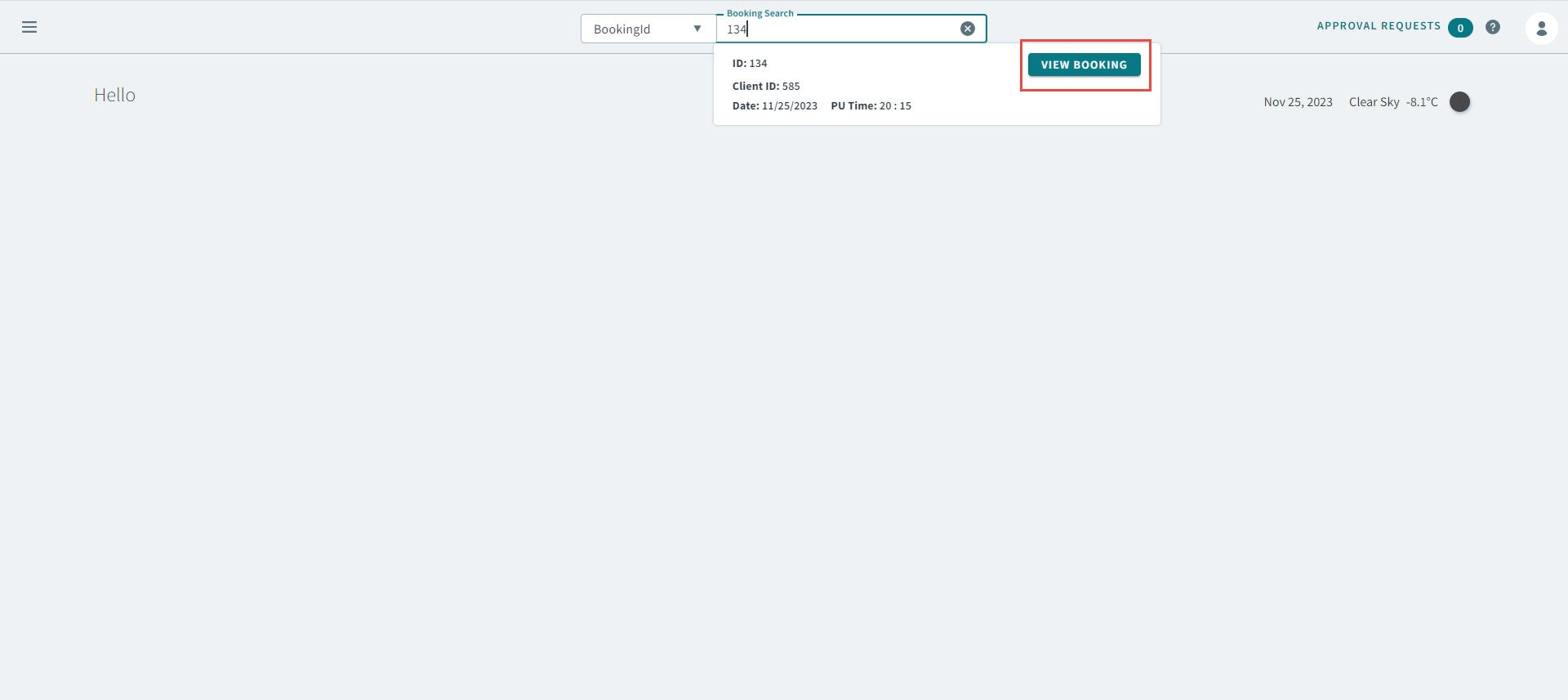
- Click View Booking to open the booking.
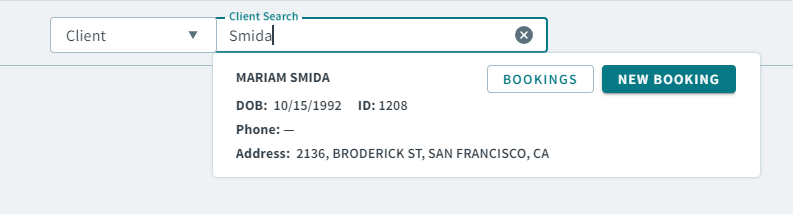
- Select Client in the dropdown list, and then type
a client name, or client ID number in the Client
Search textbox. Remember:If you are searching by client ID number, type / before the number. For example, /145.
- The client's details display in the Client
Search box, click Bookings to open the
client's Bookings page.
-
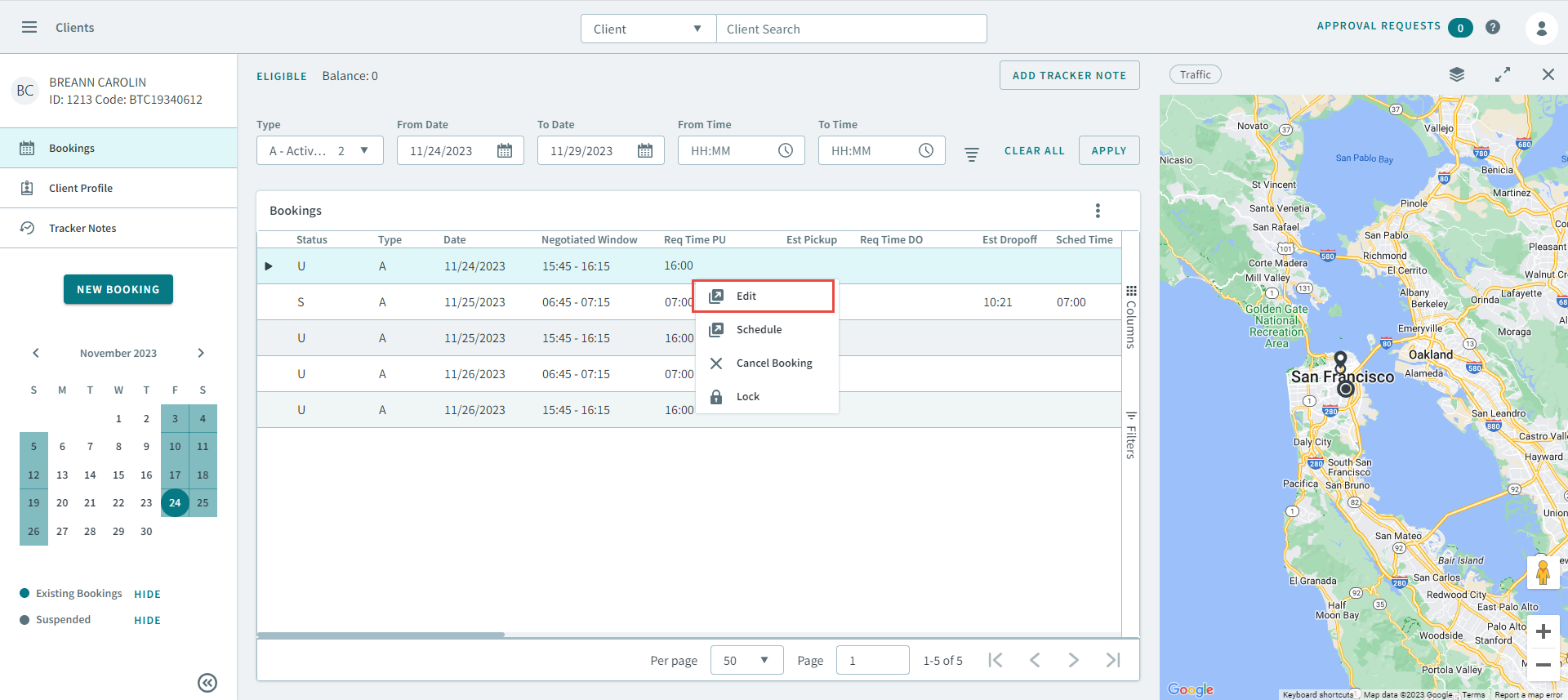
On the client's Bookings page, use the fields to find a booking.
Tip:You can click Show All Filters to expand
advanced search fields to narrow down your results.
Show All Filters to expand
advanced search fields to narrow down your results. -
Right-click a booking, and select Edit from the pop-up menu to open the booking.
- The client's details display in the Client
Search box, click Bookings to open the
client's Bookings page.
- If you know the booking ID, select BookingId in
the dropdown list.
-
In the booking, make all the necessary changes.
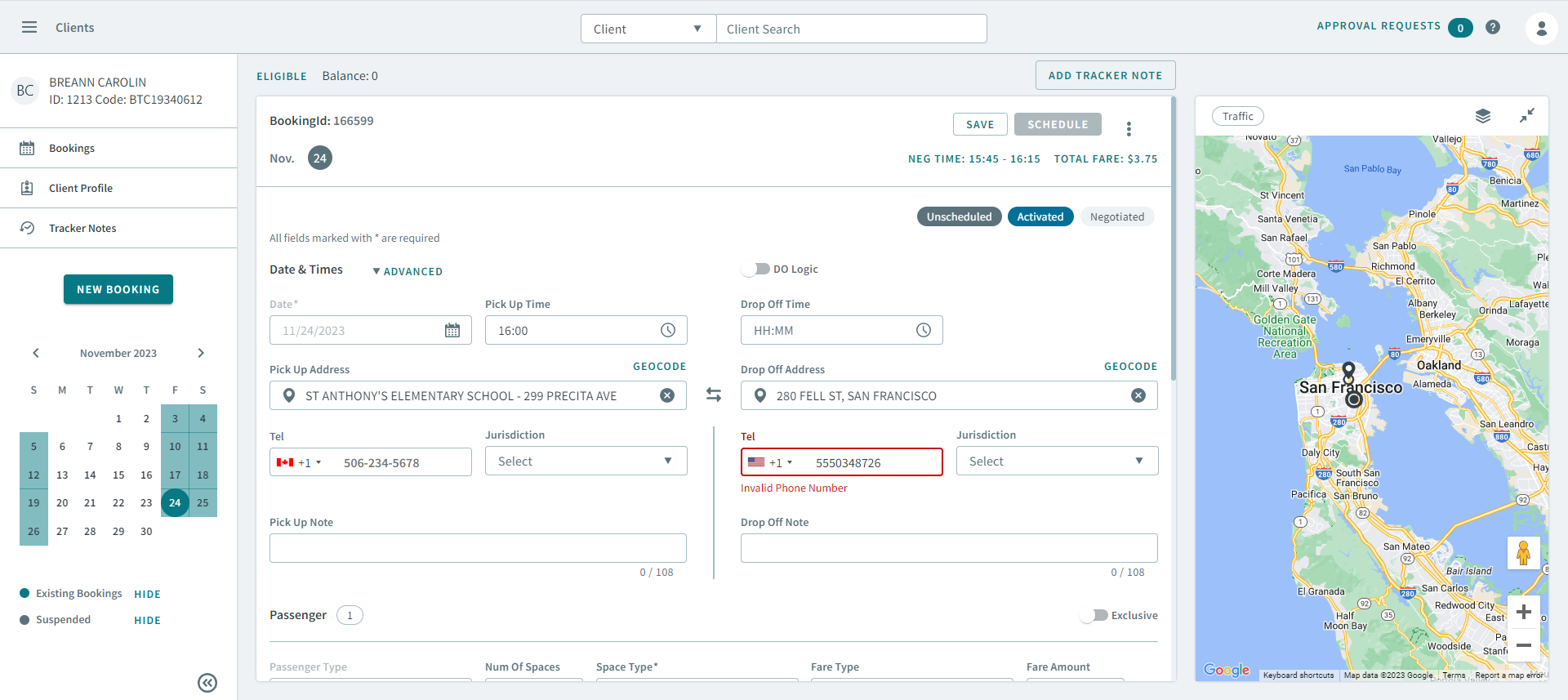
- Click Save.