The Payment Types ancillary data dialog box allows you to
specify methods of payment.
About this task
You can edit these types as required. After defining Payment Types, they can be used in
Reasons ancillary data and funding sources ancillary data.
Procedure
-
Click .
The
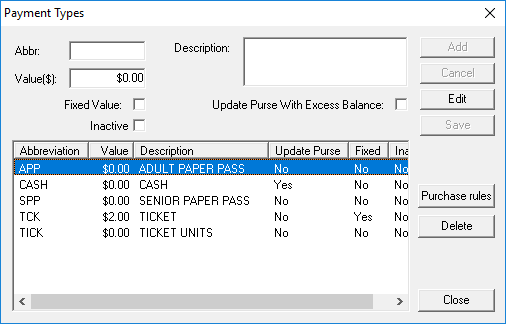
Payment Types dialog box appears.
-
Provide the following information:
-
Type an abbreviation (Abbr) for the payment type.
-
Type a Description about the payment type.
-
Type the cost (Value) of the payment type.
- Optional:
Click Update Purse With Excess Balance to indicate the
EZ-Wallet purse should be updated with excess payment amounts.
- Optional:
Click Inactive to indicate that the payment type is not
currently and option in the system.
Typically, an inactive status would be applied by editing an existing payment type
record. Applying an inactive status instead of deleting a record allows users a more
complete picture of historical data.
-
Click Add.
The payment type is added to the list.
- Optional:
To create different prices for different amounts of a Payment
Type (for example, tokens):
-
Select the newly created payment type.
-
Click Purchase rules.
-
Type the Quantity and Cost for
payment type variations.
For example, 1 token for 2 dollars and 5 tokens for 8 dollars.
-
In the Transporation unit refund rule: drop-down box
- Use average price.
- Use defined value.
-
Click OK.
-
Click Close.
