
Creating Schedule Status Codes and No Show Codes
Cancellation codes and no show codes are enabled and added in Schedule Status Codes ancillary data.
About this task
Be careful not to confuse schedule status codes with schedule states.
Schedule status codes refer to the status of an event. For example, whether a trip is scheduled, canceled, or performed. Schedule states refer to the status of a schedule as it is being activated by the Schedule Server.
In the Schedule Status Codes dialog box, system-defined codes are shown in yellow. These codes can be made active or inactive by clicking the code's Enabled option. Enabled is selected for system-defined codes by default. Clear the Enabled check boxes of the codes that you do not use at your transit site.
Enabled schedule status codes are shown in the Select Cancel Status dialog box when you click the Cancel/No Show menu in Schedule Editor. The same dialog box also appears in Trip Administration when you right-click on a trip and then click Cancel/Uncancel.
Procedure
- Click .
- Click the Cancel Codes tab.
-
Update the Enabled option for any system-generated codes:
- Select the Enabled option to include it in the list of selectable cancellation codes in the system.
- Clear the Enabled option to remove it from the list of selectable cancellation codes in the system.
-
Update the Restriction option for any system-generated
codes:
Restriction Description Any Day No restriction; available at any time. Day of Service Only available on the service day. Future - Not on Day of Service Only available if the trip is for a future date. Within Schedule Time Window Only available within the SchE and SchL times. 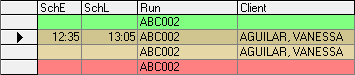
Within Time Threshold (mins) Only available within the number of minutes defined in the Time Threshold column. Users are unable to make a status code selection (for example, Cancel At Door), if the time or date they are trying to apply the code is in one of the restricted times.If there are no options in the Restriction drop-down list, confirm that you are working with the Schedule Status Codes dialog box on the main Windows display. -
Click in the row marked by the asterisk and create any new cancellation codes:
- Click the Noshow Codes tab.
- Update the Enabled and Restriction options for any system-defined no show codes.
-
Create any additional no show codes.
No show codes are created in the same way that cancellation codes are created.Unique ID numbers for no show codes should use a value from 30 to 39.
-
Delete cancellation codes or no show codes as needed:
- Highlight the cancellation code or no show code.
- Press the Delete key.
- Click OK.