
Zonal Timetable
At some sites, clients and vehicles are assigned to specific zones within the service area.
About this task
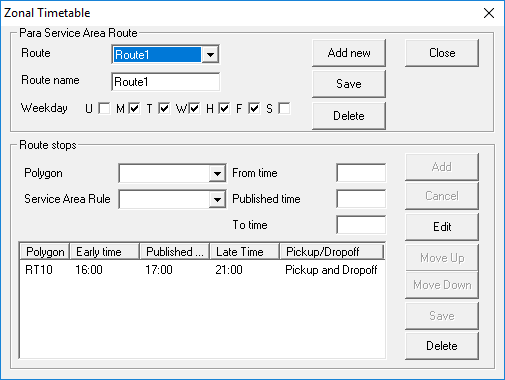
When you create a booking, the Schedule Server only generates run solutions which permit travel within the specified areas.
Procedure
- Click .
-
Click the Add new button.
The Route and Route Name fields show <NEW>.
-
Type the Route name.
The Route field is automatically populated with your entry in the Route Name field.
- From the Weekday check boxes, select the days of the week on which the rule is to apply.
-
Select a Polygon in which the stops are located.
The polygons available in this field are determined by the polygon type selected in the Para Service Area Polygon type property.
-
Select a Service Area Rule:
- Dropoff Only
- Allows only drop-offs to be performed within the polygon.
- Pickup and Dropoff
- Allows pick-ups and drop-offs within the polygon.
- Pickup only
- Allows only pick-ups to be performed within the polygon.
- Pickup or Dropoff
- Allows a run to only pick up (but not drop off) clients within the polygon, or vice versa. This rule is used for long-range vehicles.
- Pickup with Dropoff
- If a run performs a pick-up in this polygon, the vehicle must perform the drop-off within the same polygon. The run is not allowed to travel to another polygon to drop off the client.
- Type the earliest From time allowed for a booking.
-
In the Published time field, type the requested time for
trips.
The published time is meant to be the average time for that point on the route to which users refer. This time is not taken into account by the scheduling system.
- Type the latest To time allowed for a booking.
-
Click Add.
The rule is added to the list.
- Define any other rules for this route.
- Click Close.