
Confirming or Forgiving Multiple Infractions
Infractions can be forgiven in bulk from the Infractions widget.
Before you begin
Procedure
- In the policy tree, click the policy name, the policy stage, and then the policy phase that contains the infractions to be viewed on the map.
- Select a case card.
-
Use the Infractions title bar shortcut buttons to show or
select infractions in bulk:
To Click this Show all infractions 
Show confirmed infractions 
Show forgiven infractions 
Show undecided infractions 
Select all displayed infractions 
Clear all displayed infractions 
-
Press CTRL and click any additional infractions to be
added or removed from the group of selected infractions.
To select a range of infractions, press the Shift key and click the first and last infractions in the range.Selected infractions are highlighted in blue.
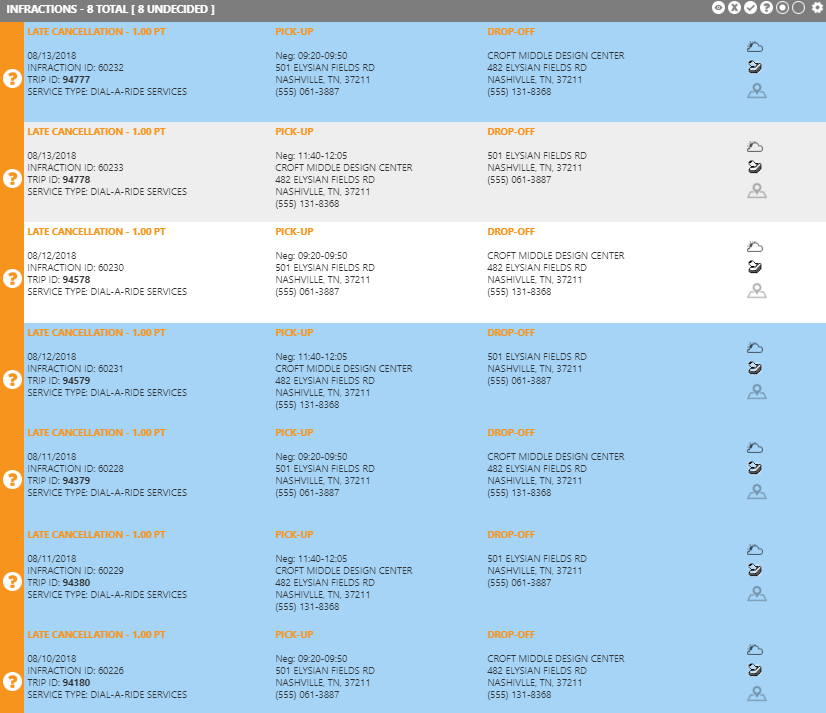
-
Do one of the following:
- To confirm the selected infractions, click
Confirm:

- To forgive the selected infractions, click
Forgive:

Infractions are marked as either Confirmed or Forgiven and corresponding entries appear in the Case History widget. - To confirm the selected infractions, click
Confirm: