
Assigning Work Using the Mouse
Drag the mouse to assign an employee to a listed piece of work in the Daily Activity screen.
- Open the Daily Activity screen and set the Context (F3).
- In the employees view, in the Assignment Display column, select the row for the employee to be assigned.
-
Press and drag the mouse to the work to be assigned in the work list view, and
release the mouse button.
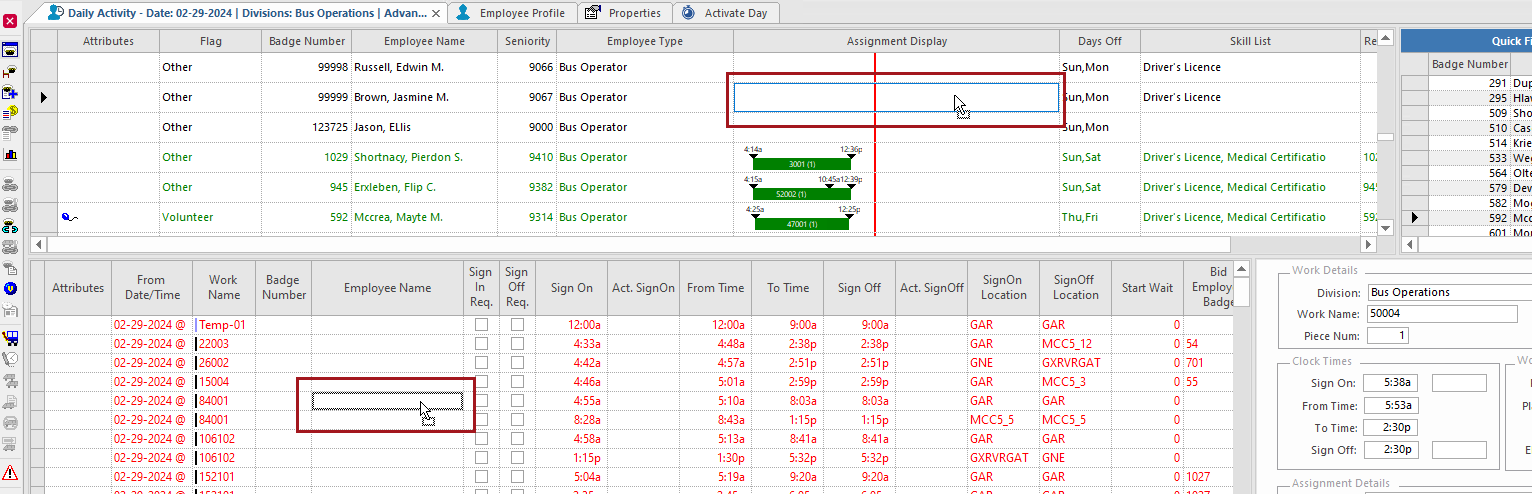
If the employee can't be assigned, validation messages or the Work Rule Progression dialog may appear. Otherwise, the Assign Employee dialog appears. - If applicable, select whether to Assign to all pieces.
- Select the Assign Type and Detail Type.
-
Select OK.
The employee is assigned, or the Open Work dialog appears.
-
In the dialog, do one of the following:
Option Description Open Current Piece Only Select this option if the employee will be absent only for the current piece of work. Open this and any subsequent Piece of (work name) which is currently assigned Select this option if the employee will be absent for all the pieces of the current work, but will be available for other work assigned to him later in the day. If multiple dates have been defined, a message appears asking you if this is a reoccurring absence or a continuous absence.
Open this piece and any other subsequent work that is currently assigned to this employee Select this option if the employee will be absent for the rest of day. This piece of the current work, subsequent pieces, and any other subsequent work assigned in the day are opened. If multiple dates have been defined, a message appears asking you if this is a reoccurring absence or a continuous absence.
Open ALL work that is currently assigned to this employee Select this option if the employee will be absent all day. It will open all work assigned to the employee for the day. This includes work with a start time earlier than the selected piece of work.
If you need to record an absence, do the
following:
-
Select the Type of absence.
If the absence type ancillary data record has the Call In flag selected, the Call-In Date, Call-In Time, and Call-In Taker fields are automatically filled when the absence record is created.
- If a quota is specified for the absence type, select the appropriate Absence Quota.
- Specify the time range of the absence in the From Date, To Date, and Time fields.
- If required, select an Accrual Year.
- If required, select a Reason.
-
If required, select a Relationship.
If the reason involves another person (for example, family sickness), this would be the employee's relationship to that person.
- Optional: Enter a Comment about the absence.
- Select OK.
- If the Accrual Balance screen shows accrual balance information, review it and then select OK.
- If a Conflicting work Assignments dialog shows pieces of work that will be opened, review them and select OK.
- If the employee has an absence alert as a result of the new absence, the Absence Alerts dialog appears. Select OK.