
Adding Date Rule Presets to Subscription Bookings
You can add Date Rule Presets for new subscription bookings so that you do not have to create Date Rules manually.
Before you begin
Procedure
-
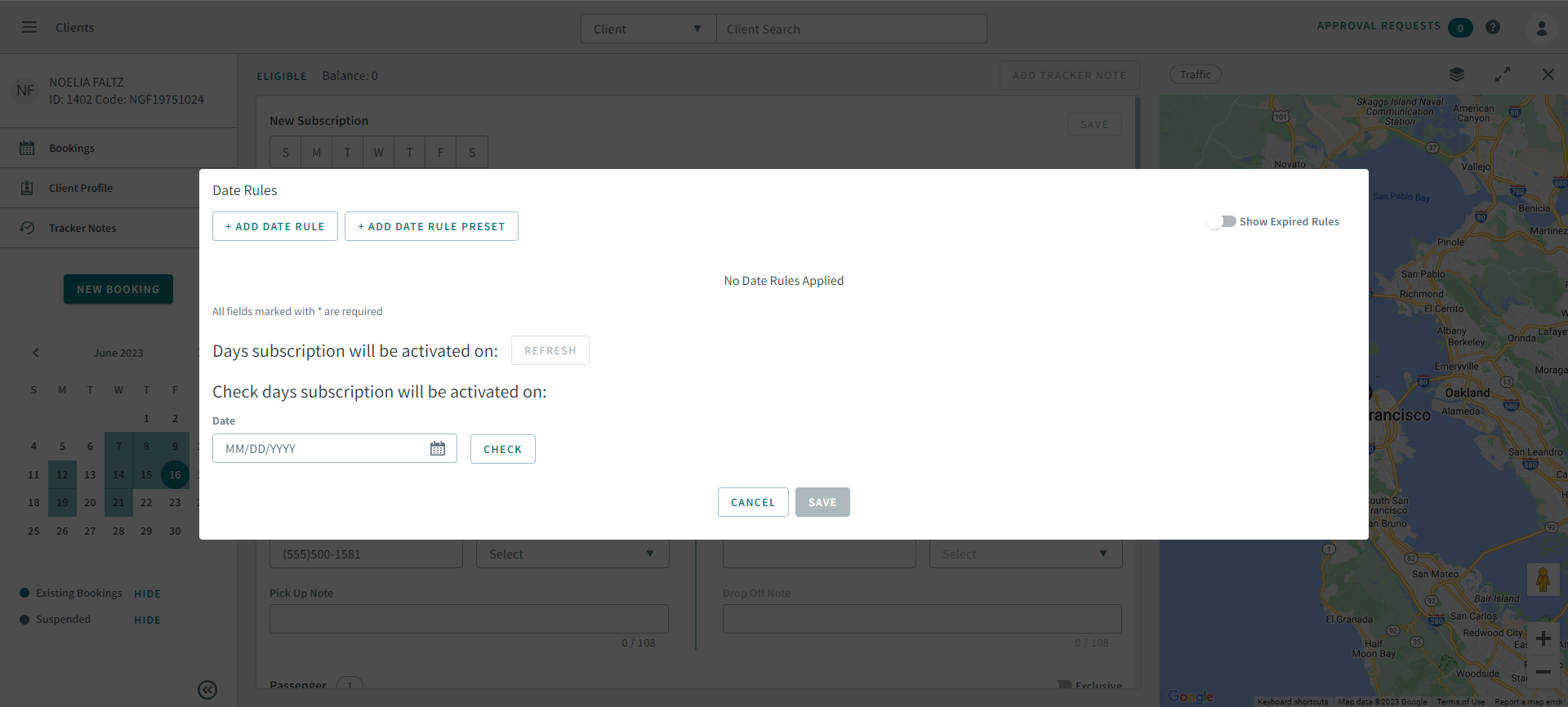
Click Date Rules
The Date Rules pop-up window opens.
-
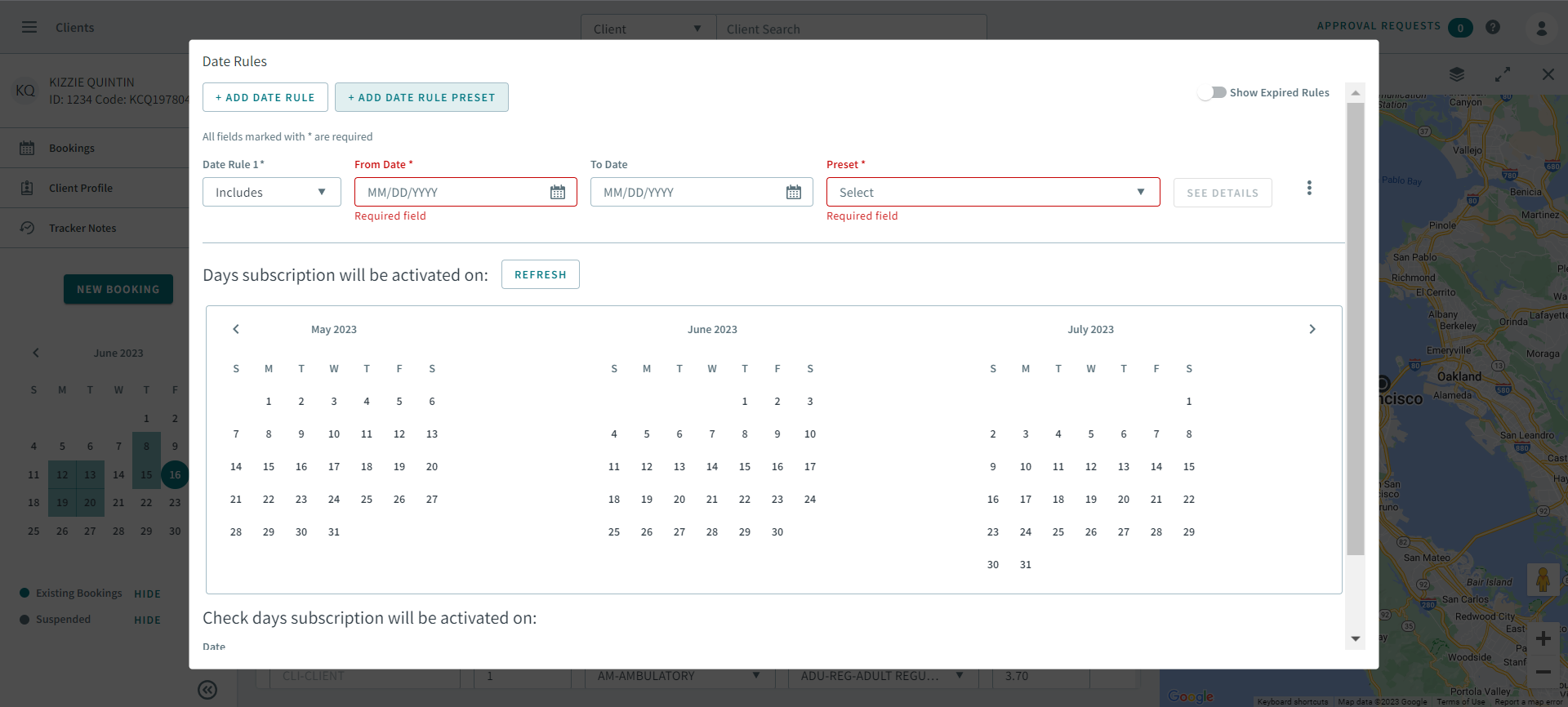
Click Add Date Rule Preset.
Date Rule 1 appears.
-
Select Includes or Excludes from
the Date Rule 1 dropdown list.
Note:This determines if the date rule will include or exclude the subscription booking based on the dates you will set later.
- Enter or select dates in the From Date and To Date.
-
Select a preset from Preset dropdown list.
Remember:The Date Rules Summary ancillary data must be created in order to appear in the Preset dropdown list.
- Optional:
Click See Details to modify the preset.
The Preset Details pop-up window opens.
- Click Sync Now to sync the date rule that will become the recurring dates for the subscription booking.
- Optional: Enter the start date of the Date Rule and click Check to confirm when the subscription booking will be activated.
- Click Save.