
Deleting a Run
You can delete master or daily runs in the Runs page. Runs cannot be restored after the deletion occurs.
Before you begin
About this task
When deleting a master run, you must remember to delete all Template runs and Live runs that have been activated on future schedules. Do not delete Live runs that exist on schedules in the past as you may need them for auditing.
If you delete a run from the Daily run list, then add a Master run and manually activate this run, all Master runs are reactivated. This means that all deleted runs are also reactivated and added back to the list.
Procedure
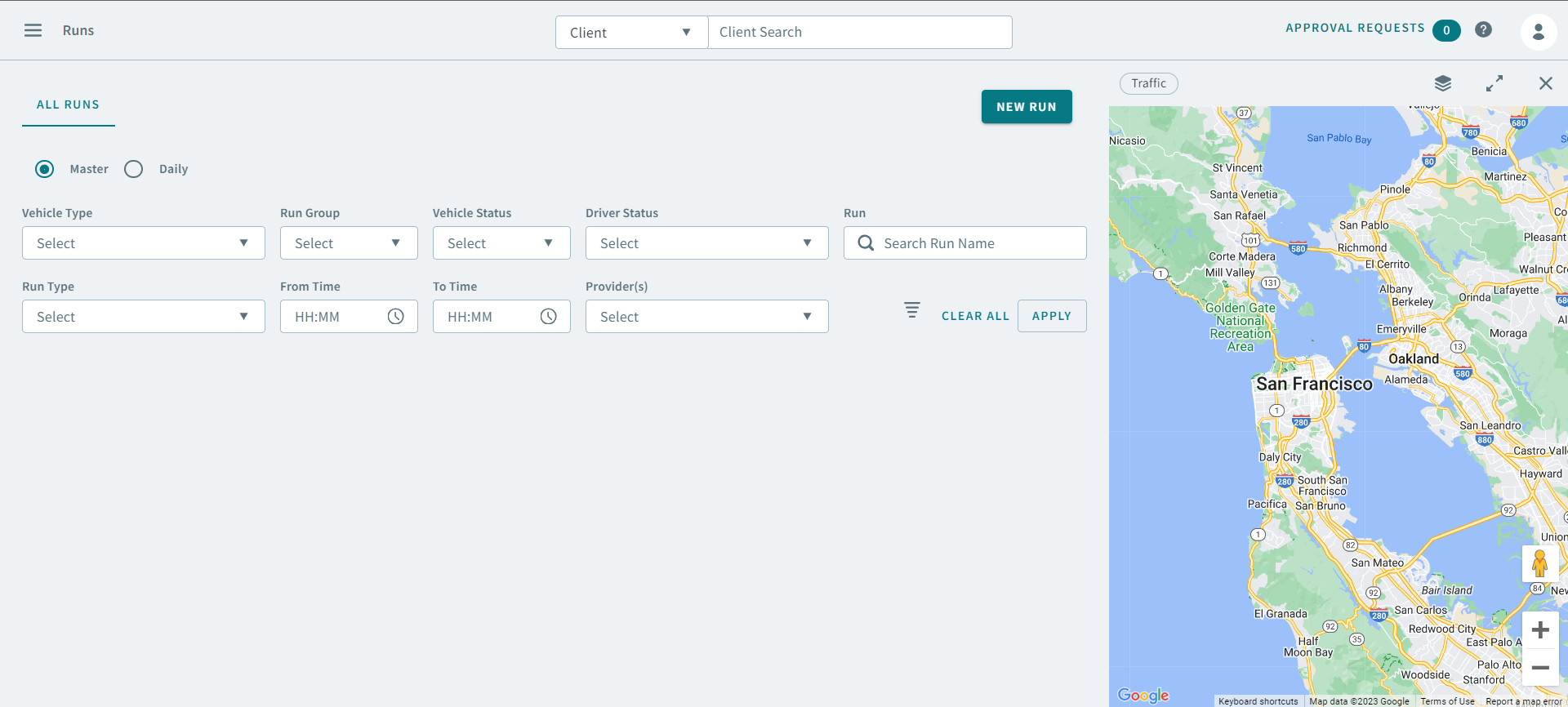
- Click the Master or Daily option.
- Optional:
If you clicked Master, you can use the following search
parameters to find a run:
- Vehicle Type
- Run Groups
- Run Types
- Vehicle Status
- Driver Status
- Run
- From Time
- To Time
- Provider(s)
- Optional:
If you clicked Daily, you can use the following search
parameters in addition to the previous ones mentioned in Step 2:
- Schedule Type
- Schedule
-
Click Apply.
The run appears in the grid.
- Right-click a run in the grid, and select Delete in the pop-up menu.
-
When prompted to confirm deletion of the run, click Yes.
The daily run is automatically deleted from the run list and trips scheduled to the run become unscheduled.
If you click Yes to delete a master run, another message appears. The system allows you to delete the master runs along with all unscheduled Daily copies of that run OR delete the master runs without deleting the Daily copies.