
Move Unperformed Trips or Select Events for a Vehicle Breakdown
You can move a trip or event out of your daily runs when a vehicle has broken down.
Before you begin
Procedure
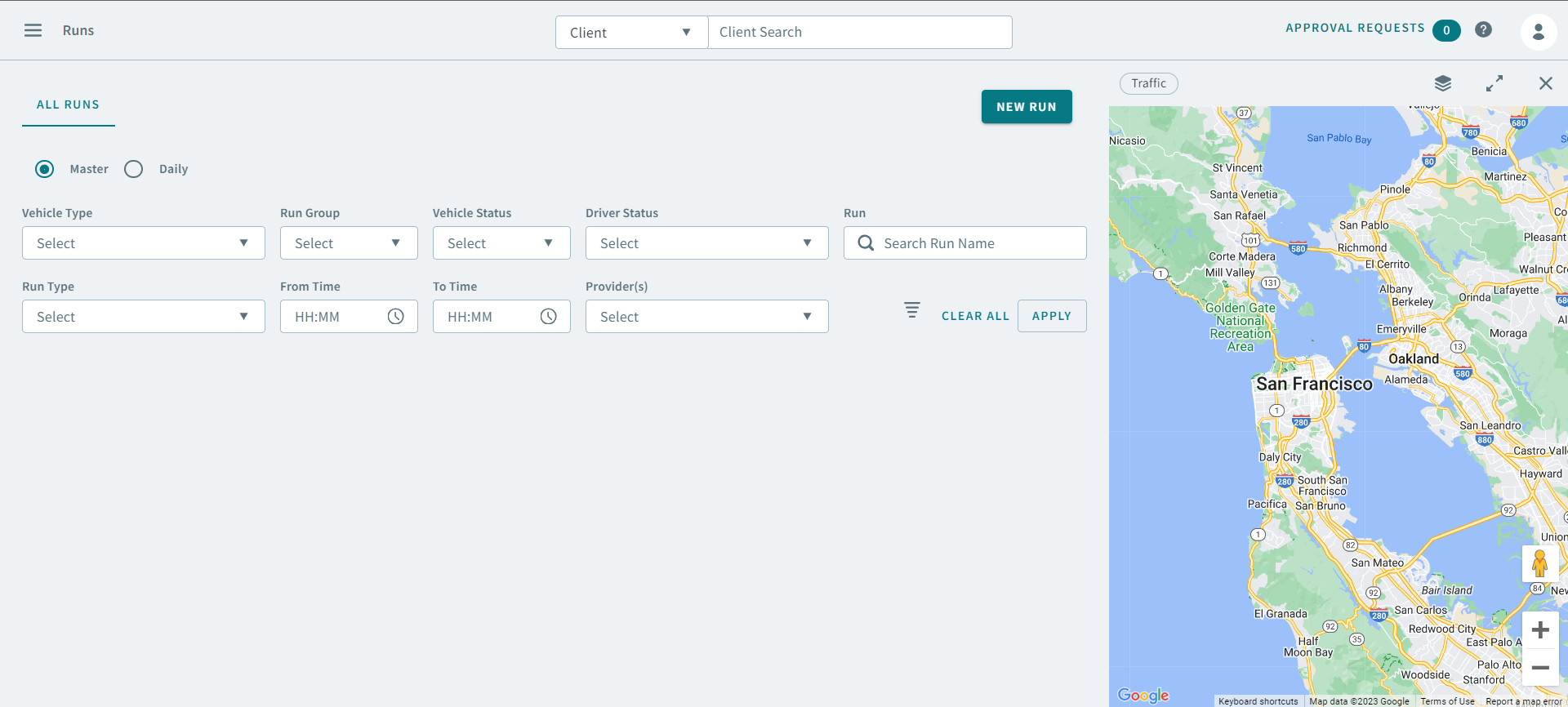
- Click the Daily option.
-
Use the following search parameters to find a run:
- Schedule Type
- Schedule
- Vehicle Type
- Run Groups
- Run Types
- Vehicle Status
- Driver Status
- Run
- From Time
- To Time
- Provider(s)
-
Click Apply.
The run appears in the grid.
-
Right-click on a run and select Vehicle Breakdown from
the pop-up menu.
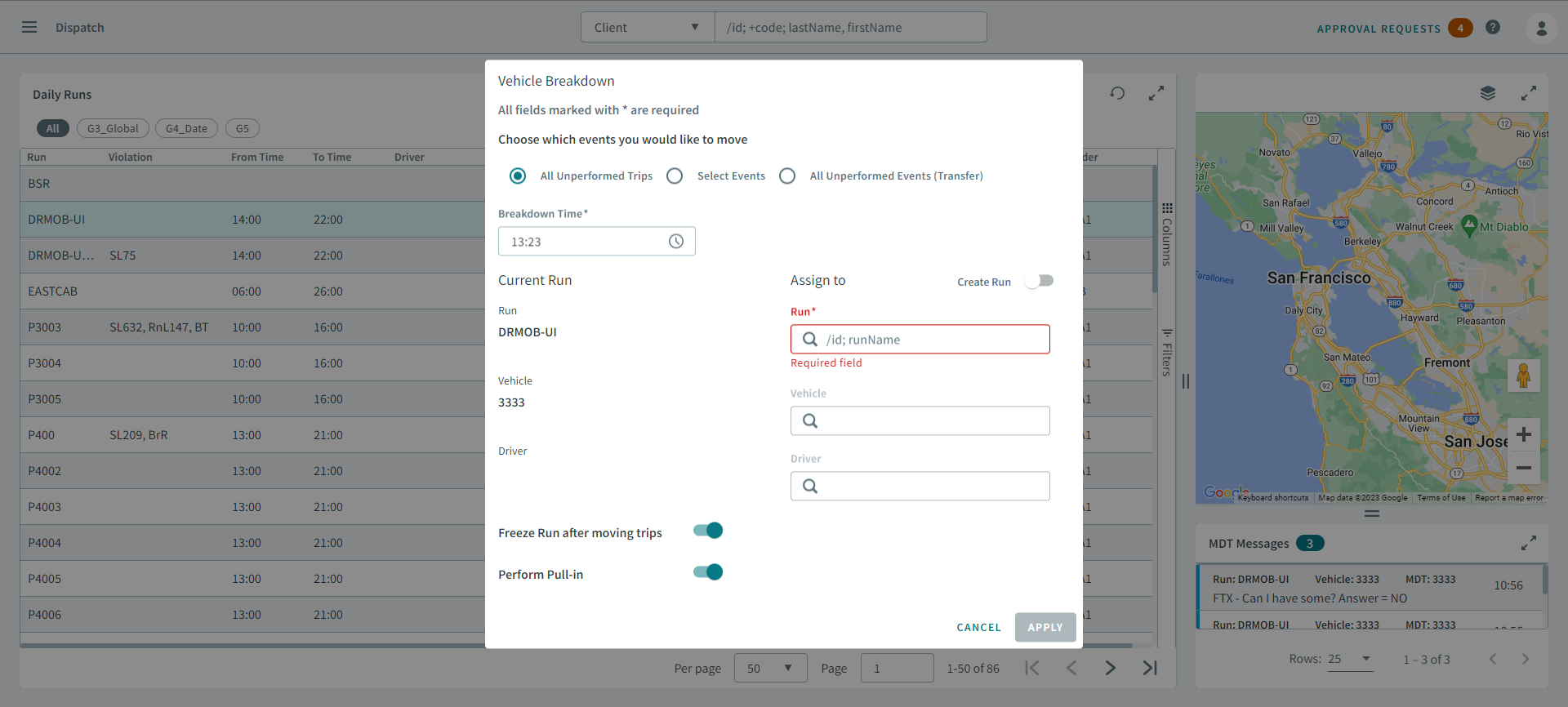
The Vehicle Breakdown dialog box opens.
-
Select one of the following options:
- All Unperformed Trips
- Select Events
- All Unperformed Events (Transfers)
- Optional:
If you are moving select events, choose the events that you want to move.
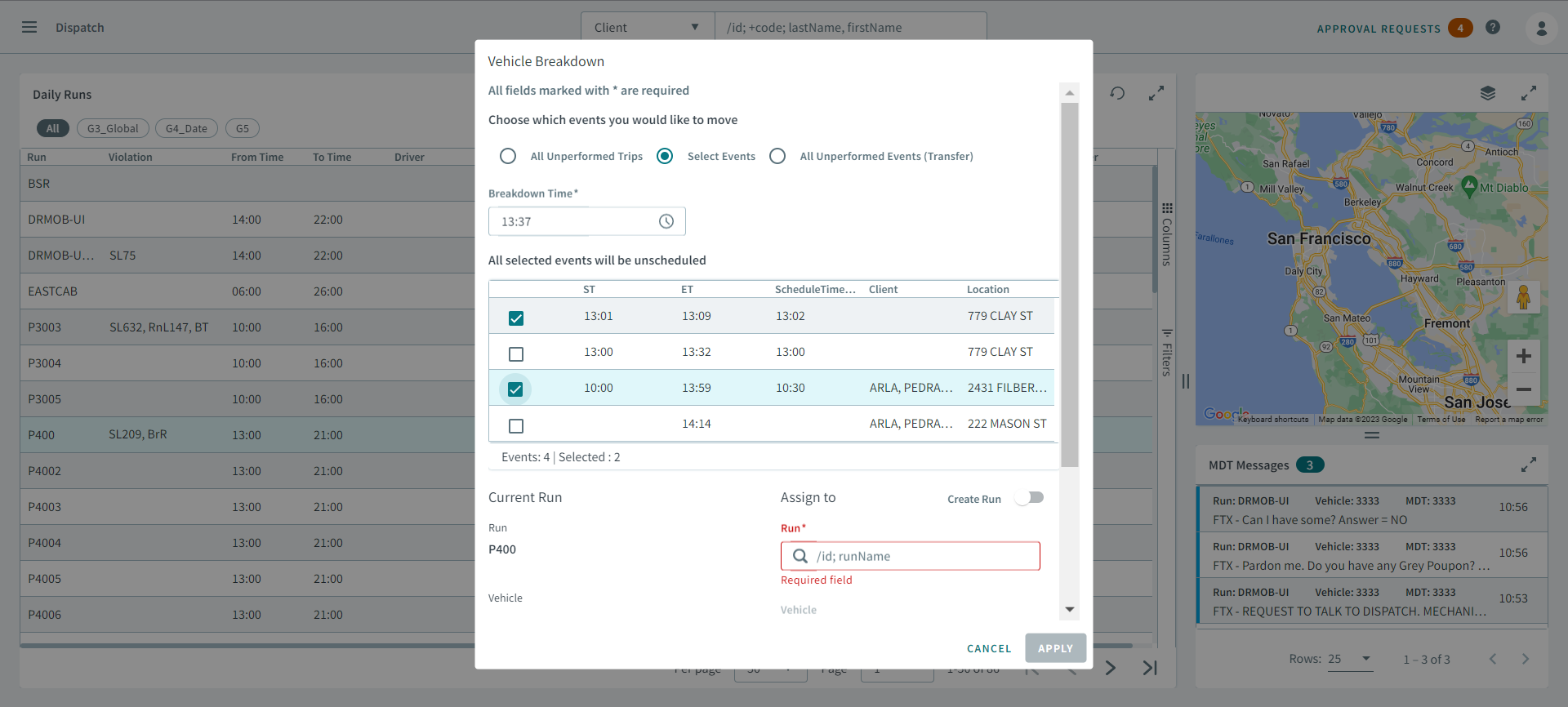
- In the Breakdown Time text box, enter the time of the breakdown.
- Optional:
If you want to move all trips or events to a new run, slide the
Create Run toggle to ON and enter a name in the
Run Name text box.
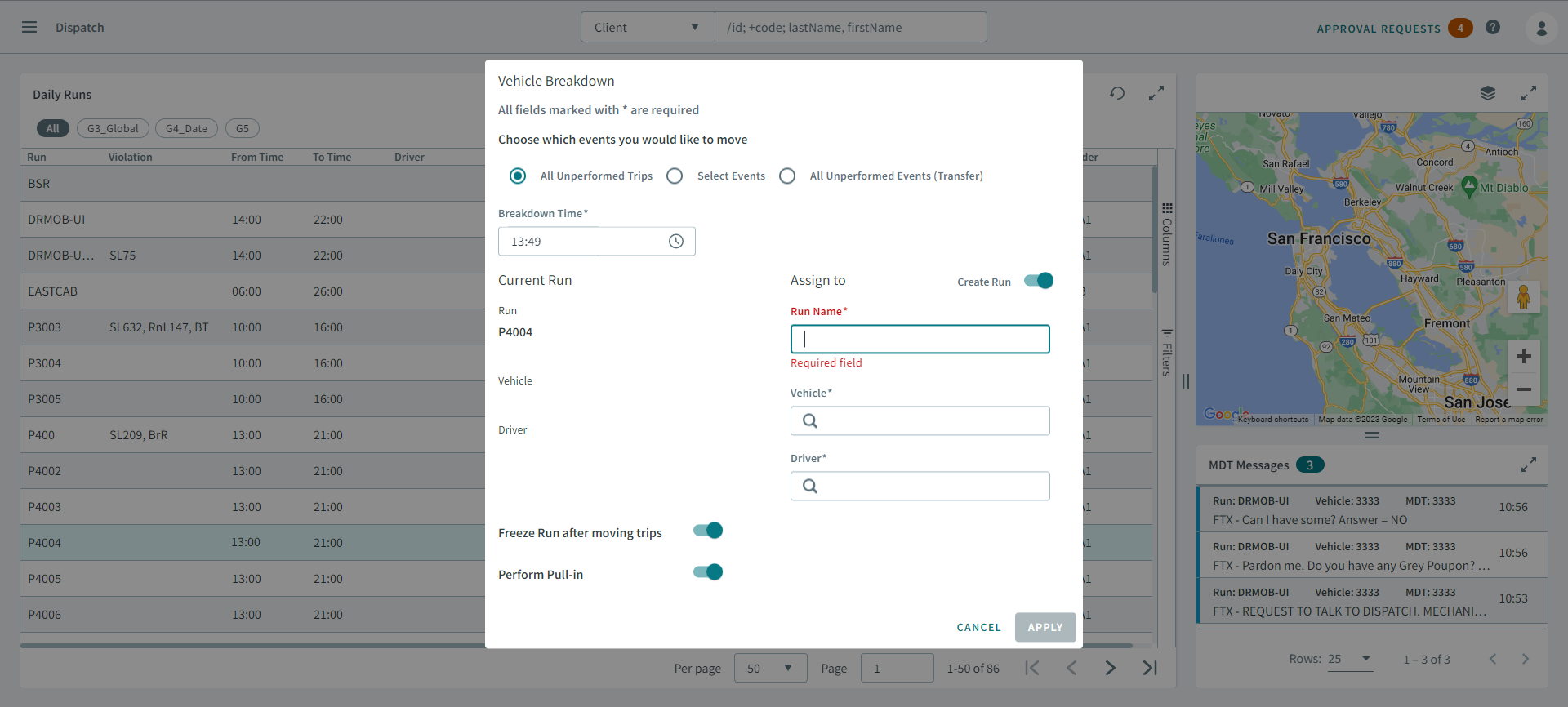
- In the Vehicle search box, enter a name to assign a vehicle to the run.
- In the Driver search box, enter a name to assign a driver to the run.
- In the Run text box, enter a run name or ID to move the trip or event.
- Slide the Freeze run after moving trips toggle to on.
- Slide the Perform Pull-in toggle to on.
- Click Apply.