
Editing Supplementary Data
After supplementary data fields have been added to screen, they can be edited.
Before you begin
About this task
- Using an editing tool.
- Using an Edit button in the dialog boxes where they were first created.
- Changing them directly on the screen.
For example, you want to edit the supplementary fields associated with your Trips data.
Exercise extreme caution when changing supplementary data since doing so could adversely affect the integrity of your data.
Procedure
-
Click .
The Screen With Supplementary Fields dialog box appears.
- Select a Screen Name.
-
Click Edit.
The Supplementary Data Manager dialog box appears.
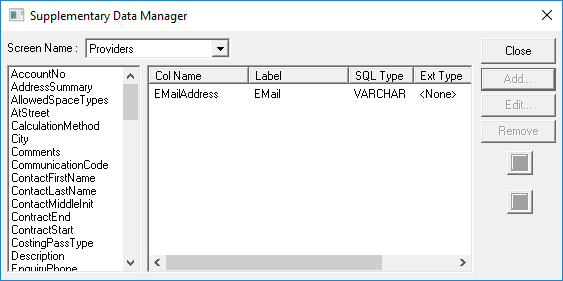
- In the list of supplementary fields, click the field to edit.
-
Click Edit.
The Supplementary Field Defn. dialog box appears.
-
Click Advanced.
The Advanced Options frame appears. If the Write check box is activate, you can edit the field.
If it is not activated, the field may be an index field (for example, RunID), and the supplementary data is automatically generated based on other data that you have typed.
- Optional:
Do one of the following:
To Do this Prevent a field from showing on the screen Select the Hide option. This allows you to maintain a supplementary data option while removing it from general usage.
Mark a field as mandatory Select the Required option. An error message will display if the field is not completed.
Mark a field as requiring security permissions Select the Security Required option. Users can only edit the defined supplementary data field if the Trapeze6 security permission is granted.
If the security permission is set to Override, the user can type in the field and will be prompted for a supervisor with the permission granted to type their user name and password. This allows the user the ability to edit all supervisor-locked supplementary data fields and is reset when the user looks at a new record (for example, a new client or new vehicle record).
- Click Save.