
Using Smart Filter in Daily Activity
Filter your view of work records in Daily Activity using the Smart Filter.
-
In Daily Activity, select the work record to use as the
basis for your filter, right-click and select Apply Smart
Filter.
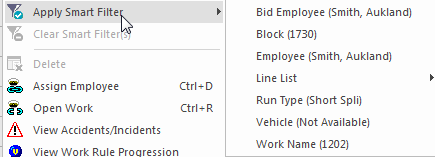
A list of available fields and their values in the selected record is shown.
-
Select the field to filter by.
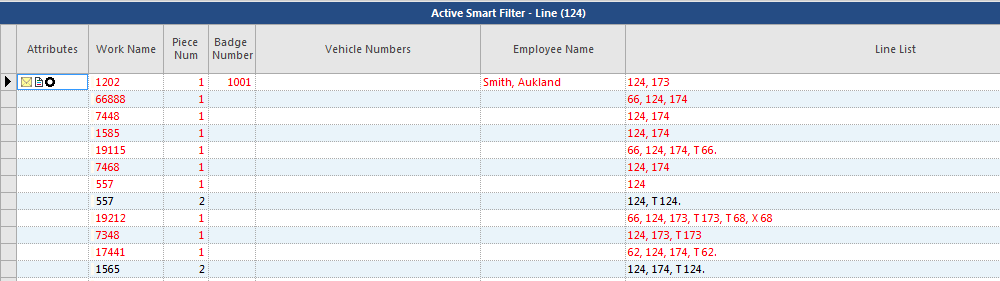
Only work items that match the field value of the selected record are shown. In this example, filtering was done for a Line List entry of 124. Only records including line 124 are shown in the filtered view. A check mark appears next to the selected filter.
- Optional:
You can further refine the items shown by selecting a record (it doesn't have
to be the original record) and choosing another filter.
A check mark indicates an active filter.
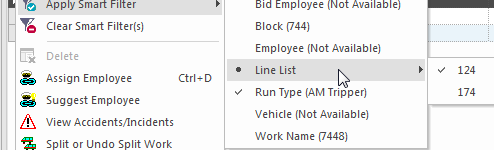 Selecting an active filter clears the check mark.
 -
Right-click and select Clear Smart Filter(s) to restore
the screen to the original view.
This removes all selected filters.