
Synchronzing a Subscription Booking
Use the Booking Subscription Sync modal to activate or update a subscription booking to either a template or live schedule.
Procedure
-
In the Global Search Box, do one of following to open a
booking:

- If you know the booking ID, select BookingId in
the dropdown list.
- Type a booking ID in the Booking Search text box.
- The booking details display in the Booking
Search textbox.
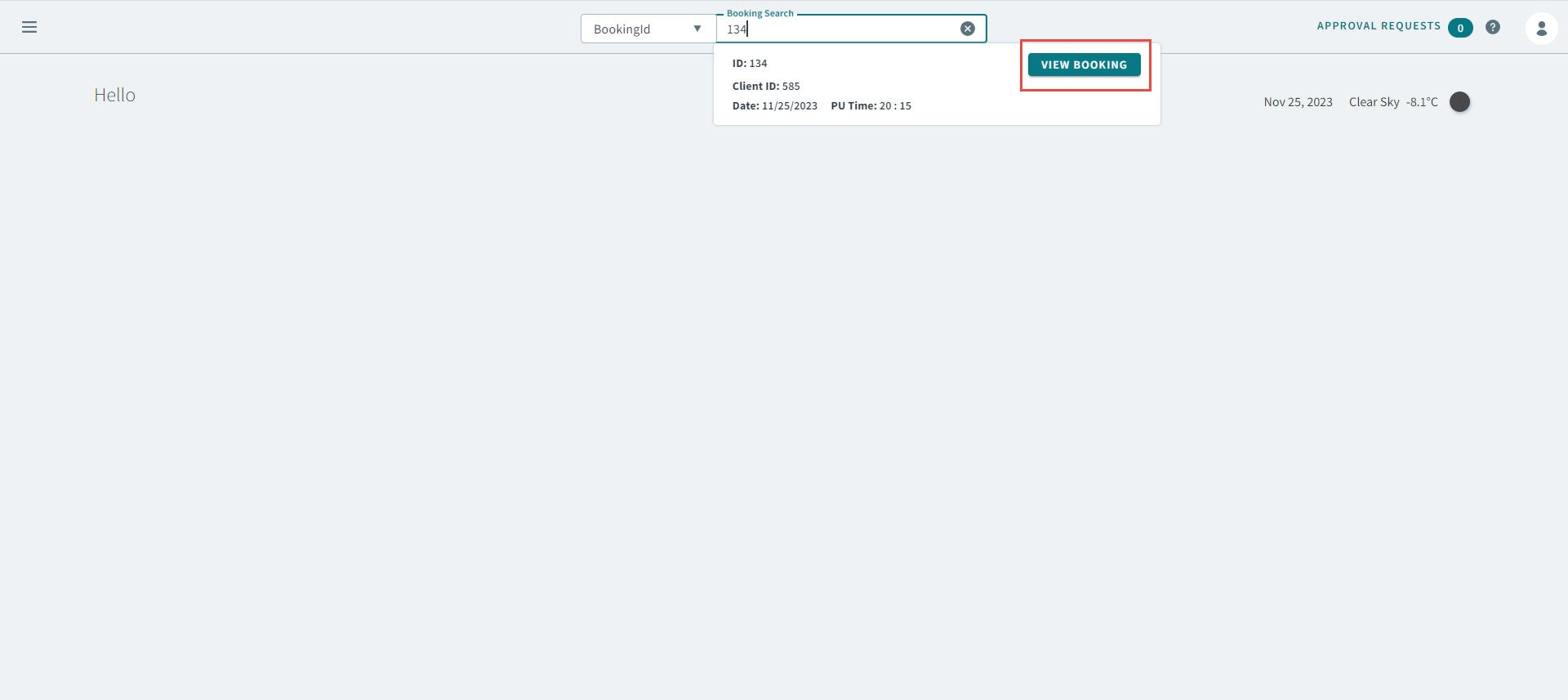
- Click View Booking to open the booking.
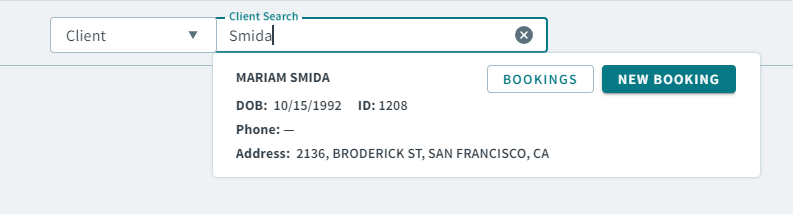
- Select Client in the dropdown list, and then type
a client name, or client ID number in the Client
Search textbox. Remember:If you are searching by client ID number, type / before the number. For example, /145.
- The client's details display in the Client
Search box, click Bookings to open the
client's Bookings page.
- On the client's Bookings page, use the fields to find a booking. In the Type dropdown menu, select the Sub checkbox, and click Apply.
- Select the subscription booking in the displayed results.
- The client's details display in the Client
Search box, click Bookings to open the
client's Bookings page.
- If you know the booking ID, select BookingId in
the dropdown list.
-
In the subscription booking, click Synchronize.
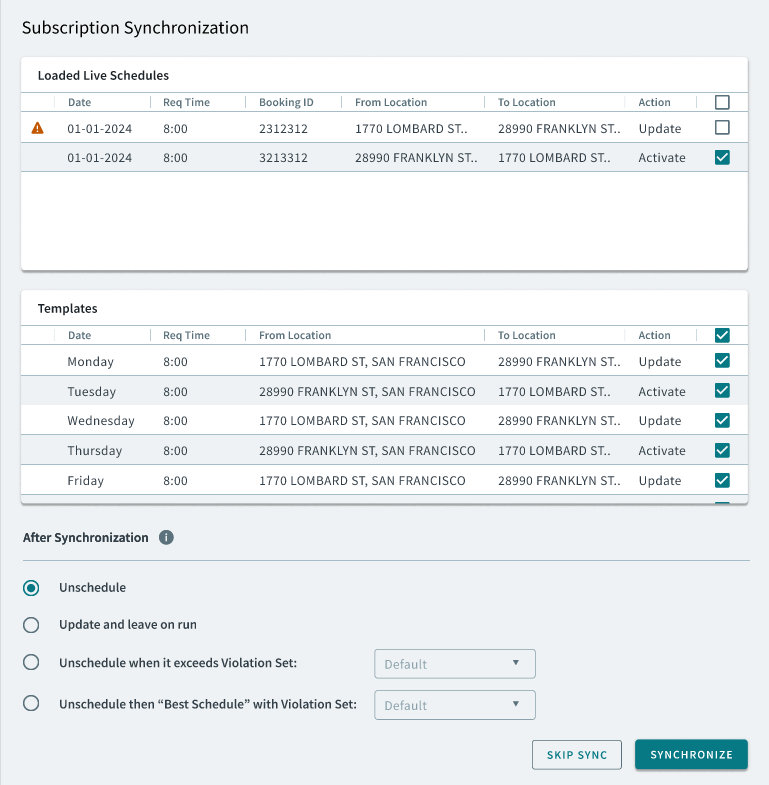
The Booking Subscription Sync modal opens
-
Select the checkboxes of the live schedule(s) or template schedule(s) that you
want to synchronize the subscription booking to.
Note:Live and template schedules must be previously loaded in the Schedules Administrator (PASS) and added to the Schedules page to display in the Booking Subscription Sync.
-
For After Synchronization, select one of the following
options:
- Unschedule - Unschedule all trips in the defined time period on the selected days of the week and update their information, but does not reschedule these trips.
- Update and leave on run - This will update or refresh the trips that are currently scheduled. Also, select this option if you are activating a subscription booking.
- Unschedule when it exceeds Violation Set - If a time change causes violations in excess of those permitted by the specified violation set, the system unschedules the previously-scheduled trip.
- Unschedule then "Best Schedule" with Violation Set - The system will unschedule the subscription trips if it exceeds the Violation Set that was selected, and then automatically schedule it to the best possible solution (lowest cost solution) available.
- Click Synchronize.