Adding Employee Pictures
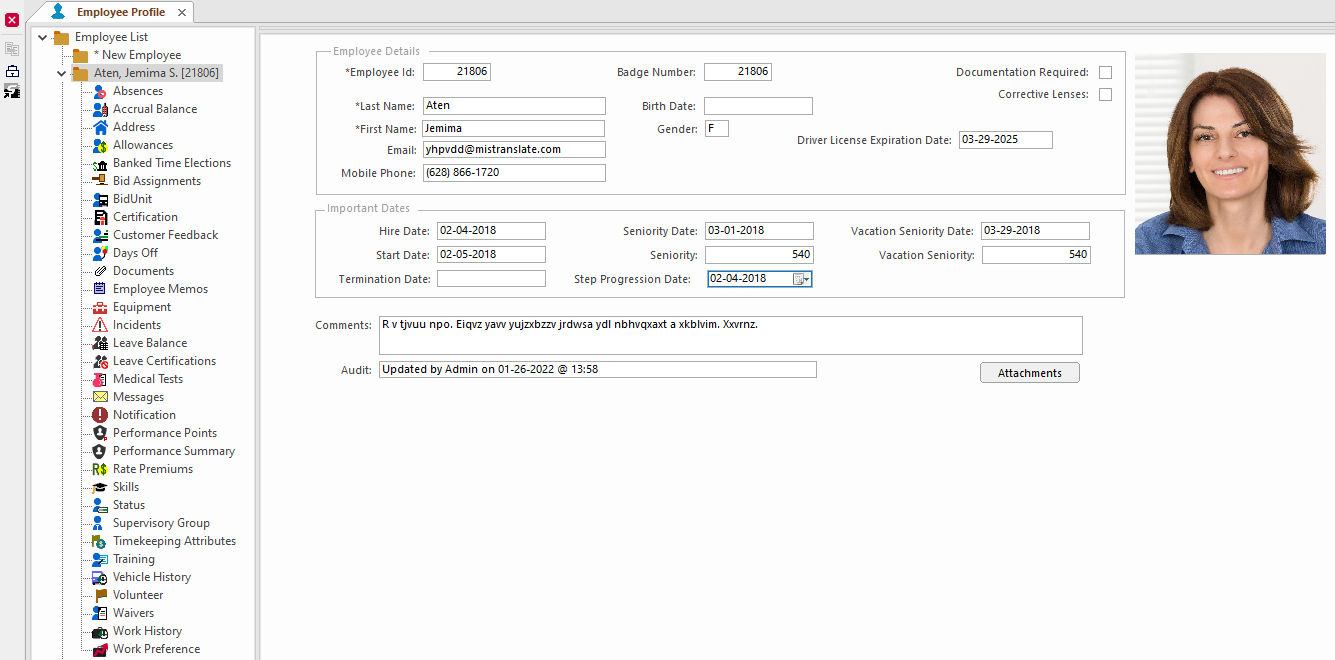
Employee pictures can be included in either the employee card or in a separate screen.
In Properties, must be selected to make pictures appear in the employee card. Otherwise, they're shown in the Employee Profile - Picture screen.
- Open the Employee Profile screen and set the Context (F3).
- Select an employee.
-
Select Upload Picture:
 The Employee Picture Upload Dialog box appears.
 -
Navigate to and select a File Name and select
Upload.
Uploaded images are saved to the database.
-
If you can't see the newly uploaded image on the employee record, do the
following:
Typically, these steps are performed by a system administrator. Specific permissions are required.
- Right-click in the detail view and select Customize.
- Select the Employee Picture field and then select Apply.
- Select OK.
- Press F5 to refresh the screen.
-
To change the employee image size, do the following:
Typically, these steps are performed by a system administrator. Specific permissions are required.
-
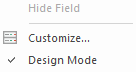
Right-click and select Design Mode.
Design Mode is checked.
-
Right-click and select Design Mode.