
Creating Messages for Individual Employees
Create messages for specific employees from the Daily Activity screen.
- Open the Daily Activity screen and set the Context (F3).
-
Do one of the following:
- In the work list, select a work item to create a message for the employee assigned that work.
- In the employees view, select an employee record to create a message for that employee.
-
Select Employee Messages:

-
Select Enter Message.
The Enter a Message dialog appears.
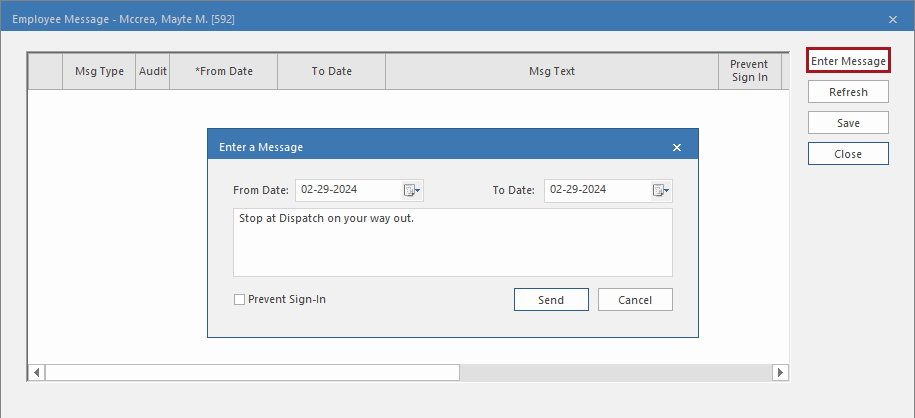
- Enter the date range you want the message visible for in the From Date and To Date fields.
-
Enter the message text.
The message is limited to 200 characters.
- Optional: To prevent the employee from signing in during the message date range, select Prevent Sign-In.
- Select Send.