Printing Employee Messages
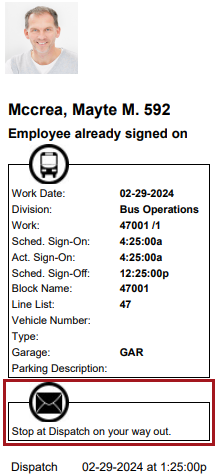
Employee messages are typically printed on receipts when using Sign-In Terminal. If a receipt needs to be reprinted, it can be done from the Daily Activity screen.

-
In work list view, select the employee record.
These steps assume that Sign In Req. is selected and there is currently no Act. SignOn time shown.
 If an Act. SignOn time is shown, make a note of the time and skip ahead to the appropriate step.
 -
Select Sign-On Activities:
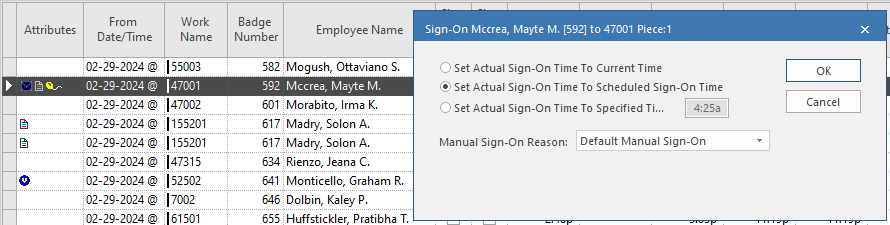
 The Sign-On dialog appears.
 -
Select an actual sign-on time and a Manual Sign-On
Reason, then select OK.
If the property is selected, a This employee has a message flagged to prevent sign in. Do you want to turn off this flag to allow sign off? message may appear. Select Yes or No as applicable. -
Select Sign-On Activities:
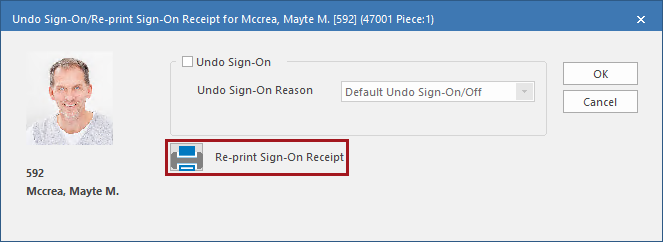
The Undo Sign-On/Re-Print Sign-On Receipt dialog appears.
-
Select Re-print Sign-On Receipt and print the
receipt.
The receipt should include the employee messages.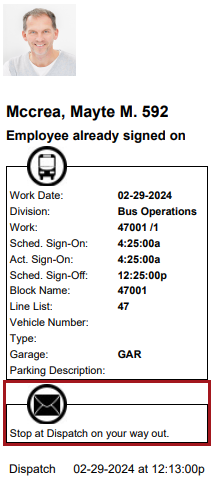 If you select Sign-On Activities () a third time, you will see the Undo Sign-On/Re-Print
Sign-On Receipt dialog and the Re-print Sign-On
Receipt option, but the receipt does not include employee
messages.
If you select Sign-On Activities () a third time, you will see the Undo Sign-On/Re-Print
Sign-On Receipt dialog and the Re-print Sign-On
Receipt option, but the receipt does not include employee
messages.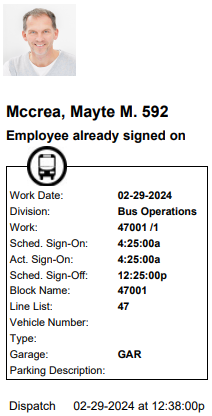
-
If employee messages do not print, select Sign-On
Activities:
-
In the Undo Sign-On/Re-Print Sign-On Receipt dialog,
select Undo Sign-On and an Undo Sign-On
Reason, then select OK.
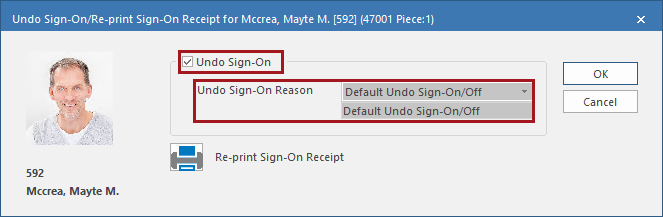
If the property is selected, a There is an employee message flagged to prevent sign in that was cleared with the manual sign on. This flag will be restored. message may appear. Select OK.The Act. SignOn time is cleared from the work list view.
-
Select Sign-On Activities:
The Sign-On dialog appears.
- Select an actual sign-on time and a Manual Sign-On Reason, then select OK.
-
Select Sign-On Activities () and then Re-print Sign-On Receipt.
The receipt is printed with employee messages included.