
Confirming or Forgiving Behavioral Infractions
Behavioral infractions are marked as Undecided until they are either Confirmed or Forgiven.
Before you begin
About this task
You can tell if the infraction has been investigated and confirmed,
investigated and forgiven, or if it is still in an undecided state based on the
color of status code and the line at the left of the pane:
- Red = confirmed
- Green = forgiven
- Yellow = undecided
A behavioral infraction can only be edited or deleted if it is in an undecided state.
Procedure
- In the policy tree, click the policy name, the policy stage, and then the policy phase that contains the infractions to be confirmed or forgiven.
- Select the case card that contains the infraction to be investigated.
-
In the Infractions widget, select the infraction to be
confirmed or forgiven.
Undecided infractions are marked with a yellow bar.

-
Use available information to help you decide whether to confirm or forgive the
infraction:
-
To see associated trip information, click the Show trip
Information button:

The Trip Info dialog box appears.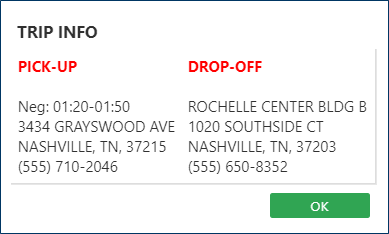
-
To see location-associated weather information, click the
Show Weather Information button:

-
To see tracker action information associated with the Trip ID (that is,
the Booking ID), click the Show Tracker
Information button:

-
To see trip information displayed on a map, click the Show
Avl Map button:

This option is only available if location information is available. Specifically, if values of less than 0 are available in the Geostatus field in the BookingLegs table.
-
To see associated trip information, click the Show trip
Information button:
-
After determining whether the infraction should be confirmed or forgiven, do
one of the following:
To Do this Confirm the infraction Click Confirm: 
Forgive the infraction Click Forgive: 
Results
Behavioral infractions that are confirmed or forgiven cannot be edited or deleted.