
Creating Leave Certification Records
Create, edit, or delete leave certification records for employees as needed.
- Open the Employee Profile screen and set the Context (F3).
-
Select an employee and then Leave Certifications.
Depending on system configuration, this may be named after a specific certification type. For example, FMLA Certifications or FCL Certifications.
-
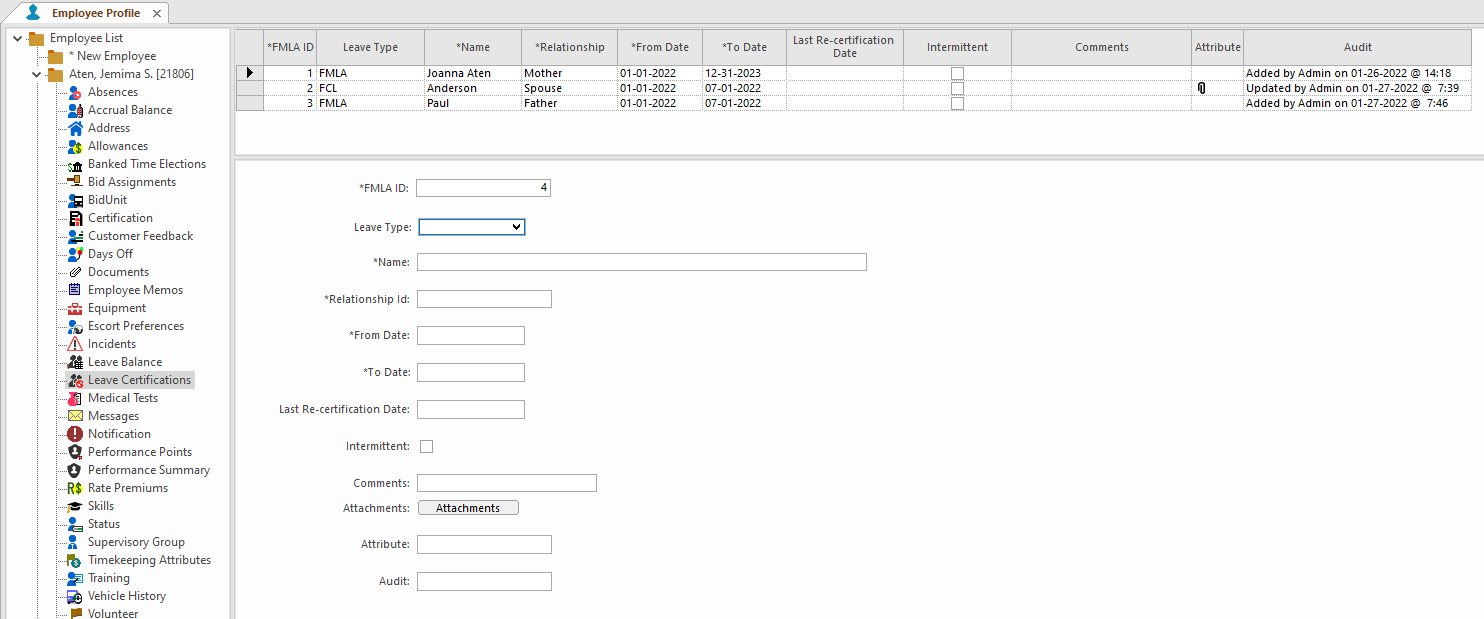
In the detail view, right-click and select Add New
Record.
An FMLA ID is assigned to the record.
-
Select the Leave Type.
- CFRA (California Family Rights Act)
- FCL (Family Caregiver Leave)
- FMLA (Family Medical Leave Act)
- PDL (Pregnancy Disability Leave)
- PPL (Paid Parental Leave)
This option is only available if your agency uses multiple leave types. If your employee menu item says Leave Certifications and you don't see a Leave Type field, right-click in form view and select Customize. Select Leave Type and then OK. If needed, use Design Mode to update the screen layout. - Enter the Name of the employee's relative.
- Select the Relationship Id between the employee and the person identified in the Name field.
- Enter the first and last date of the certification in the From Date and To Date fields.
- If applicable, select the start of the previous recertification date in the Last Re-certification Date field.
- If applicable, select Intermittent.
- Optional: Enter any Comments.
- Select Save.
-
After saving the record, you can add an attachment:
Attached documents can be viewed in both Employee Profile - Leave Certifications and Employee Profile - Documents.
- If applicable, select Approved.
- Optional:
To delete a leave certification record, select the record and then select
Delete:
