
Creating Training Classes using OPS Training Class
Training classes are created as extra work that can be assigned to employees.
- Open the OPS Training Class screen.
- Select the Agency you are creating training classes for.
- Select the Division for the training classes.
-
Enter the Date for the class.
This must be a day that has been activated but not costed.
- Select the Work Sub Type to use for the class.
-
Enter a Work Name for the class.
The extra work will be this name followed by a number. The name must not be longer than 10 characters.
- Enter the from and to time for the class in the SignOn Time and SignOff Time fields.
-
In Number Needed, enter the number of employees in the
class.
This number must be greater than 0 and less than 100.
-
Enter the start and end locations of the class in the From
Node and To Node fields.
These fields may not be available based on the Work Sub Type selected.
-
To apply a certification for every employee in the class, select
Apply Certifications.
-
Select Apply.
A message asks if the values are correct.
-
Select Yes.
A grid for assigning employees appears in the lower pane.
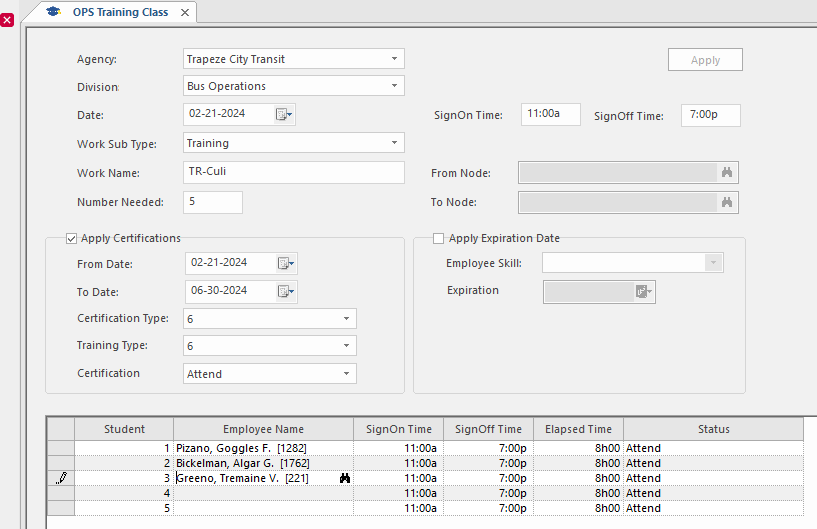
-
Select in the Employee Name column and find an employee
to assign to the training.
You can assign any active employee regardless of their divisions.
-
Select an empty row in the grid.
A confirmation message appears.
-
Select Yes.
If the employee is assigned to other work at the time of the training class, a Conflicting Work Assignments dialog shows the work. Select OK to create a casual extra work record and certification for the employee and open the work assigned to the employee.