
Creating Multi-Leg Itinerary Bookings
Multi-leg itinerary bookings include bookings where a client has more than one trip in a single day.
Before you begin
About this task
Procedure
- Open the booking that you want to add a leg to.
-
In the booking, click
and in the context menu, select Add Leg.
A new booking is open with the dropoff address now the pickup address. - Enter an address in Drop Off Address.
-
Enter a time in Pick Up Time and Drop Off
Time.
Note:Bookings should be created in sequential order so that the Schedule Server can schedule the itinerary properly.
- Optional: Edit or add booking information as needed.
-
Click Save.
The bookings are linked and a Client Iinerary is created.
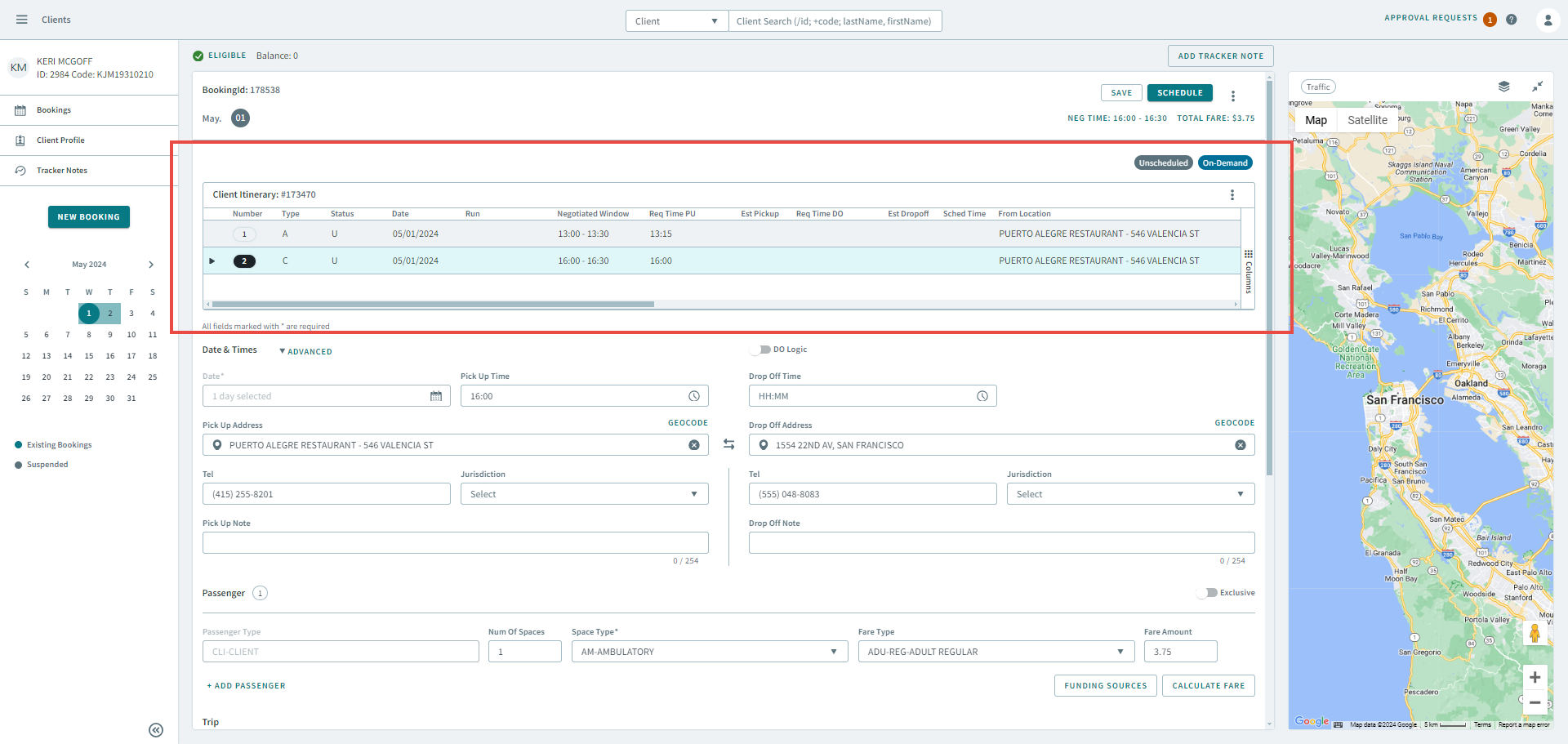
- Optional: To add more legs, repeat steps 2 - 6.