
Assigning Open Work Using Drag and Drop
Manually assign employees work using the graphical interface in the Daily Activity screen.
- Open the Daily Activity screen and set the Context (F3).
- In the employees view, select an employee.
-
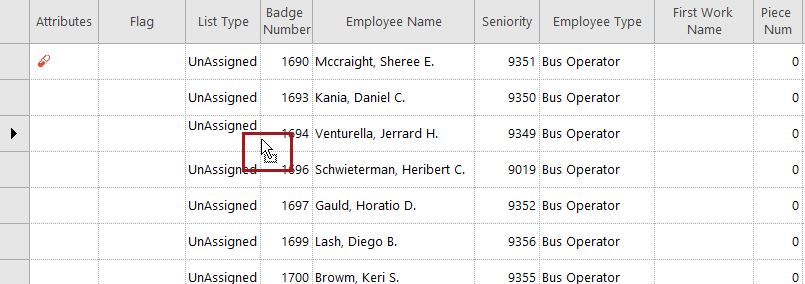
Hover over the employee until a gray rectangle appears.
-
Drag the employee down to the work pane and drop on an unassigned piece of
work.
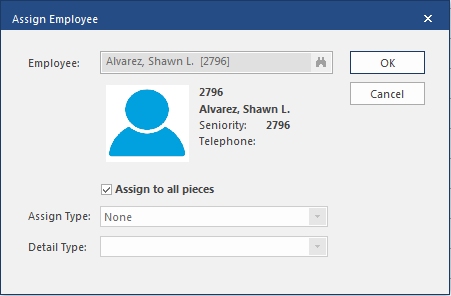
The Assign Employee dialog appears with the employee's information filled in.
-
Select OK.
The work is assigned to the employee and the Employe Name appears for the work in the work pane.