
Adding Breaks to a Run Itinerary
You can insert driver breaks into a run itinerary.
Before you begin
Procedure
-
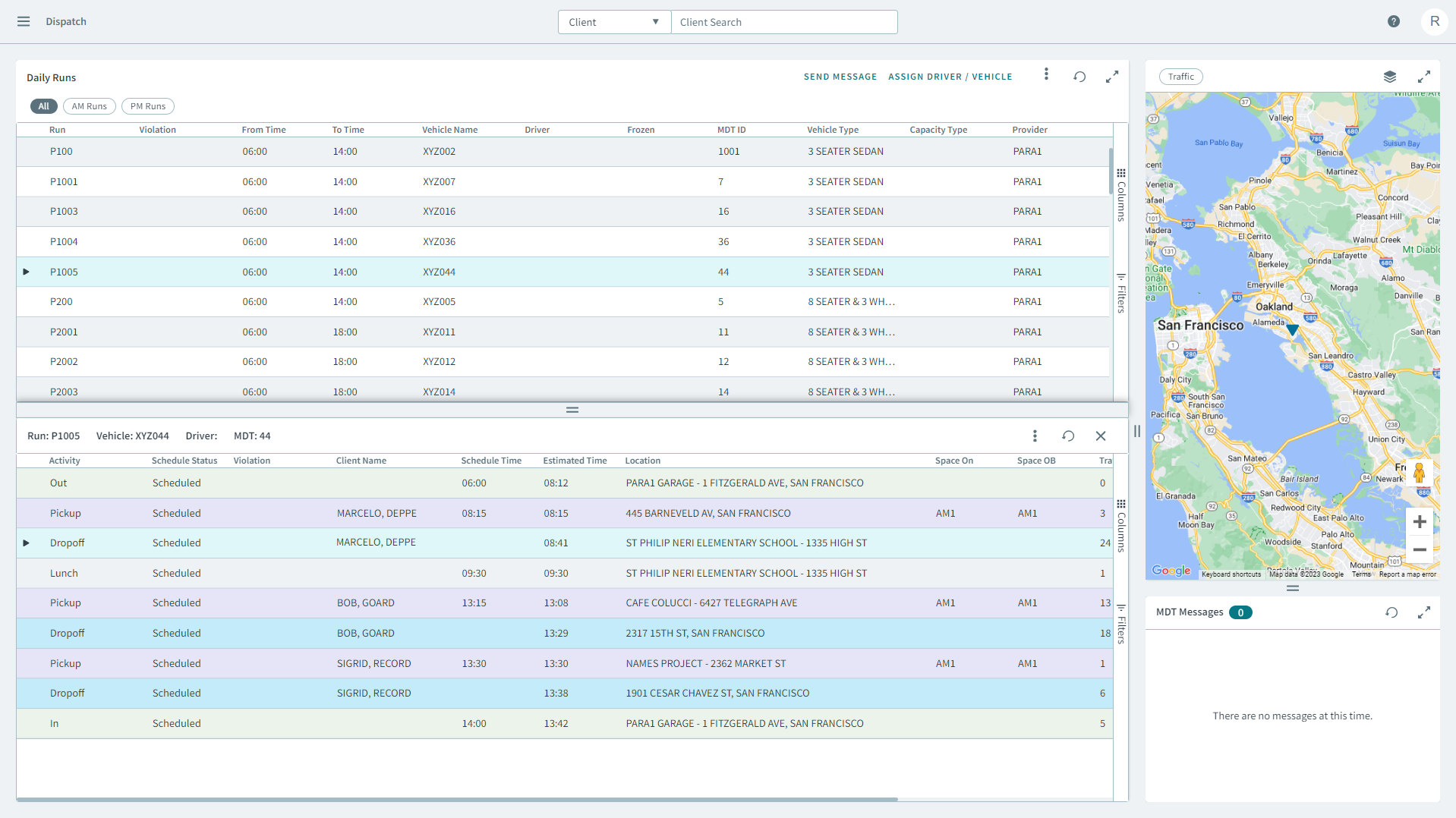
Select a run from the grid.
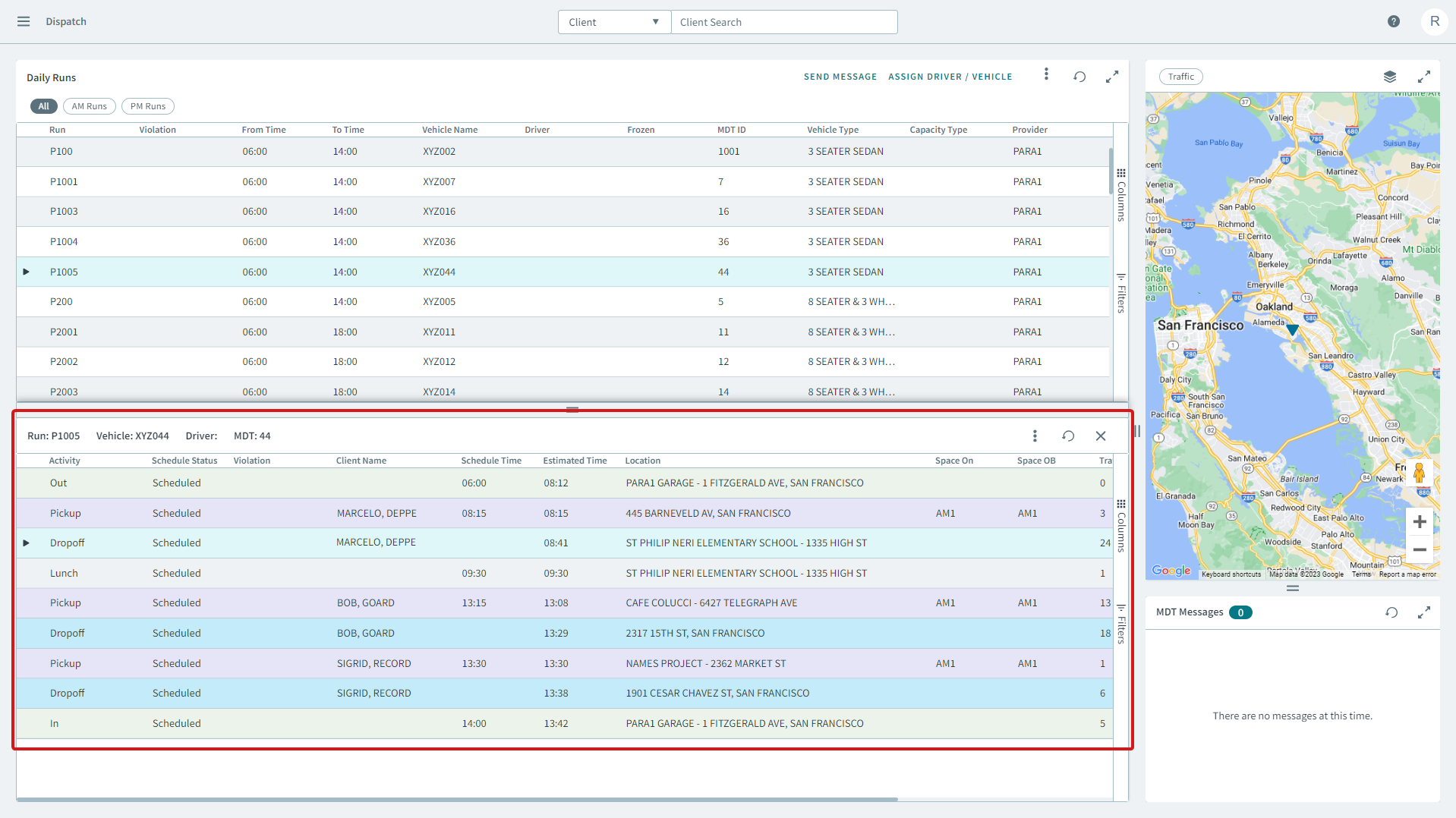
The run's itinerary displays in a separate pane below.
-
Right-click a pick up or drop off from the run's itinerary, and in the shortcut
menu, click Add Break Before.
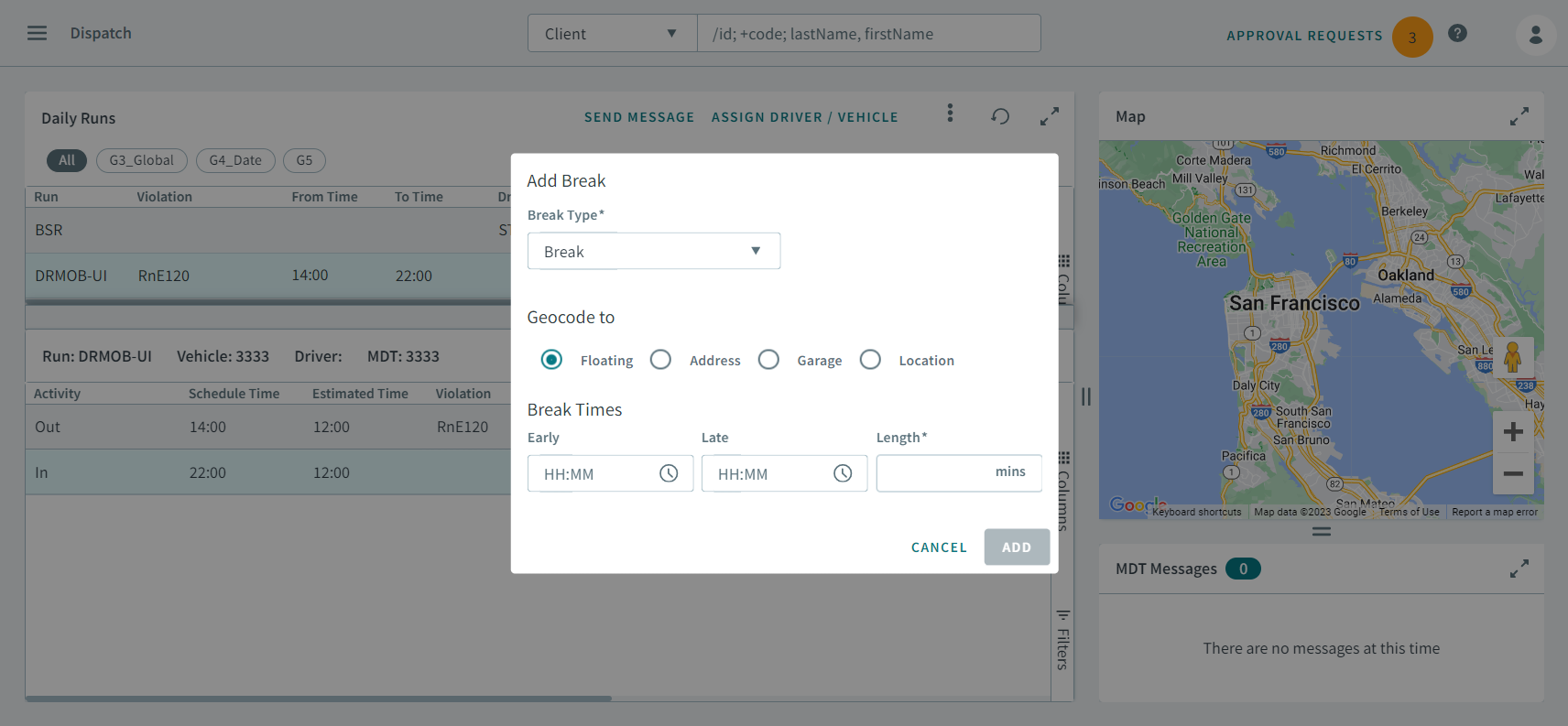
Add Break dialog box opens.
-
In the Break Type drop-down list, select a type
Remember:Break Types must be created in the Ancillary Data page before they can be selected in the Break Type drop-down list.
-
Under Geocode to, select one of the following
options:
- Floating
- Address
- Garage
- Location
-
Under Break Times, enter a time in the following text
boxes:
- Early
- Late
- Length
- Click Add.